
iTunes is the home of Apple Music. This superstore of entertainment lets users purchase music online through their iPhone, iPad, or iPod Touch. It even works on a Windows PC that provides a backup for iTunes libraries. When you launch iTunes in Windows 11/10, an app – iTunes Helper starts running in the background. While the app is only there to launch iTunes when you plug any Apple device to a PC, it becomes a part of a major annoyance once you start to see it over and over again or whenever you plug in your iOS device to your PC.
In this post we will see how you can stop iTunes from starting automatically when you plug in your iPhone. Basically, you need to disable iTunes Helper & remove iTunesHelper.exe from startup programs.
Disable iTunes Helper in Windows 11/10
iTunesHelper is an Apple utility that gets installed automatically when you install iTunes on your Windows computer. It keeps running in the background. You can view it in the Task Manager. Its job is to monitor the connection of your iPhone or iPod to your Windows computer. When you connect iPhone or iPod to your system, this utility automatically opens the iTunes app on your system. If you do not want it, you can uninstall it. The only impact of uninstalling the iTunesHelper is iTunes won’t be launched automatically when you connect an Apple device to your system.
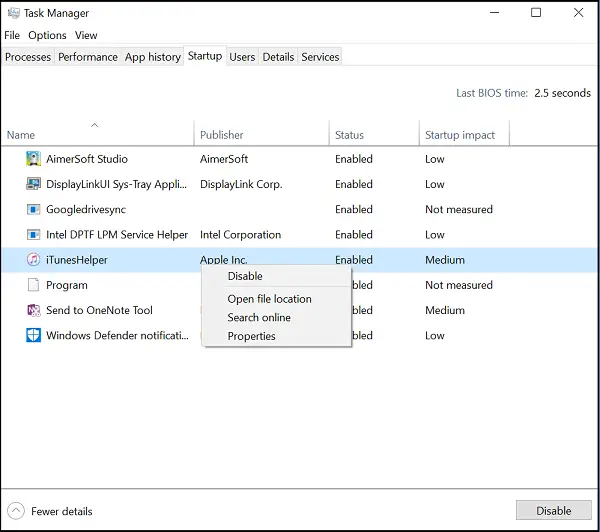
If you have iTunes installed on your system, you will also find iTunesHelper.exe – a startup process already enabled and running silently in the background. Windows Task Manager’s startup impact flags iTunesHelper as High/Medium. As such, it can slow your system’s performance.
Stop iTunes from opening automatically
Disabling it can instantly improve speed. It doesn’t harm you in any way, since we no longer require syncing content over the wire (between the computer and the phone); instead, we prefer to store all the data in the cloud. This renders iTunes irrelevant for certain tasks.
To disable iTunesHelper.exe, go to Task Manager and switch to the Startup tab.
Next, find iTunesHelper.
When found, right-click and select Disable.
All the best!

Disable option grayed out in Task Manager
If you find the Disable option grayed out, you will need to log in as an Administrator. If you are running an Administrator account and still facing the issue then, enable the built-in Administrator account. and try. Remember to disable the super admin account after the troubleshooting is done.
How do I stop iTunes from opening when I put a CD in?
To prevent iTunes from opening when you insert a CD, open the Settings or Preferences panel first. Then, find the When a CD is inserted option in the CDs & DVDs section. From here, choose the Ask to Import CD option. If you select the Play CD or Show CD option, it will open automatically.
