
Folder Type Discovery is a useful feature in Windows 11 that analyzes the content of a folder and automatically assigns a template (layout and view mode) that it believes best fits. While many users may find this feature useful, some users have complained that it slows down the opening of File Explorer. As a result, they would like to disable the feature.
Windows doesn’t offer a straightforward way to disable the feature. Instead, you need to do it via the registry.
What does Automatic Folder Type Discovery do in File Explorer?
Automatic Folder Type Discovery is a Windows feature that analyzes the contents of a folder and automatically assigns an appropriate display template (such as Pictures, Videos, Documents, etc.). This can help organize file views automatically, but some users find that it slows down performance, especially with large folders.
Enable or Disable Folder Type Discovery in File Explorer in Windows 11
Here is how you can enable and disable Automatic Folder Type Discovery in File Explorer.
Enable Automatic Folder Type Discovery in Explorer
Press Windows Key + R to open Run, type regedit, and press Enter.
Next, go to the following path:
HKEY_CURRENT_USER\Software\Classes\Local Settings\Software\Microsoft\Windows\Shell\Bags\AllFolders\Shell
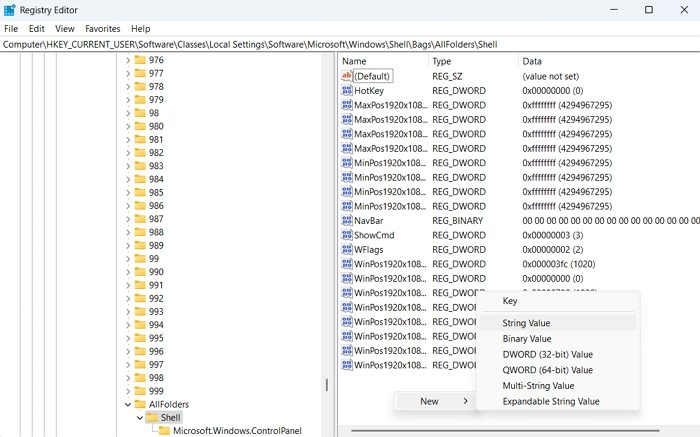
On the right pane, right-click on a blank space and select New > String Value, then create a new string. Name the new string FolderType.
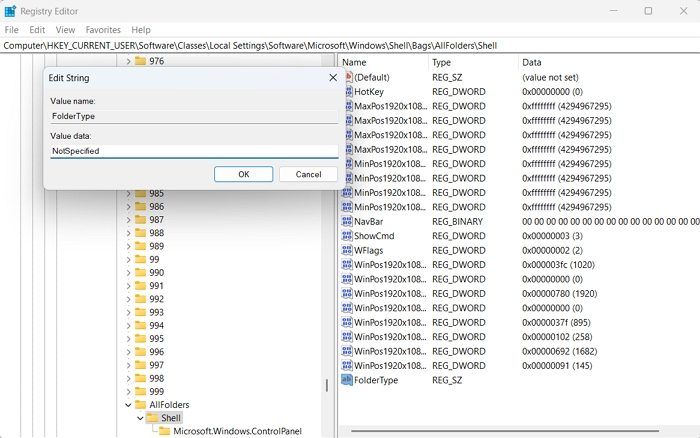
Next, double-click on the FolderType string to open it and set the value data as NotSpecified.
Once done, reboot your PC, and you are good to go.
Disabling this Automatic Folder Type Discovery feature can make Explorer open faster.
Read: File Explorer crashes or freezes when accessing Mapped Network Drives
Enable Automatic Folder Type Discovery in Explorer
If you want to go back to the earlier setting, you will need to delete the FolderType registry key in the same path, i.e.:
HKEY_CURRENT_USER\Software\Classes\Local Settings\Software\Microsoft\Windows\Shell\Bags\AllFolders\Shell.
That was a straightforward way to disable the folder auto-discovery feature in Windows Explorer. By doing so, you can open large folders in Windows faster than before.
Use Ultimate Windows Tweaker
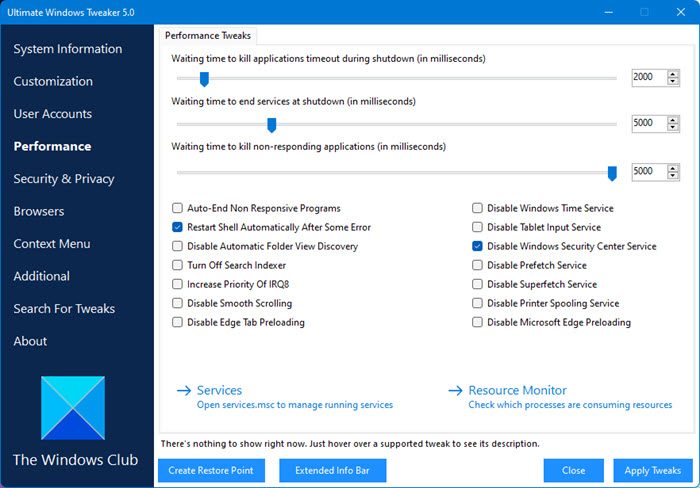
You can also use our freeware Ultimate Windows Tweaker to enable or disable Automatic Folder Type Discovery with a click. You will see the tweak under Performance > Disable Automatic Folder View Discovery.
Will disabling Automatic Folder Type Discovery affect how my files are displayed?
Disabling Folder Type Discovery prevents Windows from automatically assigning templates based on the content of folders. As a result, all folders will use a general layout unless manually adjusted. You can still change folder views yourself, but Windows will no longer switch views automatically.
