
If you’ve recently checked your Microsoft account online to manage your devices and found the list empty or missing a computer you use every day, you’re facing a common but frustrating issue. This break can disrupt handy features like “Find my device,” secure sign-in verifications, and having a central hub for all your gear. In this post, we will see what to do if your device is not visible or showing on the Microsoft Account page.
This issue usually happens for a few main reasons. The most common is a major change to your computer, such as reinstalling Windows, upgrading key hardware like the motherboard, or moving from Windows 10 to Windows 11. These changes can cause Microsoft’s servers to treat your PC as a new device, breaking the link to your license. Other possible causes include turning off device sync in Windows settings, using a local account instead of a Microsoft account, or a server-side problem that Microsoft has acknowledged and is working to fix.
Device not showing in Microsoft Account page
If your device is not showing or visible on the Microsoft Account page, follow the solutions below.
- Verify and re-sign in to your Microsoft Account on the PC
- Enable Device Sync and Privacy Settings
- Rename your PC and Restart
- Manually link your device online
Let us talk about them in detail.
1] Verify and re-sign in to your Microsoft Account on the PC
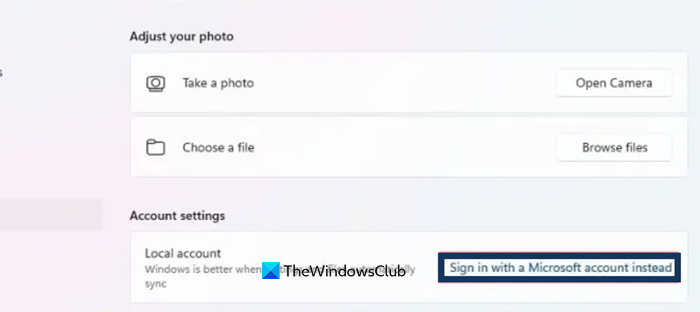
Re-signing in to your Microsoft account refreshes authentication and reconnects Windows to Microsoft’s servers, ensuring your identity and device information sync correctly. In Microsoft Teams, choose Join or create a team, then select the group created in Outlook to integrate the team with Outlook from the start and prevent visibility issues.
You can follow the steps mentioned below to do the same.
- Open Settings by Win + I.
- Go to Accounts > Your info.
- Confirm you are signed in with a Microsoft account. If you see your email address listed, you are already signed in. If it shows a local account or you want to force a refresh, select Sign in with a Microsoft account instead.
- Follow the prompts to verify your identity and complete the sign-in process. This will re-establish the connection between your device and your Microsoft account.
Another option is to completely remove your Microsoft account and then re-add it. To do this, go to Settings > Accounts > Access work or school, select the connected account, and choose Disconnect. Afterward, sign in again with the same account. This deeper reset clears any lingering issues and can resolve activation problems that a simple re-sign might not fix.
Read: How to check the list of all Devices having access to your Microsoft account
2] Enable Device Sync and Privacy Settings
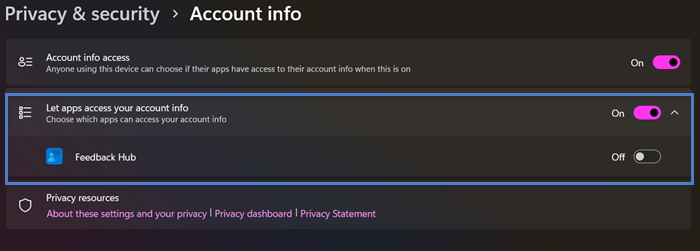
Enabling Device Sync and configuring Privacy Settings work because they give Windows the necessary permissions to access your account information and actively sync your device’s data to Microsoft’s cloud servers. When these are turned off, your PC operates in isolation and cannot register or update its status in your online account device list.
To enable Sync, open Settings, go to Accounts > Windows backup. Ensure the “Remember my preferences” toggle is turned on. This allows Windows to sync device data.
Now, for Privacy, go to Settings > Privacy & security > Account info. Verify that the toggle for Let apps access your account info is enabled. This permission is required for the system to link your device to your Microsoft account.
Once both are enabled, restart your computer and check your device list again after a few minutes.
3] Rename your PC and Restart
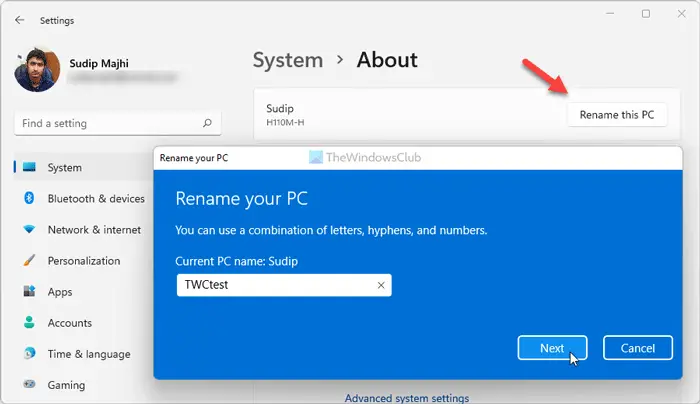
Renaming your PC and restarting works because this action changes a core piece of your device’s identification. When Windows restarts with this new name, it is forced to refresh its connection with Microsoft’s servers, often triggering a successful re-registration under your account.
Go to Settings > System > About and choose Rename this PC. Type in a unique name for your computer, click Next, and restart when prompted. Once your system restarts, wait a few minutes and then check your Microsoft account devices page online to confirm that the updated name appears.
Read: It looks like you don’t have any applicable device(s) linked to your Microsoft account
4] Manually link your device online
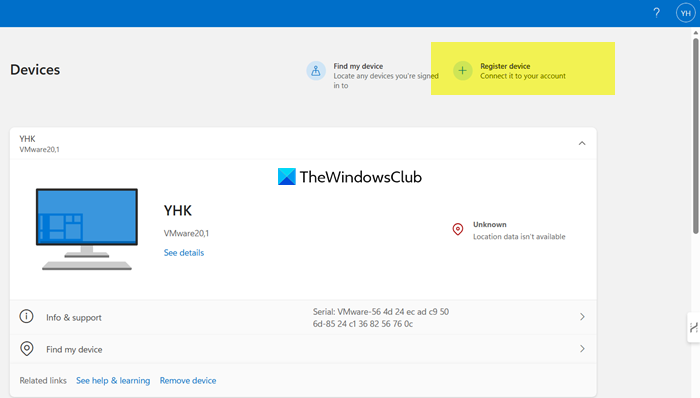
Manually linking your device online works because it bypasses the standard, automatic device registration process that may be failing. It directly provides Microsoft’s servers with the necessary information from your current session to identify and formally register your PC under your account.
First of all, go to account.microsoft.com in your web browser and sign in to your account. Then, scroll to the bottom of your device list and click the Register device link.
Carefully follow the on-screen instructions, which will include verifying your identity and likely require you to use Microsoft Edge or the Microsoft Authenticator app to confirm it’s you.
This process will add your current device to the list.
Why is my device not showing up in my Microsoft account?
Your device may not appear in your Microsoft account for several reasons. A clean reinstall of Windows or major hardware changes can make Microsoft’s servers treat your PC as a new machine. It may also happen if you’re using a local account instead of a Microsoft account, or if sync and visibility settings are disabled. Additionally, Microsoft has acknowledged a widespread server-side issue where devices sometimes disappear from the online list, often after a Windows update.
How to enable Device on Microsoft account?
To enable your device on your Microsoft account, make sure you’re signed in under Settings > Accounts > Your info. Turn on syncing in Settings > Accounts > Sync your settings, and check that options in Privacy & security > General (like allowing apps to access account info) are enabled. Then visit the Microsoft Devices page; if your device is missing, use the Register device or Don’t see your device? Link to add it, though this option may sometimes be unavailable due to service issues.
