
USB Storage devices have existed for a long time. And it is not difficult to find amazing deals on mass storage devices. But some of the products listed online or available at the retailer are not original but rather similar-looking copies of the original device. The problem with such storage devices is that they do not actually have the amount of storage listed on the packaging or shown by Windows File Explorer. In this post we will show you how to check the real capacity of USB flash drives.
Fake USB storage devices can promise you higher storage capacities but only offer a fraction of it. The only way to detect such fake USB devices is to copy data into the device until it is full. This would let you calculate the device’s actual capacity and determine whether it is fake. In this post, we covered some freeware that lets you do so exactly.
How to detect Fake USB Storage Devices
Did you encounter a fake USB flash drive or SD Card that promised higher storage capacity but delivered only a fraction of it? The tools covered in this post can help you check, test and spot a fake USB device by running storage tests on it.
1] RMPrepUSB
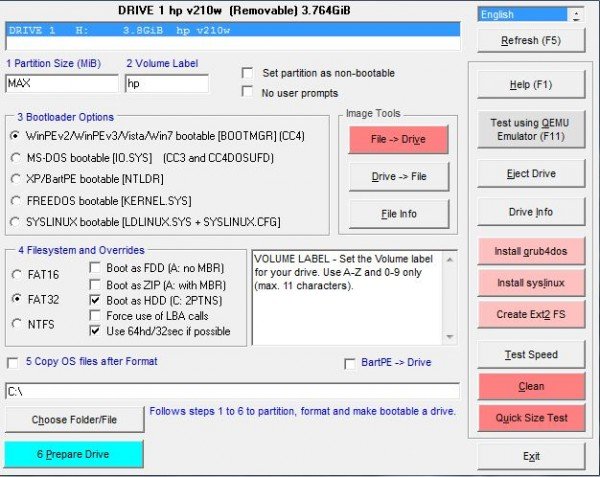
RMPrepUSB is a great all in one USB tool that lets you perform a lot of operations on a USB drive. It also lets you create a portable Windows installer and install Linux on the USB drive itself. RMPrepUSB offers a feature called ‘Quick Size Test’. Running this test would write some blocks to the device and then try to read it. By doing so, the program can calculate the actual capacity of the device and detect any counterfeit device. Make sure that you have a backup of your data before running this test as it is destructive in nature and will delete everything from your USB drive. Also, the test is not a thorough one, which gives it the advantage of being faster. We’ve also covered a thorough test in this post. Quick Size Test can take up to a few minutes to complete.
There is another tool from the same developer called FakeFlashTest which is more of an extended version of Quick Size Test. You can download FakeFlashTest if you are looking for more options.
Click here to download RMPrepUSB. Click here to download FakeFlashTest.
2] H2TESTW
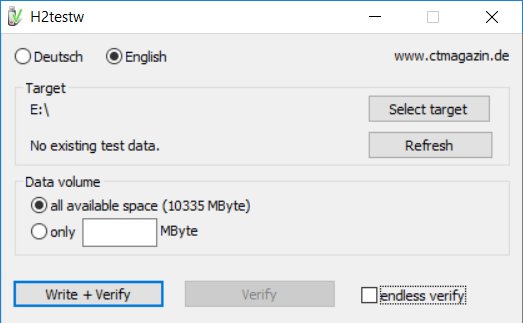
H2testw is an older tool that runs a thorough test on a USB device to verify its actual capacity. You can specify your USB drive, then select the mode in which you want to test it. Either you can test the entire available space, or you can specify the number of MBs that you prefer to scan. Now hit the ‘Write+Verify’ button to write the data to the drive, then read it back to verify the capacity. If the drive already has test data, you can skip directly to verifying it. Since it runs a thorough test, H2testw is slow and can take hours.
Click here to download H2testw.
3] CheckFlash
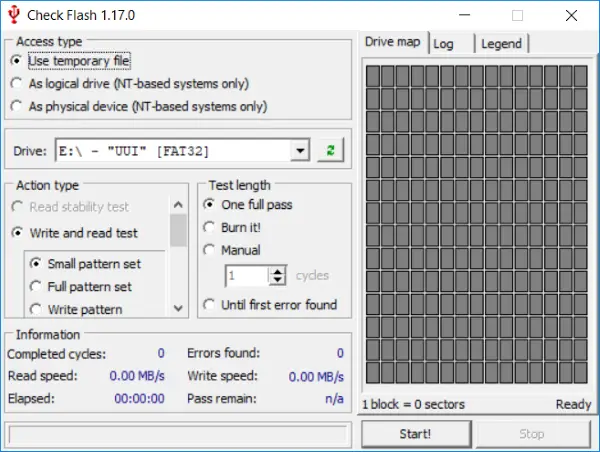
CheckFlash is another tool aimed at providing features such as checking and verifying USB drives. Other than that it can show you the drive map and other info such as read and write speed and total time elapsed in the test.
Click here to download Check Flash.
4] ChipGenius
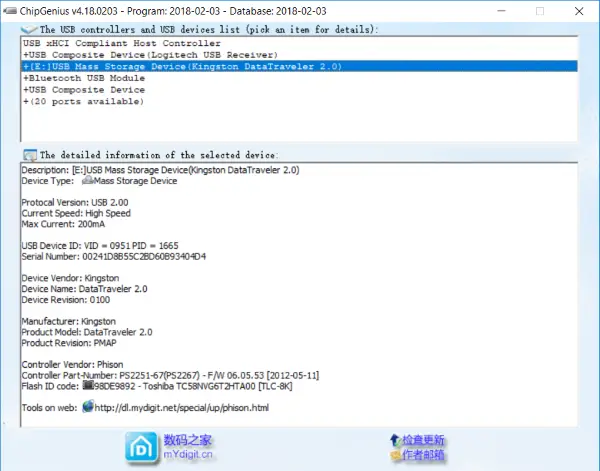
ChipGenius is a little different from other tools on this list. It lets you view some essential information about all the USB devices connected to your computer. You can view the manufacturer information, serial number and other details to verify whether the device is fake. The tool also has an option to check Fake capacity, but to do so, you need to download additional software and place it in the same folder as ChipGenius.
Click here to download ChipGenius.
TIP: You can validate the real Storage Capacity of a USB flash drive with ValiDrive.
So, these are a few tools that can help you verify a USB drive and spot a fake one. Most of the tools will also work with SD cards loaded in a card reader. Now you can easily spot a fake device and raise a concern with the retailer or online platform from where you bought the device.
