
Working on a tiny laptop screen can feel limiting, especially if you handle multiple tasks or prefer a larger display. And to solve this, many users prefer Lenovo ThinkVision monitors as they offer sharp visuals. But users often struggle with connecting the monitor to their laptop. So, how to connect a Lenovo ThinkVision monitor to a laptop?
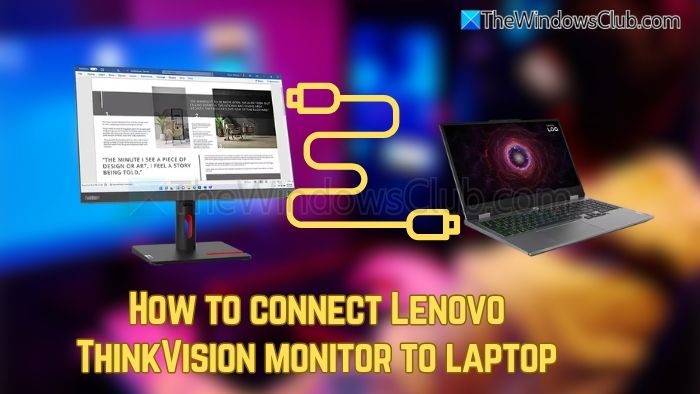
How to connect Lenovo ThinkVision monitor to laptop
Here is how to connect a Lenovo ThinkVision monitor to a Windows laptop and experience two screens.
- Check ports on your laptop & monitor
- Make the connection
- Connecting to dual ThinkVision via USB-C fails
1] Check ports on your laptop & monitor
First, start by checking the ports available on your laptop and monitor, and see if both have any of these two ports:
- HDMI port
- USB-C with DisplayPort support
If both devices have HDMI or DisplayPort ports, then use either an HDMI-to-HDMI cable or a DisplayPort-to-DisplayPort cable to connect them.
2] Make the connection
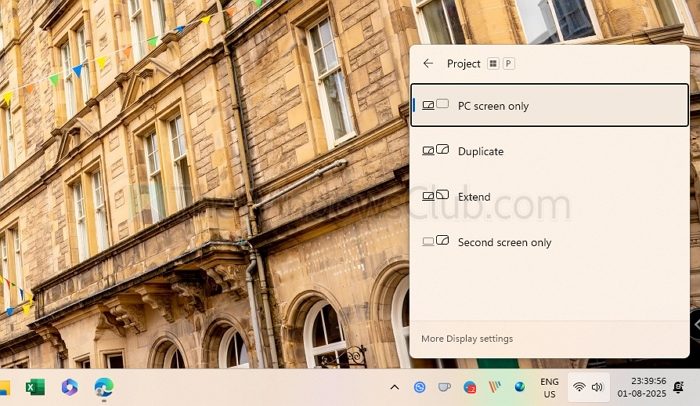
Next, start by powering both your laptop and ThinkVision monitor and connect the cables. After that, Windows will detect the new monitor automatically. But if it fails to, you need to make some adjustments:
- Press the Windows logo key + P on your keyboard to open the project menu.
- From here, select your preferred display mode, such as PC screen only, duplicate, extend, or second screen only.
3] Connecting to dual ThinkVision via USB-C fails
At times, when you try to connect two Lenovo ThinkVision monitors to your laptop using only one USB-C cable, the connection may not be established.
Many laptops come with a USB-C port that can only send video to one monitor at a time, unless the laptop supports a feature called DisplayPort MST (Multi-Stream Transport). Also, not all ThinkVision monitors support daisy-chaining.
So, in order to establish a connection, both monitors must have a DisplayPort-out port, and the laptop needs MST support.
If these conditions are not met, the second monitor won’t work, even if you connect it with USB-C.
Read: USB-C Port not working, charging or recognized on Windows
So, that was how you can connect your Lenovo ThinkVision monitor to your laptop. If you want to connect multiple monitors to your laptop and it doesn’t have MST support, consider buying a USB-C docking station if your laptop supports that.
What should I do if my Lenovo ThinkVision monitor is not detected after connecting it to my laptop?
If the monitor isn’t automatically recognized after connecting, make sure both devices are powered on and the cable is securely attached. Then, press the Windows key + P and choose a display mode like “Extend” or “Duplicate.” If it still doesn’t work, try using a different cable or port, and check for driver updates on your laptop.
Can I connect two Lenovo ThinkVision monitors to my laptop using just one USB-C port?
You can only connect two monitors through one USB-C port if your laptop supports DisplayPort MST (Multi-Stream Transport) and your monitors support daisy-chaining via DisplayPort-out. If either your laptop lacks MST or the monitors can’t daisy-chain, only one display will work. In such cases, a USB-C docking station with multiple video outputs is a better solution.
