
Windows 11/10 includes a new feature called Compact OS. Using the built-in compact.exe tool, you can reduce the size of the operating system & run it from compressed files, similar to WIMBoot. This post discusses the Compact OS feature in Windows 11/10 and explains how to compress the OS files to free up precious hard disk space.
Before talking about the compact feature in Windows 11/10, let’s take a quick look at the WIMBoot feature. The feature was brought in Windows 8.1 to let users save space on devices with lower memory. Windows 8.1, as such, takes about 9GB. If users implement WIMBoot, the device’s occupied space shrinks to 3GB.
WIMBoot stands for Windows Image Boot. Instead of decompressing all the operating system files, it decompresses files as and when required and then again compresses them back to the INSTALL.WIM. The Install.wim file is about 3GB and allows plenty of storage space. Using this method, you don’t need a recovery file, as the WIMBoot file (Install.wim) is used to restructure the operating system when needed.
Windows Compact OS feature
The WIMBoot feature discussed above is brought to Windows 11/10 with some modifications. The best part is that with Windows 10, you do not need a separate recovery file for a System Reset. Thus, around 6GB of space is released for your apps and software.
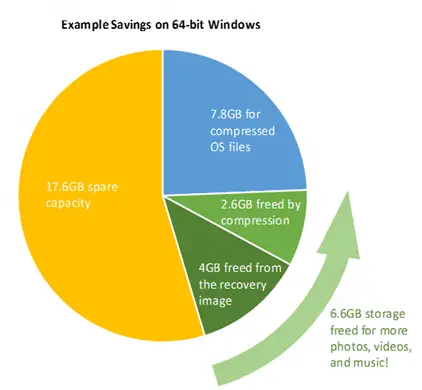
The OS files are there, and you will see that the operating system creates restore points at regular intervals or before downloading Windows 10 updates. The system restores points that take up space.
Windows 11/10 will take around 3 GB of space if compacted. Let’s say 1GB is allocated to System Restore. That way, the operating system will take up a little more space. It is good that Windows allows you to set aside how much storage you wish to allocate to System Restore. Thus if compact Windows takes up 3GB and you’ve set up 1GB for system restore, the total space occupied by the OS would be 4GB + space for the Page file.
You can set up the page file to be constant using System > Advanced Properties so that you know exactly how much space the OS uses.
Then there are Windows Updates installed regularly that will take up space. Thus, 4GB for OS with restore points and page files combined and another one or two GB for updates. Even with that, you are saving approximately. 4 GB with the compact OS in Windows 10 – including page files, system restore points, and Windows updates.
Related read: System Compression & how Windows saves space on devices.
Reduce Windows 11 OS size
You can compact the Windows 11/10 OS during installation or even after you have installed it. There are plenty of methods to compact Windows 11/10. I am mentioning the two easiest methods below.
Using DISM command
This command will help you compact the OS even when installing it. First, format the hard disk and partition it as you want. Then apply the image file using the DISM command:
DISM.exe /Apply-Image /ImageFile: Install.WIM /Index: 1 /ApplyDir: C:\ /COMPACT:ON
Once the image is applied to the C drive, you use the BCDBOOT command to specify the bootable partition:
BCDBOOT C:\WINDOWS
When done, reboot the computer to compact the OS.
How to use compact.exe tool?
You can use the Compact.exe command if you have already installed Windows 11/10 on your computer.
To find out if your Windows is using the Compact OS feature, run the following command:
Compact /CompactOS: Query
To enable Windows system compression, type the following command:
Compact /CompactOS: Always
This tool ensures that the compact OS installs the operating system files as compressed files. Compact OS is supported on both UEFI-based and BIOS-based devices. Windows updates can replace or remove individual files as needed to help maintain the drive footprint size over time.
You can query whether the operating system is running Compact OS, and change it at any time by running Compact.exe /CompactOS:Query /WinDir:E:\Windows on Terminal.
How to turn off the Compact OS feature in Windows 11
You can use the Compact command to turn off the compact feature until you need it again. Use the following syntax:
Compact /CompactOS: Never
The Compact OS feature in Windows 11/10 is easy, as you can see. When you run the COMPACT command, it might take up to 20-30 minutes to compress or decompress the files.
That said, if you run into issues with hardware incompatible with the Compact OS, it’s best to disable the feature and restore the image from the old backup first. Make sure the snapshot is not of the compact OS but one without it.
For more information, including how to use the Compact feature in scripts, visit Microsoft.
Read next: CompactGUI will compress installed Programs and save Disk Space on Windows 11/10.
