
The Recycle Bin in Windows 11/10 is used to store deleted files. It serves as a safety net, protecting the files from being immediately deleted from the hard drive. Typically, when a file is deleted from the system, Windows places it in the Recycle Bin for a set period, so if you ever need the file back, you can use this feature to restore one or more files as required. But the Recycle Bin will not keep all your deleted files forever!
How to change Recycle Bin Settings in Windows?
To open Recycle Bin Settings right-click on its icon and select Properties. The Recycle Bin Settings lets you adjust its size, tweak its settings, change its icons, and more. You make it show or hide the Delete confirmation box or opt to delete files directly without moving there.
Increase the size of Recycle Bin in Windows 11
Any time you delete a file in Windows, it goes straight to the Recycle Bin. These deleted files sit in the Recycle bin until it reaches its preconfigured maximum size limit (or until the user empties the bin). When the Recycle bin reaches its maximum capacity, it automatically deletes the oldest files to make space for new ones.
Most of the users never adjust the default settings of the Recycle Bin and let it do its job. But today we will walk you through the steps to modify the Recycle Bin storage size in Windows 11/10.
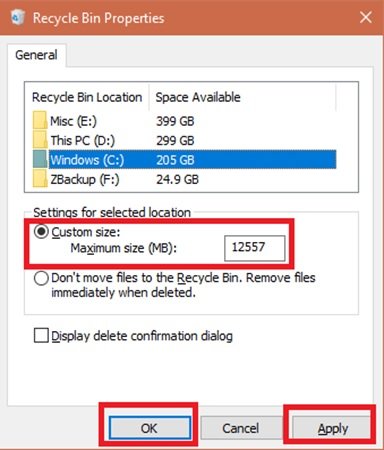
Change Recycle Bin Storage Size in Windows 11/10
You can adjust the Recycle Bin’s default settings to change the maximum storage size and increase the number of files retained in the bin, so you can restore them if needed. Here are the steps you should follow to modify the Recycle Bin storage size In Windows 11/10:
- Locate the ‘Recycle Bin’ on your desktop and right-click on the icon.
- From the drop-down menu select the ‘Properties.’
- Select the ‘Recycle Bin location’ from the options available
- Pick the option you wish to configure.
- Navigate to ‘Settings for selected location’.
- Check the ‘Custom size’ option.
- Now move to the ‘Maximum size (MB)’ field.
- Specify the maximum amount of hard drive space your Recycle Bin can use for storing your deletions.
- Click ‘Apply’ and ‘OK’ to save your changes.
You can set the maximum size in MB (1024 MB = 1 GB) for storage you want.
Done! Now your Recycle Bin can store more (or fewer) files, depending on what you specified.
Do note that the Recycle Bin size calculations are based on the user’s disk quota and not the disk size. In Windows 11/10, the default size is 10% of the first 40GB of quota and 5% of any quota above 40 GB.
Related: This file is too big to recycle, Do you want to permanently delete it?
It is important to note that if you have multiple hard drives, partitions, or an external hard drive connected to your PC, each location will have its own Recycle Bin and settings. Even though each drive has its own Recycle Bin folder, the contents of all folders are combined and displayed in the normal Recycle Bin view. So, you will see all your deleted files in the Recycle Bin, no matter where they come from.
Also, removable drives, like USB flash drives and memory cards, do not have a Recycle Bin. Files once deleted from removable drives are permanently removed.
The Recycle Bin is a feature most of us ignore, but with a little tweaking, we can make it work the way we want. Read this blog for more tips and tricks on Recycle Bin.
We hope this guide will help you a lot with accidental file deletions.
