
If you cannot install enhanced speech recognition on your Windows 11 PC, this post will help you fix the issue. Enhanced speech recognition is an optional speech capability associated with a specific language pack. If it fails to download or install properly, Windows may display error 0x80073D21 during the installation process.
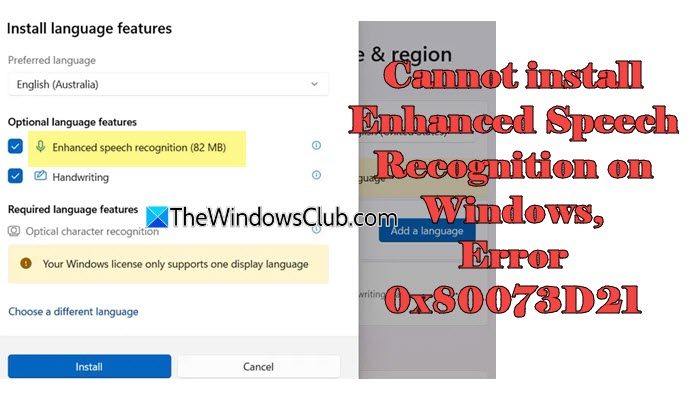
The complete error message reads:
Sorry, we’re having trouble installing this feature. You can try again later.
Error Code: 0x80073D21
The issue usually occurs due to a corrupted speech package, a mismatch between the display language and the speech language, or problems with Windows Update and related services. In most cases, the download either stays stuck at 0% or fails immediately with the above error message. If you are facing the same error, follow the troubleshooting steps below to resolve it.
Cannot install Enhanced Speech Recognition on Windows 11, Error 0x80073D21
To fix error 0x80073D21, where you cannot install enhanced speech recognition for a language pack in Windows 11, use these solutions:
- Set the default app installation location to the system drive
- Make sure the display language matches the speech language
- Remove and reinstall the language pack
- Repair system files using SFC and DISM
- Run the Windows Update troubleshooter
Let us see this in detail.
1] Set the default app installation location to the system drive
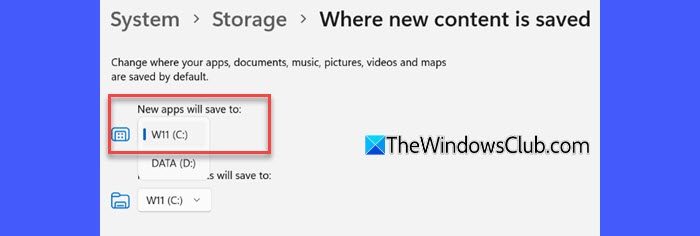
Enhanced speech recognition installs as a Windows capability (AppX/MSIX-based) package. If the default app installation location is set to a secondary drive, the installation may fail. Changing the default location back to the system drive (C:) can resolve error 0x80073D21.
Press Win + I to open Settings. Go to System > Storage. If prompted by User Account Control (UAC), click Yes to continue.
Next, scroll down to Advanced storage settings under the Storage management section and click on it. Select Where new content is saved.
Under New apps will save to, select C:. Click Apply, then restart your PC.
After the reboot, try reinstalling enhanced speech recognition.
2] Make sure the display language matches the speech language
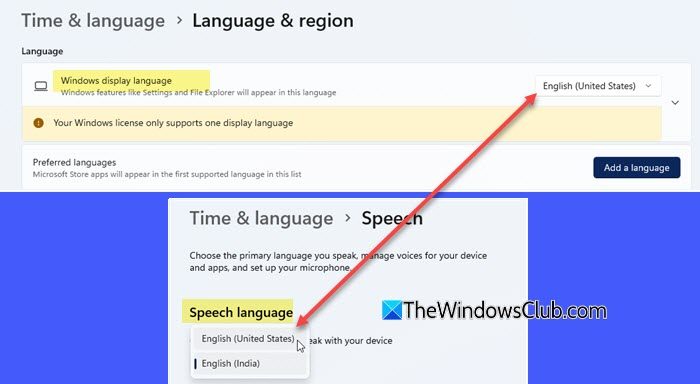
In some cases, a mismatch between the display language and speech language may cause installation issues.
The display language controls the Windows interface, while the speech language controls voice recognition features. So, for example, if your display language is set to English (United Kingdom) and you are trying to install enhanced speech recognition for English (United States), the installation may not complete properly. Follow these steps to check and correct the language settings:
Open the Settings app. Go to Time & language > Language & region.
Under Windows display language, ensure it is set to the same language for which you want to install enhanced speech recognition.
Next, go to Time & language > Speech and confirm that the Speech language is set to the same language.
If needed, change the language so both settings match. Restart your PC after making the changes.
Once the system restarts, try installing enhanced speech recognition again.
3] Remove and reinstall the language pack
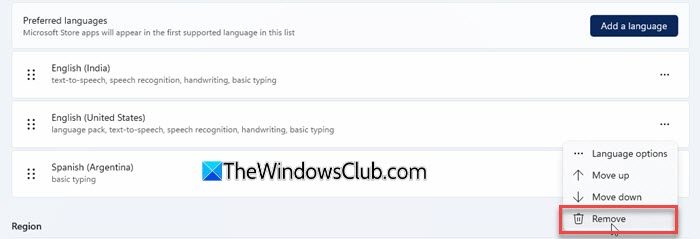
When you install a language, Windows installs several linked components, including basic language files, speech components, text-to-speech, and other optional capabilities. If any of these components become corrupted or stuck in a staged state, the enhanced speech package may fail to install and throw 0x80073D21. In such a case, reinstalling the language pack may resolve the issue.
Open Settings and navigate to Time & language > Language & region.
Under the Preferred languages section, click the three dots next to the affected language and select Remove.
Restart your PC after removing the language.
Now return to Time & language > Language & region and click Add a language.
Search for the required language, select it, and click Next. Ensure the necessary language features are selected, then click Install.
After the installation completes, restart your PC. Finally, try downloading and installing enhanced speech recognition.
4] Repair system files using SFC and DISM
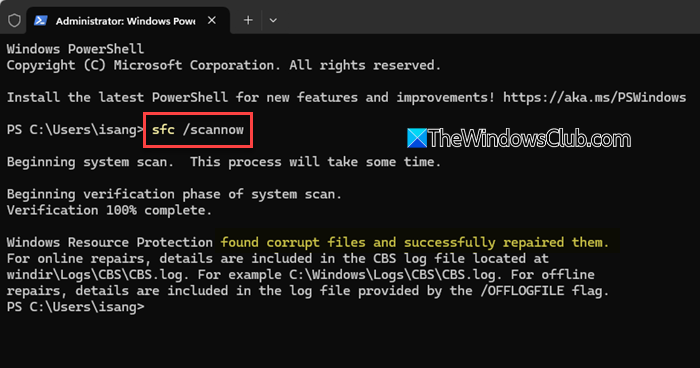
Corrupted or missing system files can also prevent enhanced speech recognition from installing properly. Running the System File Checker (SFC) scans your system for any such files and repairs them automatically.
If the issue persists, use the DISM tool to repair the Windows component store, which manages system features and optional capabilities.
After completing both scans, restart your PC and try installing enhanced speech recognition again.
5] Run the Windows Update troubleshooter
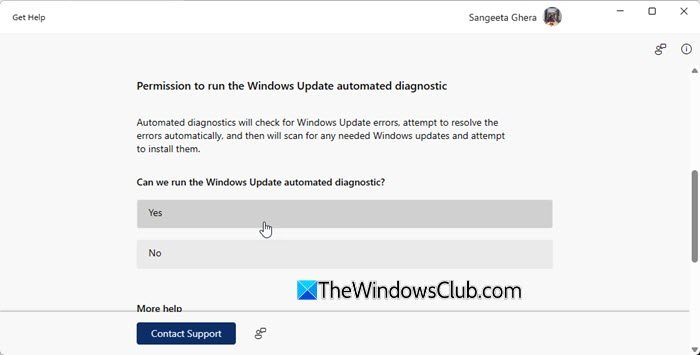
If the issue is caused by Windows Update service problems, running the Windows Update troubleshooter can help.
Press Win + I to open Settings. Go to System > Troubleshoot > Other troubleshooters. Locate Windows Update and click Run.
The troubleshooter will open in the Get Help app. Select “I can’t download, install, or uninstall an update” and give your consent to run the automated diagnostic. The troubleshooter will repair update-related components that may be causing the installation failure.
Restart your PC, then try installing enhanced speech recognition again.
I hope this helps.
Read: Fix Error Code 0x800F0908 while installing Language Packs on Windows.
How to enable Speech Recognition in Windows 11?
Microsoft has transitioned from Windows Speech Recognition to Voice Access in Windows 11. To enable Voice Access, press Win + I to open Settings, then go to Accessibility > Speech and turn on Voice access. You may be prompted to download the required speech files. Once enabled, you can control your PC and dictate text using on-device speech recognition, even without an internet connection.
How to fix Speech Recognition error in Windows 11?
To fix a Speech Recognition error in Windows 11, ensure your display language matches the speech language and that the correct language pack is installed. You can also run the Windows Update troubleshooter and repair system files using SFC and DISM if the issue persists.
Read Next: Language Pack Error 0x80240439: Sorry, we’re having trouble getting this feature installed.
