
Gmail offers a feature to back up your data using third-party apps. Alternatively, you can back up your files directly to your Local hard drive or External Hard Drive using Google’s Data tool. In this article, we discuss how to download Gmail contacts and messages using the Gmail Data Backup Tool provided by Google. All it requires is to archive the email data that you wish to safeguard in the local storage and export these archives to the drive via Data Tools.

In the world of information technology, we use digital data constantly. The online products used for creating digital content are so vital that they have become integral to our lives. The data is created using online digital tools that are constantly updated, stored, and shared online. There is a need to make a copy of this valuable data before deleting it completely. Backing up the data is given the utmost importance to prepare for future emergencies where data may be completely lost. These files and folders must be archived to restore the data in case of loss.
Among all the online applications and services you use, Gmail stands out as a crucial one, where you store all your important contacts and receive important messages. Some of the email messages may contain sensitive information, and it may be required to back up or download this data either for business deals, legal reasons or for any personal reasons. Email backup is also quintessential if you are switching your account to the new mail service or if you want to transfer the data to another account. In some cases, you may want to back up the entire mail locally.
How to Backup Gmail emails to Computer
If you are looking for a way to download or backup your Gmail emails, contacts & messages to your local Hard Drive on your Windows computer, then you can do so using the Gmail Data Backup Tool. Let us take a look at the method involved:
- Open Gmail account.
- Click on My Account > Personal info & privacy.
- Click Control your content.
- Click on CREATE ARCHIVE.
- Select the Delivery method.
Let us take a look at this in detail.
Open your Gmail account.
At the top right corner, click on My Account.
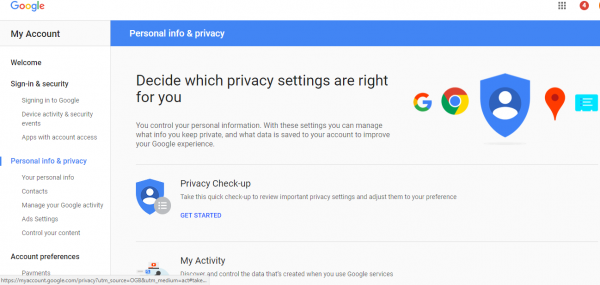
Navigate to Personal info & privacy.
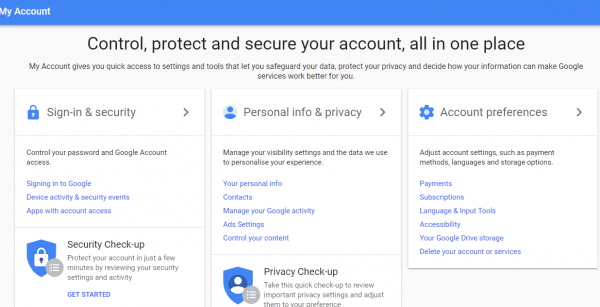
Click on Control your content.
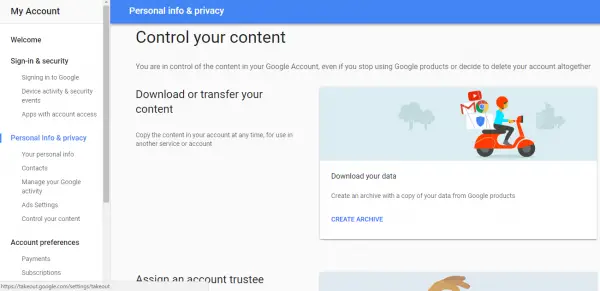
To create an archive with a copy of your data click on CREATE ARCHIVE.
This will take you to Download your data page. In this page, you will see a complete list of the Google products that you can choose and backup. Out of the full list of Google products you may want to select only a few products to archive. To archive the Mail, under Select data to include, click on SELECT NONE.
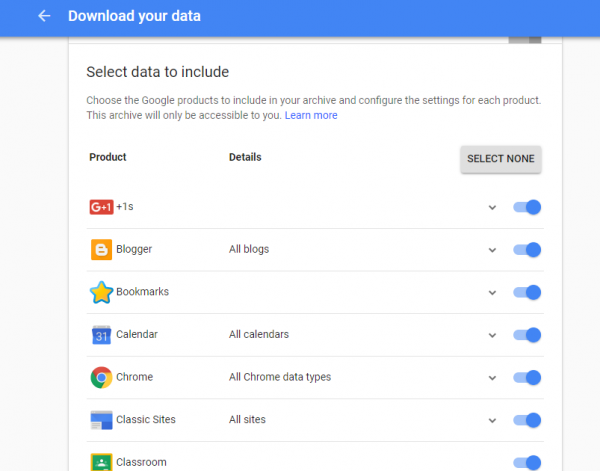
Now scroll down to locate Mail and toggle the button to select.
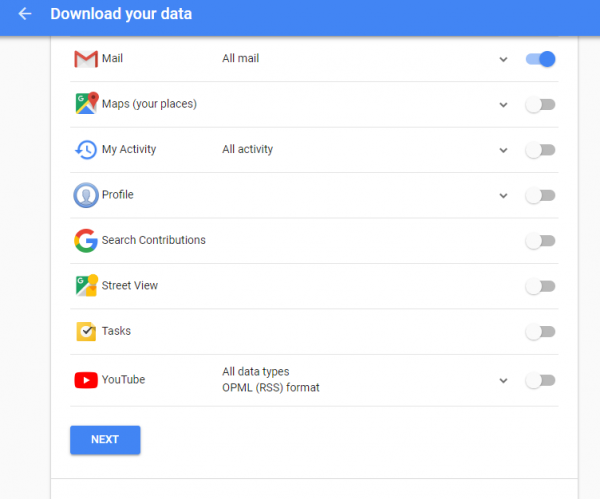
Click on Next button.
Select the file type as .zip or .tgz. Usually, .zip files are preferred because it can be easily opened in most of the computers.
Select the Delivery method from the list of options. You are provided with options to download link via email, Google Drive, Dropbox or OneDrive.
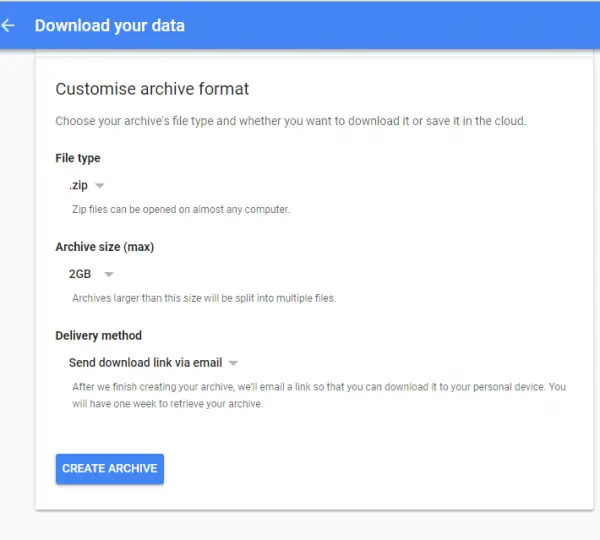
Once the Delivery method is selected, click on the link account and click on Create Archive.
A message box pops up which reads as “An archive of your Mail data is currently being prepared“.
Generate your data archive based on the number of emails, and send a download link via the chosen delivery method within approximately a day or more.
Once the message is received, open it and click on Download Archive to save it securely to a local computer or an External Hard Drive. During the download process, you may be asked to sign in again to start the download. It should be noted that you need to have archiving software installed on your system to extract the data download from the archive.
How to save all emails from Gmail before deleting account?
Before deleting your Gmail account, it’s crucial to back up your emails so you don’t lose important messages, attachments, or records. Google Takeout lets you download and back up all your Google Data, including Gmail emails, easily.
How to transfer emails from one Gmail account to another?
To transfer emails from one Gmail account to another Gmail account, sign in to your new Gmail account and go to Settings > Accounts and Import. Under “Check mail from other accounts,” click Add a mail account. Next, enter your old Gmail ID and follow the prompts to import emails via POP3. Gmail will start transferring emails automatically.
Save email and attachments browser extension
If you want to save Gmail emails and attachments then you may have to make use of this Chrome extension called Save emails and attachments.
There is another tool that may interest you. Gmail Backup is a third-party freeware that copies all emails from your Gmail account to a local drive or removable disk. You can download it from here.
