
Volume Mixer in Windows is a setting in the Sound section that lets you control the volume of connected devices and applications. However, if you find applications missing from the Volume Mixer, this post will help you fix the problem.
What is a Volume Mixer in Windows 11
The Volume Mixer & Control in the Windows operating system offers better graphics display & the ability to control the sound levels of all applications that require audio support in Windows 11/10. This mixer effectively lets you control the volume for each application separately.
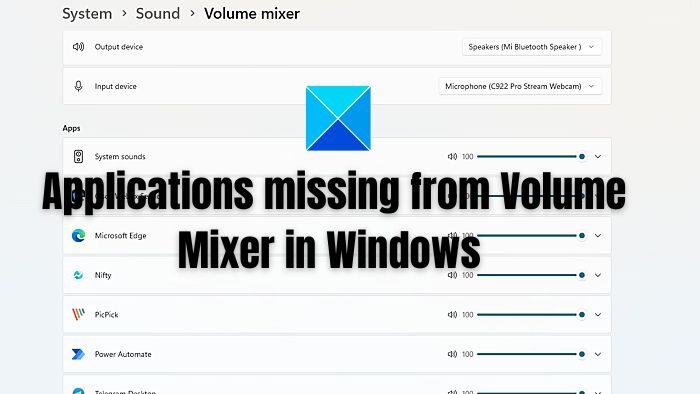
Applications missing from Volume Mixer in Windows 11
If you’re wondering why the applications are missing, it’s because they cannot control the output device, so they go missing. To fix this, follow the steps below:
- Open Windows Settings (Win + I)
- Go to System > Sound
- Click on More sound settings to view the classic control panel for sound devices.
- Double-click on the Speaker/Headphone icon to open the properties window
- Switch to Advanced Tab, then ensure that Allow applications to take exclusive control of this device is checked.
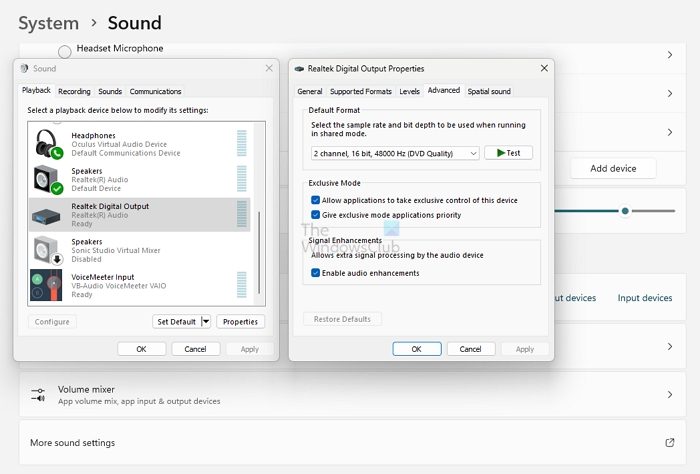
- If not, select it, click Apply > OK, and exit.
- Restart your computer, and the device should be listed.
In Windows, go to Settings > Sound > Volume Mixer > Apps. Your app should be on the list now. You can expand the listing and choose the default Output and input device.
Apart from this, you can run System File Checker to fix any corrupt system files that could be the reason.
I hope this helps!
Why do none of my games have volume?
If everything is working as expected except the game, check whether the volume is muted. Most of the games have internal volume settings that can be configured. If the game has a higher volume than usual, lowering it helps those who find it annoying.
How do I restart Windows audio service?
Open Windows Services and locate the Windows Audio service by scrolling down, then double-click it to open its menu. If the service has been halted, the system’s audio won’t work correctly. To restart the service, double-click on it and select Start. Check if you can hear audio from any of the devices.
