
Every application we use in Windows 11 or Windows 10 has its own set of permissions. It allows or denies interactions with a few other applications based on its own needs. Sometimes, you may have noticed a message on your screen prompting, “This app wants to access your account info” or “This app wants to access your pictures.” And these are followed by two buttons asking you to either “Allow” or “Deny”. You can click any of these, and your choice determines the application’s permissions.
Microsoft collects your account’s data and applications use it. On your phone, every application asks for permission individually before accessing your information. This is not the case with Windows-based computers. Apps can use account information directly by default.
Let apps access your account info in Windows 11
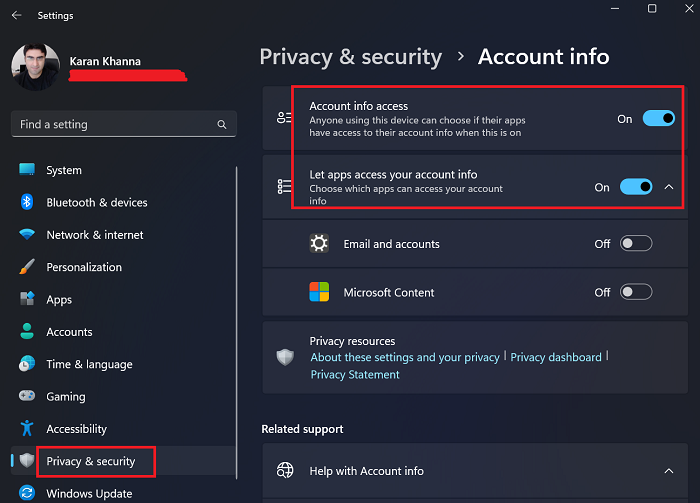
To Allow or deny Apps permission to access Account info, Name & Picture in Windows 11:
- Right-click on the Start button and select Settings from the menu.
- Go to the Privacy & security tab on the list on the left-hand side.
- In the right pane, scroll down and click on Account info.
- On the next page, turn the switches ON for Account info access and Let apps access your account info.
- You can also make choices for individual accounts collecting information like Microsoft Content and Emails.
Windows provides a wealth of data access, which can make applications a lot more useful and valuable. But these capabilities create an easy gateway for even the not-so-useful apps to unnecessarily access our data. Now that you know how to manage app permissions, you now have better control on sharing of your account info on Windows.
Allow or deny Apps permission to access Account info, Name & Picture in Windows 10
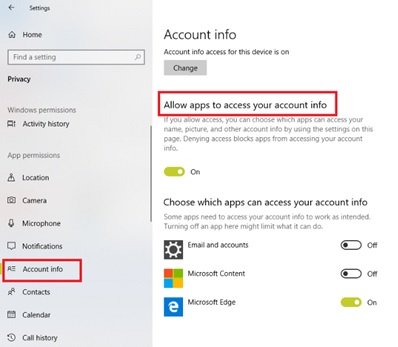
In Windows 10, users can allow or deny apps to access their account info, name, picture, and other account info. Read on to learn how to change Privacy settings to allow or deny apps permission to access your account info, for all users, and for specific apps in Windows 10.
In Windows, your user account information is part of the ‘Privacy’ data, which you can easily control in the ‘Settings’ app. You can revoke or grant access permissions for your account info, for all users, and specific apps. Here’s how to do that:
Allow/deny apps permission to account info for yourself
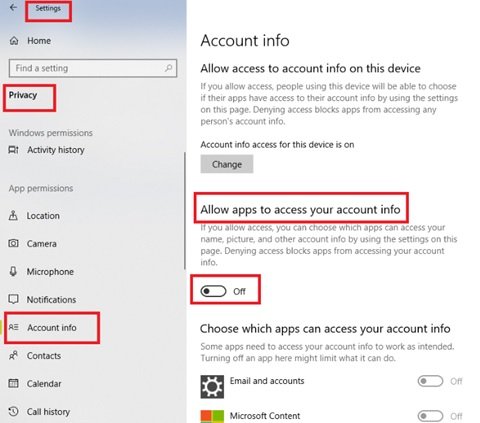
- Open Settings.
- Select Privacy to continue.
- Scroll down and select Account info.
- Turn off Allow apps to access your account info.
Denying access will block apps from accessing your account info.
Note: When you allow access, you can select which apps can access your name, picture, and other account info by using the settings on this page.
Allow/deny apps access to account info for all users
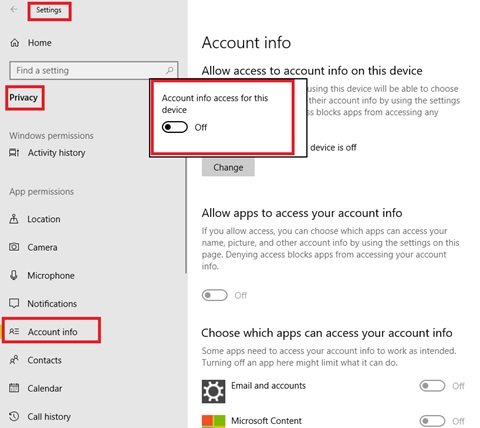
- Open Settings.
- Click on the Privacy icon.
- Scroll down and select Account info on the left side.
- Click the Change button under Allow access to account info on this device.
- Turn off Account info access for this device.
This setting will turn off account info access for all the users, thereby ensuring none of the apps on your system can access your account info, name or pictures. When this setting is disabled, it automatically disables account info access for all the apps as well.
Allow/deny specific apps access your account info in settings
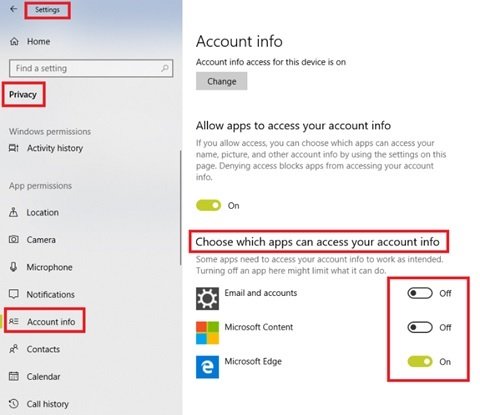
When you turn on the toggle switch under ‘Allows apps to access your account info’, all apps get access permissions by default. You might want to customize app access permissions for individual apps, follow the steps below:
- Open Settings.
- Click on the Privacy icon.
- Scroll down and select Account info on the left side.
- Under Choose which apps can access your account info turn On or Off apps that you want to share or not share your details with.
You can easily control account info access for specific apps discretely. Every listed app under Choose which apps can access your account info has its toggle option which can be enabled or disabled.
What does “Account info access” mean?
By default, all applications on your system can access account information that is necessary for their function. However, many applications can use your Microsoft account to log in directly. The Account info access option lets you turn this ON or OFF.
Turning on the Account info switch doesn’t mean apps can access your account information.
What does Let apps access your account info mean?
Turning on Account info simply enables the basic switch. However, which apps can access your account info is further controlled by the switches associated with Let apps access your account info. After that, you can turn on the switches for individual apps.
What will happen when I deny Account info access?
When you deny Account info access, many applications that need account information will cease to work. However, most applications will still work, and it will protect you from leakage of information like your name, email ID, phone number, etc.
