
If you wish to wirelessly project your screen to an external display, Microsoft has added a feature to Project Display on a Windows 11/10 computer. They also allow the reverse of this where devices can project on a Windows computer using the Connect app. This is all done using the computer’s WiFi hardware. However, this feature can become difficult to use when the computer’s responsiveness is poor. However, this option can be added to the Windows Desktop Context menu to counter this issue of low responsiveness.
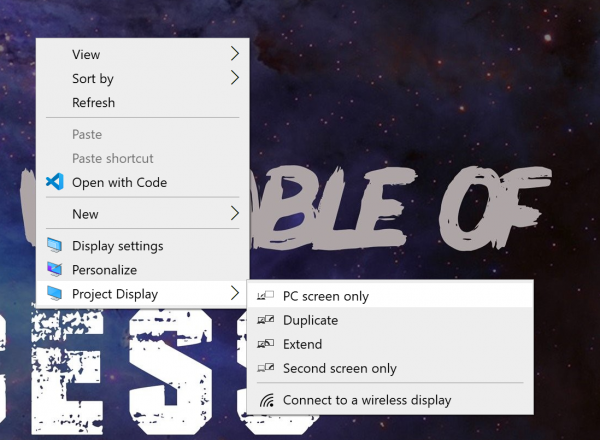
How to Add Project Display option to Desktop Context Menu in Windows 11/10
There is a Registry Editor hack that can help you to add or remove the Project Display option on Windows 11/10 Desktop Context Menu.
1] Add Project Display option on Windows Desktop Context Menu
You can download these Registry files by clicking here, extracting its contents and then clicking on one of them depending on the theme you are using on your computer:
- Dark theme
- Light theme
This will create the necessary paths in the Registry Editor. These entries will be created under the following address:
Computer\HKEY_CLASSES_ROOT\DesktopBackground\Shell
It will create a subkey called Project and will have a number of Registry keys to support the iconography, theme, and list of options available in the context menu.
Once you have installed the Registry files, restart the Explorer process or your computer to see the context menu options appear.
The download also includes a .reg file to remove the Project Display context menu item.
2] Remove Project Display option on Windows Desktop Context Menu
You can also have the created Project subkey deleted from the following location:
Alternatively, you can simply install this registry file to remove all the added registry entries from the specified location. For your ease, we have hosted the registry file to remove the entries.
Once done, you can either restart your Windows Explorer process from the Task Manager or simply restart your computer to have the context menu options disappear.
I hope you found this guide useful to get Project Display option in Windows Desktop Context Menu.
