
Do you want to write a letter or an article in a foreign language? Microsoft Office offers a Translate feature available in Word, Excel, PowerPoint, and One Note. The Translate feature converts content into a different language using the Microsoft Translator online service; in Microsoft Word, it includes two options Translate Selection and Translate Document.
How to translate Text into different languages in Office
Although the Translate feature is offered in Microsoft Office programs such as Microsoft Word, Microsoft Excel, PowerPoint, and OneNote, Translate Selection and Translate Document are only found in Microsoft Word. The Translate Selection’s purpose is to translate the selection with Microsoft Translator, and the Translate Document’s purpose is to create a translated copy of your Document with Microsoft Translator.
How to use Translate Selection option in Office

Highlight the text.
On the Review tab of any Office programs, click the Translate button in the language group.
In Microsoft Word or OneNote, when the Translate button is clicked, you will see a drop-down list.
In the drop-down, click Translate Selection.

A Translator Pane will pop up on the right of the window.
In the Translator Pane, there are two options From and To
From is the language you want to translate.
To is the language you want the selected text to be translated to.
Choose a language from the To section by clicking the drop-down arrow and selecting a language.
Then click Insert.
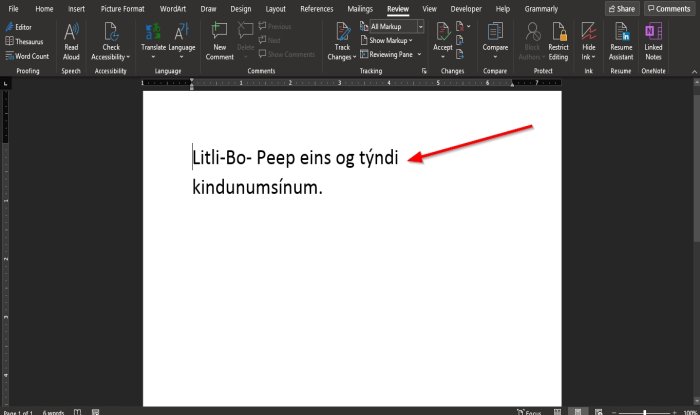
The text is translated.
In the Microsoft Excel and PowerPoint programs, when the Translate button is selected.
A Translator Pane will pop up on the right of the window.
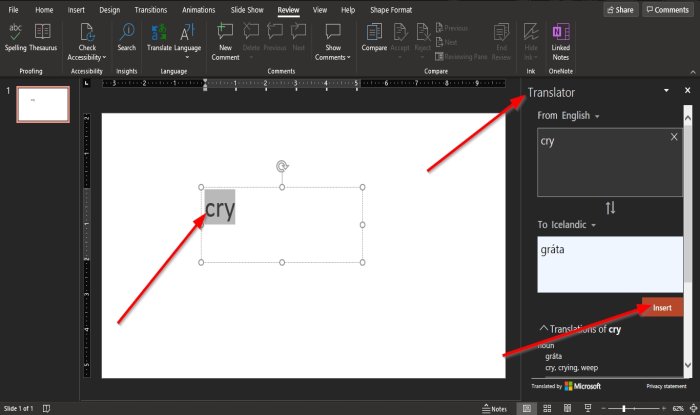
For PowerPoint, like Word, you have to highlight the text first before selecting a language and clicking Insert.
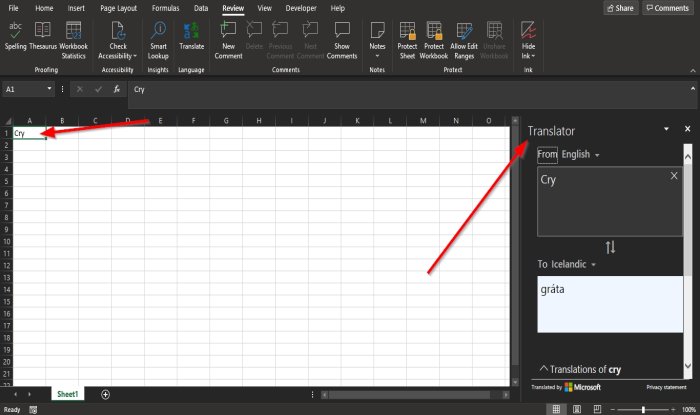
In Excel, you don’t have to highlight the text.
How to use Translate Document option in Office

On the Review tab of any Office programs, click the Translate button in the language group.
In Microsoft Word or OneNote, when the Translate button is clicked, you will see a drop-down list.
In the drop-down, click Translate Document.

A Translator Pane will pop up on the right of the window.
Inside the Translator Pane in the To section, click the drop-down arrow and choose a language.
If you want to keep that particular language, check the checkbox for Always translate to this language.
Then click Translate.
A copy of the document is open with the translated text.
In OneNote, PowerPoint, and Excel, this option is not available.
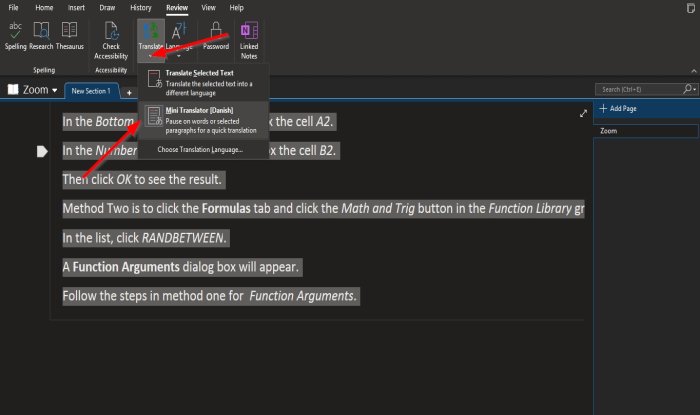
In OneNote, instead of a Translate Document option, there is a Mini Translator option.
Highlight the text in the notebook.
Click the Translate button.
In the drop-down list select the Mini Translator option.
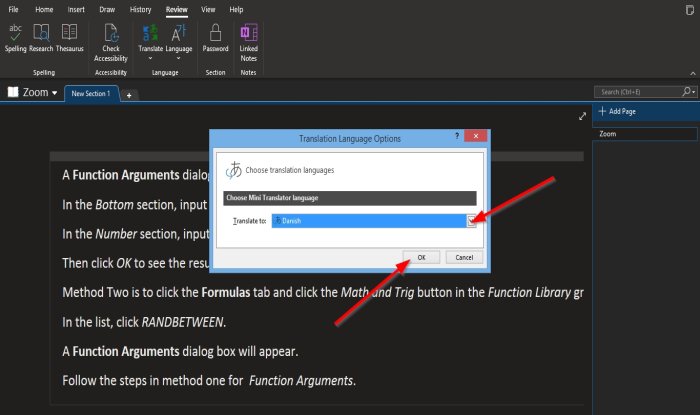
Once the Mini Translator option is selected, a Translation Language Options dialog box will open.
Inside the dialog box, choose a language from the Translate to list box.
Then click OK.
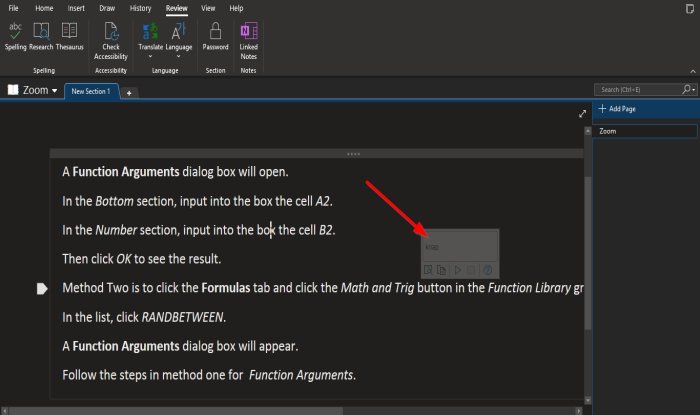
Hover the cursor over the text, and you see a small window containing the foreign language.
Once the language is chosen, it will remain as the language selected in the Mini Translator.
To set it back to English, highlight the text.
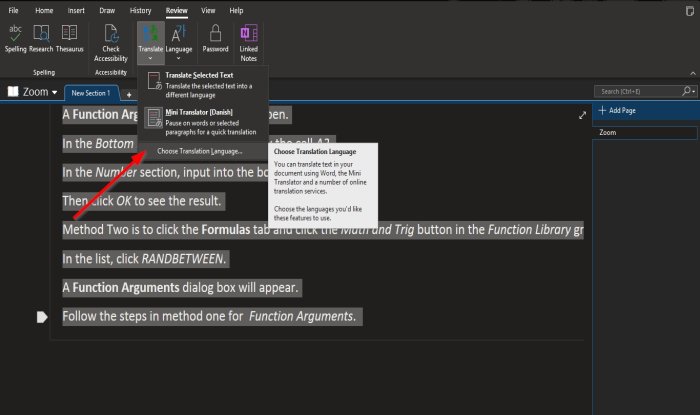
Click the Translate button and select Choose Translation Language.
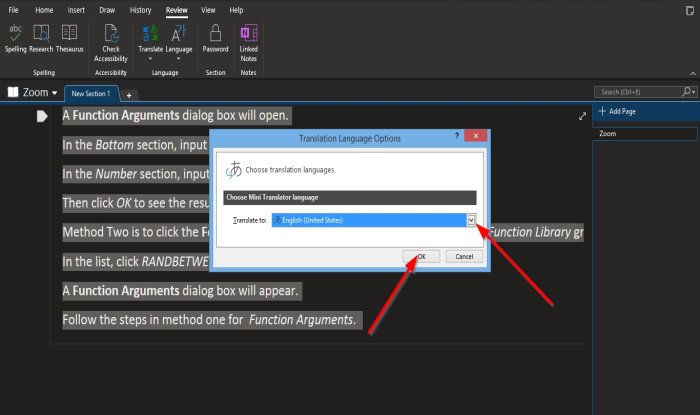
A Translation Language Options dialog box will open.
Inside the dialog box, choose a language from the Translate to list box.
Then click OK.
We hope this tutorial helps you understand how to translate text into a different language in Microsoft Office.
