
The System Preparation Tool (Sysprep), is meant for System Administrators and OEMs, to automate the deployment of the Windows 11/10 operating system. Once you have completed the initial setup steps on a single computer, you can run the Sysprep tool to prepare the sample computer for cloning and to automate deployment on other computers. It can be found in the \Windows\System32\sysprep folder.
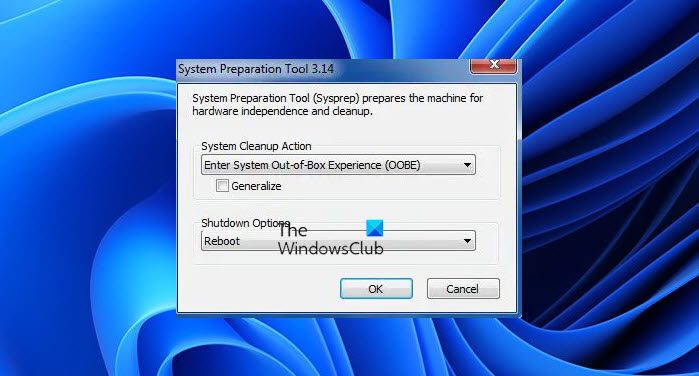
System Preparation Tool (Sysprep) in Windows OS
Sysprep (System Preparation Tool) in Windows is a built‑in utility used to “generalize” a Windows installation by removing system‑specific data (like the computer SID, hardware drivers, and user profiles) so the image can be safely cloned and deployed to other machines.
You can use Sysprep, along with other deployment tools, to install Windows operating systems on new hardware. It prepares a computer for disk imaging or delivery to a customer by configuring it to create a new computer security identifier (SID) when it is restarted. In addition, the Sysprep tool cleans up user-specific and computer-specific settings and data that must not be copied to a destination computer.
This video demonstrates how to capture a custom Windows system image using the System Preparation Tool (Sysprep) to generalize the installed image and ImageX to capture the contents of the generalized system image for re-deployment to other computers – including different hardware types.
Do note that KB828287 explicitly mentions that Microsoft does not support the following Sysprep scenarios:
- To create images of an installation that has been upgraded. Microsoft, however, supports the use of Sysprep to create images of an installation that has been updated with a service pack.
- To run Sysprep, on a computer that has been running in production for an extended period of time, then create a new image or clone from the computer. Sysprep is designed to prepare new installations of Windows for imaging.
- To run Sysprep after imaging or cloning production computer for the purpose of changing the SID and computername to join the domain and make the computer unique.
- To install an operating system from an image if the image was created by using a computer that has a different or incompatible Hardware Abstraction Layer (HAL). This limitation applies only to older versions of Windows. Starting with Windows Vista, Sysprep includes a Hardware Abstraction Layer (HAL) independent version in the “out of box” installation.
- Create a new image of a system that was originally created using a custom OEM installation image or OEM installation media. Microsoft only supports such an image if it was created by the OEM manufacturer.
- Microsoft also does not support using Sysprep to install an operating system from an image created on a computer with a different motherboard manufacturer, or on a computer with the same configuration but from a different manufacturer.
- If another user profile has been copied over the default user profile, Microsoft does not support using Sysprep to create a new installation image.
- Microsoft does not support using Sysprep to install an operating system from an image created on a computer with a different processor.
You can easily identify a Windows installation that has been created with the Sysprep Tool.
- Check for a CloneTag value in the registry. Sysprep places the CloneTag value in the HKEY_LOCAL_MACHINE\System\Setup key, noting the date and time the image was prepared for duplication.
- Look in the
HKEY_LOCAL_MACHINE\System\Setupregistry key for a cmdline that readssetup -newsetup -mini. This places GUI-mode Setup in the Mini-wizard phase. - Check for an OemDuplicatorString value. This used by Original Equipment Manufacturers (OEMs) to place a tag on systems they create. This is added using an answer file (Sysprep.inf) for the Mini-Setup Wizard.
- Check for the existence of Setupcl.exe. This is the file that changes the Security IDs (SIDs) on the system. Look in the %SystemRoot%\System32 folder for this file.
You can get more information about SysPrep at TechNet. If you need more information on how to identify when the System Preparation Tool for Windows NT 4.0 is used on a computer visit KB180962.
Related reads:
- Sysprep was not able to validate your Windows installation
- Sysprep fails on removing or updating Provisioned Windows Store apps.
- A fatal error occurred while trying to sysprep the machine.
Want to read about Windows Image Boot (WIMBoot)?
