If a Program is not responding, it means that a problem has occurred in the program and it is, therefore, interacting more slowly than usual with Windows. You can choose to wait for it to start working automatically or you can kill or terminate the non-responding program.
How to kill a Not Responding process in Windows 11/10
To kill non-responding, suspended, hung or frozen applications in Windows, normally one opens the Task Manager, and right-clicks on the process and selects End Task. You may also try Alt+F4 to close the application, but it may not help if the process is frozen.
To terminate or kill hung, frozen, non-responding programs, in Windows 11/10/8/7 you can also use the Taskill command in CMD, use Taskill to create a shortcut, or use a third-party freeware like Task Killer or Process Assassin.
Kill a process using the command line
You can kill Processes using the Command Prompt.
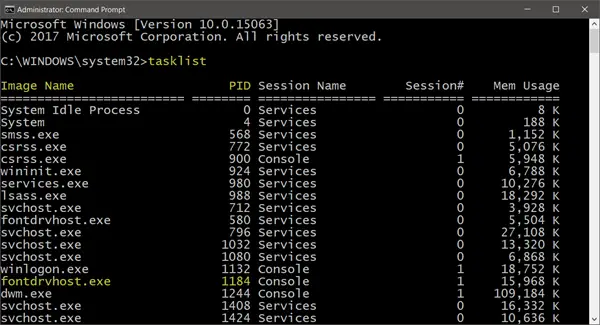
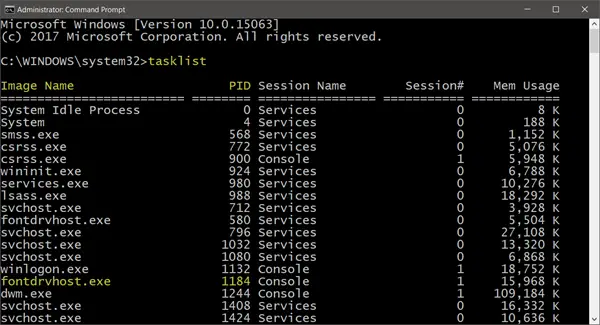
Open an elevated command prompt window, type tasklist and hit Enter. You will see the list of running tasks and the PID numbers.
Now to kill a process, use the following syntax:
Taskkill /IM <Image Name> /F
or
Taskkill /PID <Number> /F
For example, if you want to kill fontdrhost, use fontdrvhost.exe in place of <Image Name>, and 1184 in place of <Number>.
The /F flag kills the process forcefully.
Read: How to Terminate Microsoft Store Apps.
Using TaskKill shortcut to terminate a process
To create a shortcut to kill non-responding programs in Windows instantly, right-click on an empty area on your desktop.
Select New > Shortcut. In the first box of the Create Shortcut Wizard, type:
taskkill.exe /f /fi "status eq not responding"
Click Next.
Name the shortcut: TaskKiller. Click Finish. Then select an appropriate icon for it!
The shortcut uses the Taskkill command to identify and terminate application/s that are Not Responding.
Alternatively, you could create a .bat file (right-click desktop > New > Notepad) with the following matter:
@echo off
taskkill.exe /f /fi “status eq not responding”
exit
Save it as a .bat file.
Read: Unable to terminate process, The operation could not be completed.
Killing a process using freeware
1] Process Assassin
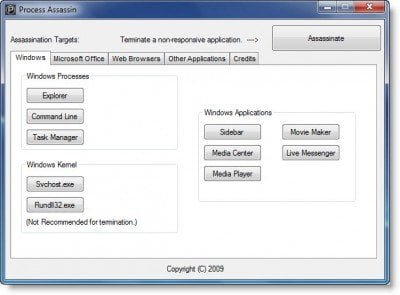
You can also use a 3rd-party tool, like freeware Process Assassin. This tool enables the user to select a Not Responding application and terminate it immediately without calling any other external programs. There are options available too.
2] Task Killer
This tool offers a neat way to unload frozen applications, processes, or services. It shows the tasks, windows, and services in a pop-up menu.
3] One Click App Killer
This tool doesn’t have an interface. Once you run it, your cursor gets transformed into a small round target. You basically have to click anywhere on the frozen application’s interface to terminate it instantly. This utility is a Windows clone of Xkill, from the Unix world.
Check this post if you want to find out how you can terminate ALL running applications instantly.
What are Not Responding processes in Task Manager?
When a program runs into some problem and stops interacting with the operating system, it is called a Not responding state. When this occurs, the program using that process may freeze or crash and computer resource utilization could go abnormally high.
Read: How to add Kill All Not Responding Tasks to Context menu
What are Suspended processes in Task Manager?
When Windows operating system temporarily shuts down processes, they are called Suspended Processes. This can happen if you minimize an application or if the OS feels that the process is waiting for an event to occur and hence decides to suspend it. When a process is suspended it consumes no resources like CPU, Memory, etc.