
When you right-click on the Windows 8/7 desktop and select Personalize, you are presented with a window. Now when you click on Desktop Background, in the drop-down menu of the Picture locations, you will see a list of the locations from where you may have picked up the wallpapers to display them.
Remove Picture Location history from Personalization panel
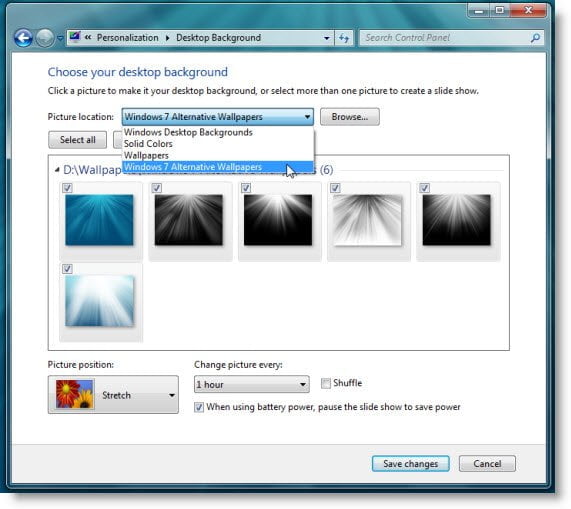
The default locations like Windows Desktop Backgrounds, Solid Colors, etc, will also be displayed. To remove the list of non-default locations, here is what you can do:
Open regedit and navigate to the following key:
HKEY_CURRENT_USER\Software\Microsoft\Windows\CurrentVersion\Explorer\Wallpapers\Images
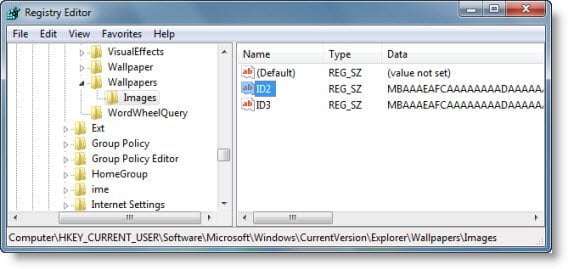
Now on the right side, you will, other than “Default”, see some values from 0-9. These represent the directory path where images are stored.
To clear an entry from the Wallpaper Location drop-down list, right-click on the registry value & click Delete.
Remember to create a system restore point before opening the Registry Editor.
