
In Microsoft Windows Operating Systems, regsvr32 is a command-line utility used for registering and un-registering OLE controls like DLLs and ActiveX controls in the Windows Registry. For example – a DDL, to be used with regsvr32, must export the functions DllRegisterServer and DllUnregisterServer. This tool may require troubleshooting some problems in Windows or other programs.

What is Regsvr32 in Windows 11/10
Regsvr32.exe is included in Microsoft Windows and is installed in the System32 folder of all Windows operating systems, including Windows 11 and Windows 10.
Regsvr32 Command and Usage
1. RegSvr32.exe command-line options:
Regsvr32 [/ u] [/ n] [/ i [: cmdline]] dllname
2. Parameters:
- /u : It will unregister the file.
- /s : Runs regsvr32 silently and does not display any message boxes.
- /n : doesn’t call DllRegisterServer. This option should be used with /i.
- /i :cmdline : It calls DllInstall passing it an optional [cmdline]. When used with /u, it calls dll uninstall.
- dllname: Specifies the name of the dll file that will be registered.
- /n – Do not call DllRegisterServer or DllUnregisterServer; this option must be used with /i.
For example, to manually register and unregister a DLL file shm.dll, we can do the following in CMD:
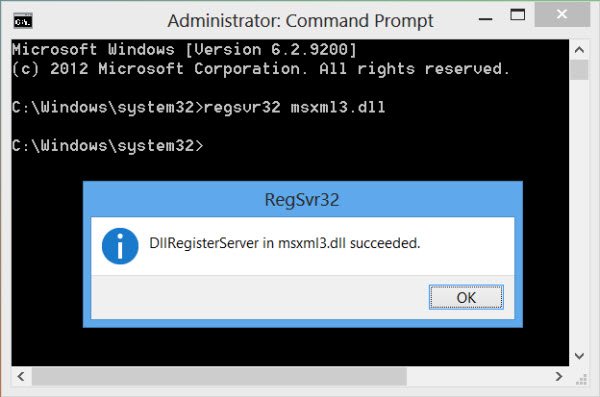
- regsvr32 shm.dll for registering a file.
- regsvr32 /u shm.dll for uninstalling a file.
Regsvr32.exe Error Messages
The following list contains RegSvr32 error messages and possible causes:
- The command-flag “”%1″” is not valid. Please review the command usage and try again.
- This command is only valid if a Microsoft Visual Studio OLE Custom Control project is opened.
- To register a module, you must provide a binary name.
- The command OleInitialize failed to run. Your computer might be low on memory. Close any open programs and then try again.
- The module “”%1″” failed to load. Make sure the binary is stored at the specified path or debug it to check for problems with the binary or dependent .DLL files.\n\n%2.
- The module “”%1″” was loaded but the entry-point %2 was not found. Make sure that “”%1″” is a valid DLL or OCX file and then try again.
- The module “”%1″” was loaded but the call to %2 failed with error code %3. For more information about this problem, search online using the error code as a search term.
- The module “”%1″” may not compatible with the version of Windows that you’re running. Check if the module is compatible with an x86 (32-bit) or x64 (64-bit) version of regsvr32.exe.
On Windows 64-bit version you will find two versions of Regsv32.exe viz. the 64-bit version is in %systemroot%\System32\regsvr32.exe and the 32-bit version is in %systemroot%\SysWoW64\regsvr32.exe explains KB249873.
Related: RegSvr32, The module failed to load.
Also read: What is RegAsm.exe?
