
On Windows 11/10, you may have noticed that when you install two or more printers that use the same printer on the same port, all such printers are, by design, grouped as one in the Control Panel’s Devices and Printers applet. In this post, we will share how you can list printers using the same printer driver separately in Windows 10. But before we go ahead, here are a couple of scenarios when it happens
- A computer running a version of Windows listed in the Applies To section
- When two or more printers are installed using the same driver and the same printer port (i.e., LPT1)
- View the installed printers within ‘Devices and Printers’
The problem is that if you want to list the installed printer separately, you will have to make some registry changes. The trick works on all versions of Windows.
List Printers using the same driver separately.
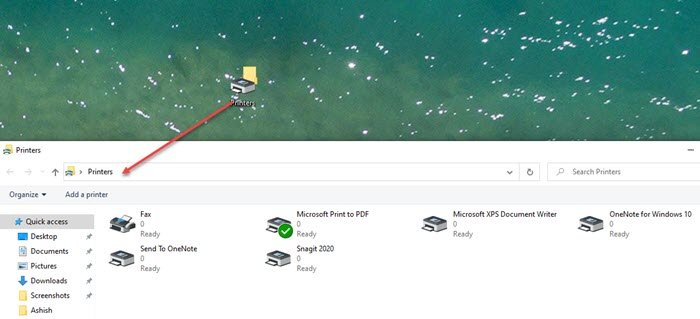
This workaround will create a folder on the desktop named Printers, which will include all of the installed printers separately. You can then access each of them, and then configure them accordingly. Make sure you have admin privileges as you need to make registry modifications.
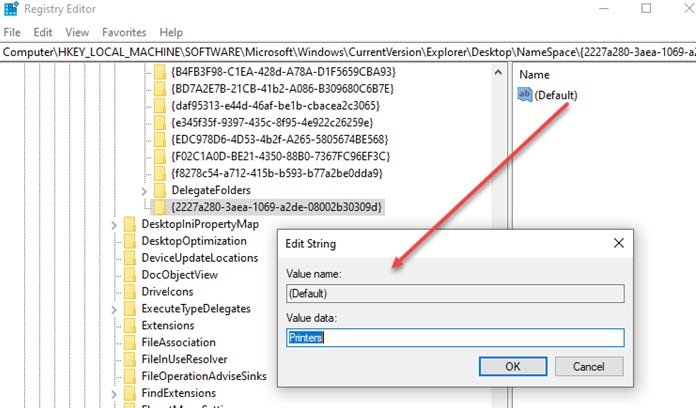
To do so, open the Registry Editor and navigate to the following key:
HKEY_LOCAL_MACHINE\SOFTWARE\Microsoft\Windows\CurrentVersion\Explorer\Desktop\NameSpace
Right-click on the NameSpace folder and choose ‘New Key.’
Name this new key:
{2227a280-3aea-1069-a2de-08002b30309d}
Now, in the right pane, double click to edit the value of ‘Default’ to ‘Printers’ You can also right-click on the registry value, and choose Modify, and change the value.
Done that, Exit the Registry Editor.
You will see a new folder called ‘Printers’ appear on the desktop, which will show all of the installed printers separately. If you cannot see the folder make sure the Desktop Icons are not hidden or simply refresh your desktop to make it appear. You can always remove, rename, and modify printer settings from here instead of the control panel.
While many would think what the need is, then it is possible the installation was done on purpose to create two printers with their style of printing. If you have a color printer, but don’t want others to use it. Then you can create another printer that prints only black and white—different DPI and so on. Then you can share it with everyone. That gives you more control over the printer usage.
I hope the steps were easy to follow, and you were able to see all the printers separately which were using the same driver and port on Windows 11/10.
Read: Print Files using GreenCloud, a Virtual Driver for Printers.
