
Microsoft To-Do is a new task management app that aims at helping you plan your day. Microsoft seems to have put the Wunderlist acquisition to good use, and the To-Do is designed by the folks behind the Wunderlist. Well, this has also caused an outcry since Wunderlist patrons are unsure about the future of their favorite app while the Microsoft To-Do Features have left them wanting more.
Well, I have been using Wunderlist myself for quite some time, and while the To-Do is not the same as Wunderlist, it surely does come with a few mention-worthy features. Just to ease the tension and make you familiar with the Microsoft To-Do in this segment, we will show you how to use Microsoft To-Do app.
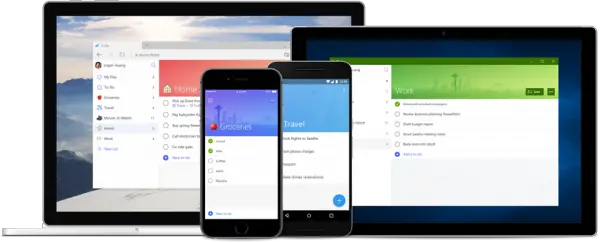
How to use Microsoft To-Do app effectively
For the uninitiated, the To-Do’s a new intelligent to-do list app from Wunderlist which comes baked in with features like With My Day and Suggestions. The To-Do comes with Outlook Tasks integration and will gradually add new features in future builds.
What is the use of To-Do?
To-Do lets you manage all your daily tasks with finesse. Think of it as a technologically advanced sticky note that stays on all your devices. You can set due dates and reminder times for everything and organize each to-do into subcategories. All tasks will be stored on Exchange Online servers and will therefore automatically appear in Outlook Tasks. Furthermore, each to-do will include a note feature where you can doodle whatever you like and refer to it later.
3How is To-Do Helpful for me?
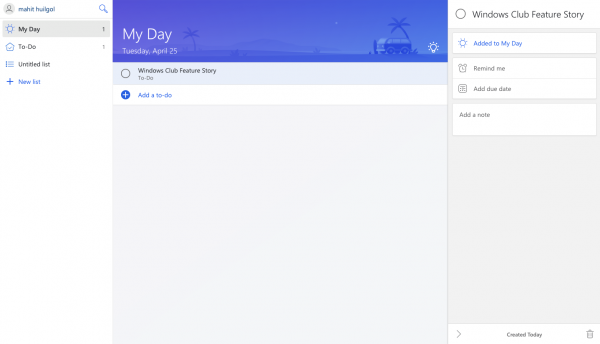
It doesn’t matter what you do, but maintaining a to-do list is a basic discipline. Before opting for task managers, I used to make a mental note of things, but soon most of it evaporated, and it made things messier. The intelligent suggestions in the to-do will help you to accomplish all the tasks and if you leave out on some, don’t worry as it will appear on tomorrow’s to-do list.
How to import your data from other apps on The Web?
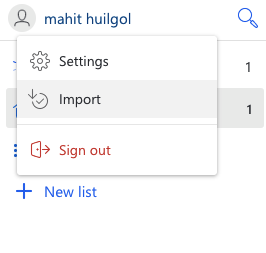
Thankfully, the To-Do supports both Wunderlist and Todoist. Follow the steps listed below,
- Head over to the Settings Menu and select “Import.”
- Ensure that the Microsoft account with which you have signed is the same as the account from where you are importing stuff.
- Select the data to be imported
- Make sure to select and import your subtasks as separate to-dos
- Select “Start Importing.”
Which accounts can you use the To-Do with?
Every time I start using a new service, I am wary of signing up and maintaining separate credentials for the same. Personally, I prefer using my Facebook access for the apps, but again with To-Do, you can use your personal Microsoft Account. It’s better to check with your IT administrator if the Microsoft To-Do preview is available to you or not. In case you want to manage your personal Microsoft account you can do so here.
How to Sync your account with Microsoft To-Do?
This is one of the most important aspects of Microsoft’s To-Do. The task manager can be accessed across various devices, provided you are signed up with the same account. To-Do updates every 5 seconds, so the changes should appear across all platforms and devices within that time. If your app isn’t syncing for some reason, head to account settings and Sync manually by selecting “Sync.”
How to reset your Password on Microsoft To-Do?
Since Microsoft To-Do doesn’t come with separate credentials. In case you have forgotten the password for your personal Microsoft Account you can reset it here. If the account is an enterprise one, then please follow your IT administrator’s advice.

Why do I receive a message to contact my IT admin?
The first scenario this can happen is if your license for Business Essentials, Business Premium and Enterprise E1, Enterprise E3 or E5 is missing or if you don’t have a valid license, Additionally one would also require an Exchange Online mailbox for storage and sync to work. If the message persists, contact your IT administrators as they will be in a better position to troubleshoot.
Another possibility is that the To-Do has not been enabled by your administrator. This will also happen if the To-DoPreview is switched to “Off” in the O365 Admin Center and one cannot install until the switch is toggled to “On” state.
This message will also pop up if you don’t have a compatible mailbox since the To-Do preview currently requires an Exchange Online mailbox for storing and synching the same. When it comes to Exchange the following plans are supported, Exchange Essentials, Exchange Online Kiosk, Exchange Online Plan 1, Exchange Online (Plan 1), Exchange Online (Plan 2), Exchange Online (P1), and Exchange Online POP.
How to Create a list on To-Do?
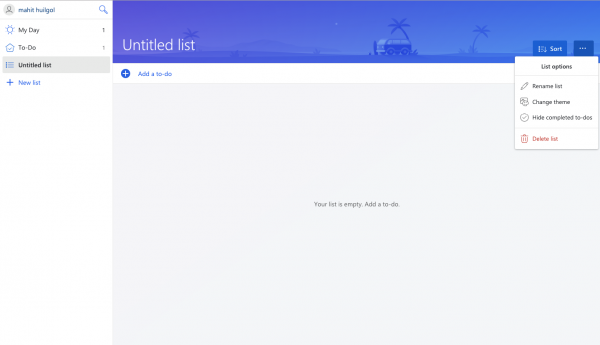
It’s simple, just click on ‘+New List’ which is an option that lies below My Day, To-Do, and the other lists. After doing so, you can rename the list which is named “Untitled List” by default.
Read next: Review of Microsoft To-Do App for macOS.
How to Restore a deleted To-Do task or list?
One needs to understand that the lists are available on both Exchange Online and also Outlook Tasks. This makes it very easy to recover a deleted list.
- Log in to the Windows desktop app with the same credentials as that on To-Do.
- Switch to the Folder List by using CTRL+6 and then expand the deleted items folder; it’s here you should be able to see the deleted Tasks.
- Restore the deleted folders by right-clicking on the ‘Deleted Folder’ and moving the Folder to “Tasks.”
How do suggestions and My Day work?
The Suggestions and My Day have been cornerstones of the To-Do app; these features are designed to help you focus on the important tasks at hand and let the To-Do app do the rest. The intelligent Suggestions will suggest the recurring tasks for your day, and you can simply begin by selecting them. The incomplete tasks in To-Do will be carried on to the next day, and the due date notifications will help you manage the tasks in a much better way.
Read: Microsoft To-Do Tips & Tricks
How can I pick the background image for a list on the web?
This is a feature most Wunderlist users will be familiar with. Microsoft To-Do lets you choose different backgrounds for each To-Do list. One can change the background by selecting the three dots at the top and then Choosing Theme. You can choose one of the 5 illustrated themes or even a solid background. That said, unlike Wunderlist, Microsoft To-Do doesn’t allow you to choose custom background images, which might be addressed in future updates.
All said and done, Microsoft To-Do is a formidable replacement for Wunderlist, but again, there are many features one might simply not be familiar with. It’s more of getting used to the tool and exploring all the new things that get added. Also, the deep Microsoft Office integration is a blessing in disguise, especially for Enterprise users.
If you face issues while using it, this post will show you how to troubleshoot Microsoft To-Do app problems.
