
Microsoft Edge is one of the most popular and secure web browsers. If you are an Edge user, this post will be helpful because we will show you how to back up Edge Favorites, Passwords, History, etc. If you know this method, you can easily restore your bookmarks, history, etc., in Edge on any computer.
How to backup Edge Favorites, Passwords, Settings etc.
We will show you multiple methods to back up Edge bookmarks, passwords, history and more.
- By using the Sync feature
- By exporting the bookmarks and passwords to save them offline
- By copying the required files from the Edge folder
Let’s see all these methods in detail.
1] Backup Edge Favorites, passwords, history, etc., by using the Sync feature
This is the easiest method to backup bookmarks, history, passwords, etc., in Microsoft Edge. If you are an Edge user, you probably know that Edge allows users to create multiple profiles. Users can sign in to their profiles with their Microsoft accounts.
Signing in to Edge profiles with a Microsoft account has many benefits. The biggest benefit is all your data will be saved to the cloud automatically. You can change the sync settings. To do so, open Edge and click on the three dots on the top right side, and then select Settings. Alternatively, you can directly type edge://settings/ in the Edge address bar and then hit Enter.
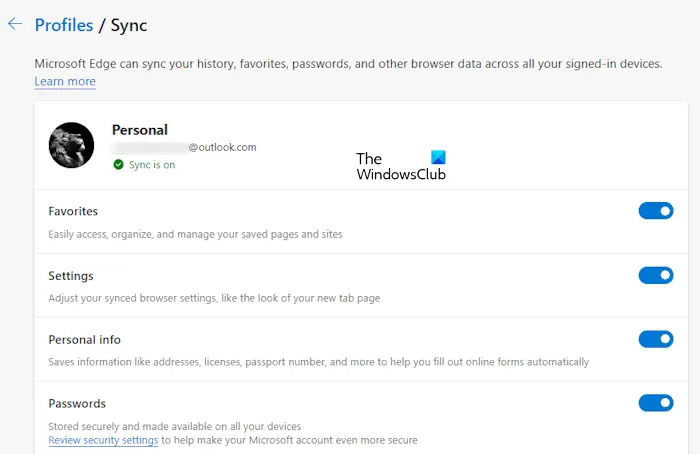
Now, click Sync on the right side to open the Sync page. Here, you can turn off the switches that you do not want to sync. The data that you turn on will only be synced and restored in Edge when you sign in to Edge with the same Microsoft account.
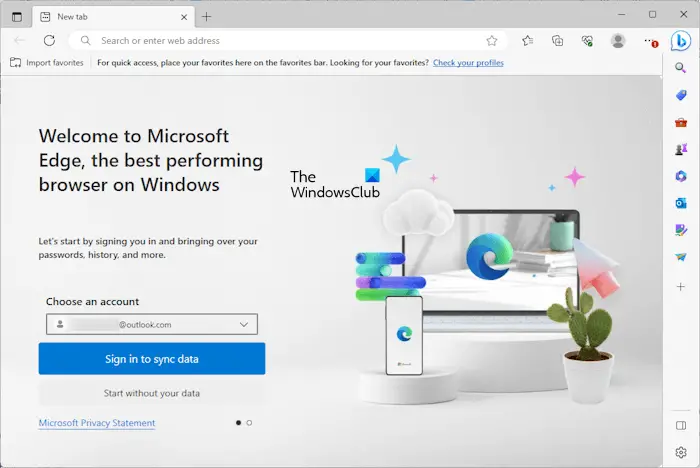
To restore your data in Edge, click on the profile icon in Edge and select Other profiles > Add profile. A new instance of Edge will open. Select your Microsoft account from the Choose an account drop-down. If your account is not there, click Add new account. Now, click Sign in to sync data and you are done. All your bookmarks, history, passwords, etc., will be restored, provided you have not prevented Edge from syncing your data.
2] Backup Edge Favorites and passwords by exporting them to save them offline
You can also backup your bookmarks and password in Edge by exporting them to HTML and CSV files. If you did not sign in to Microsoft Edge with your Microsoft account, the above method will not work for you. This is because Edge saves all your data including favorites, history, passwords, etc., to your Microsoft account. Edge continuously syncs your data and saves it to the cloud.
If you do not use a Microsoft account to sign in to Edge, you have to export your data manually. This can be irritating as you have to perform this action every time you add a new bookmark or password to Edge.
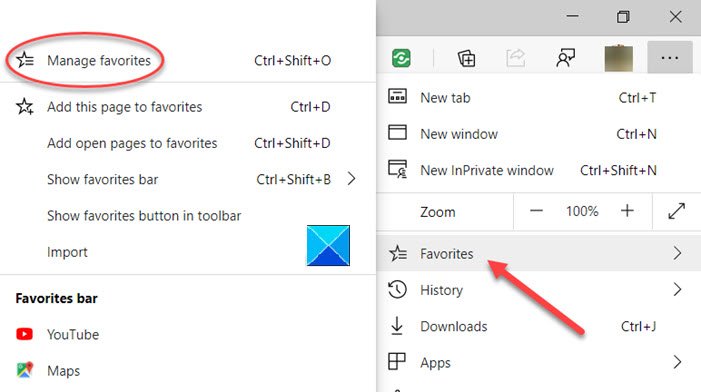
Go through the following posts to know how to export required data in Edge.
- Import or export saved passwords in Edge.
- Export favorites in Edge to an HTML file.
- Import or Export History in Edge.
Saving passwords offline is not recommended. Edge will also show you the same warning message when you export passwords to a CSV file. This is because your saved passwords in the CSV file are not encrypted. Hence, any person who has access to your computer can view your passwords by opening the CSV file.
Read: Where does Edge store Favorites, Password, Cache, History, Extensions, Profiles, and Autofill data?
3] Backup Edge Favorites, history, etc., by copying the required files from the Edge folder
The third method is to backup your bookmarks and history in Edge by copying the required files. This method is also useful for transferring your bookmarks and history from one Edge profile to another Edge profile without signing in to Edge profile(s) with your Microsoft account.
Edge also saves your data offline on your computer at the following location:
C:\Users\username\AppData\Local\Microsoft\Edge\User Data
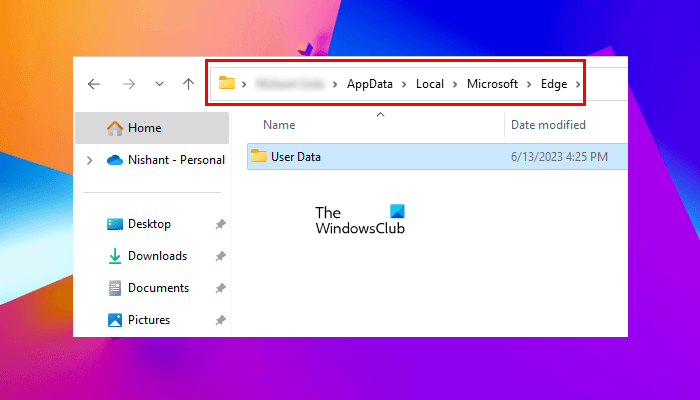
In the above path, replace the username with your user name. Copy the above path and paste it into the address bar of File Explorer, and then hit Enter. Alternatively, you can also do this:
- Open the Run command box (Win + R).
- Type %userprofile% and click OK.
- Enable the hidden files and folders.
- Go to AppData > Local > Microsoft > Edge > User Data.
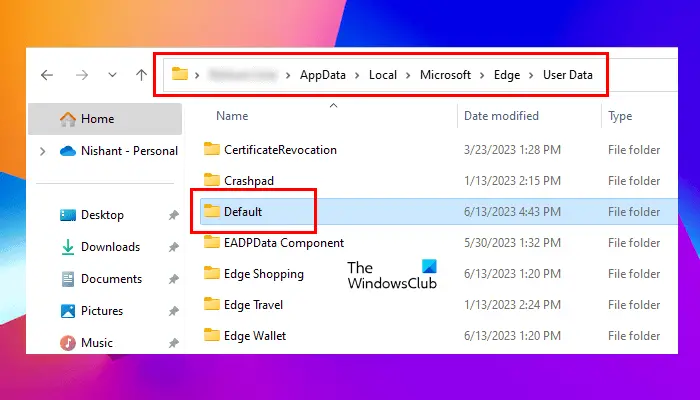
All your profile folders and data are stored under this User Data folder. The primary profile is marked as Default. This is the main profile in Edge. All the additional profiles that you create in Edge are marked as Profile 1, Profile 2, etc.
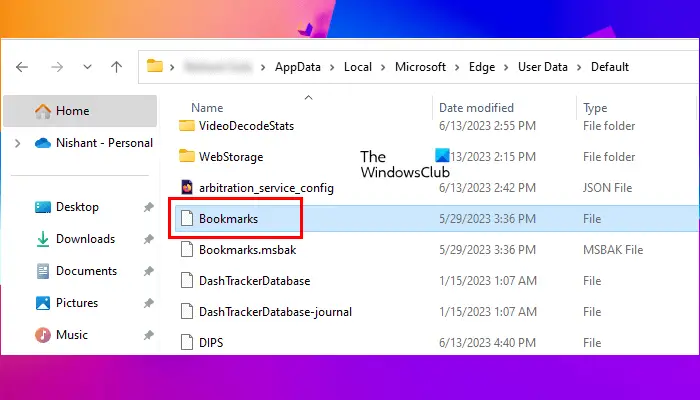
If you have multiple Edge profiles, first, you have to identify which one of these folders is your profile folder. For this, open the Default folder and locate the bookmarks file. Double-click to open it. If prompted, select Notepad.
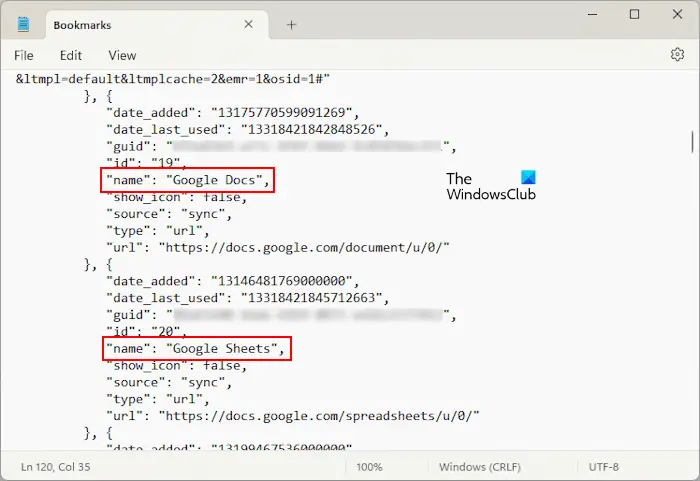
The bookmarks file will show you all your Favorites. You can view your bookmarks’ names and URLs in the bookmarks file (see the screenshot above). If it does not show your Favorites, you have opened the incorrect profile folder. Now, repeat the same process for other profile folders, such as Profile 1, Profile 2, etc.
When you identify your profile folder, copy the bookmarks and history files to back up your Edge favorites and history, respectively. You will find the History folder inside the same profile folder.
If you want to restore history and bookmarks in Edge from one profile to another, copy the required folders from the source profile and paste them to the targeted profile folder. If you want to backup the entire Edge profile, including extensions, history, favorites, etc., you have to copy the Edge folder and paste it into another location on your hard drive.
Backup, Restore Edge Profiles, User data, Settings, etc.
Whether a profile is deleted by mistake, extensions are removed, or settings are changed in your Microsoft Edge browser, you can easily restore everything with the backup data. You can take a backup as many times as you want and then use any of the backed-up data to restore Microsoft Edge data.
First, make sure Microsoft Edge is fully closed and not running in the background. Otherwise, it might cause trouble in data backup. You must close all the running instances of the Edge browser.
After that, you need to turn on the option to show hidden files and folders in your Windows 11/10 PC.
Access the Microsoft folder. This folder remains hidden by default. Therefore, you need to enable the option to show hidden items. The path of the Microsoft folder is:
C:\Users\%username%\AppData\Local\Microsoft
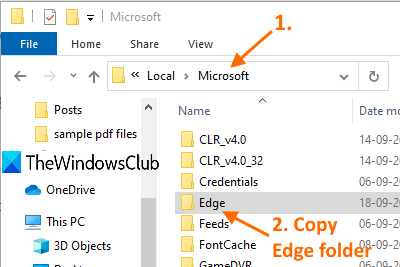
Under the Microsoft folder, copy the Edge folder, and paste it in some other drive.
Now, whenever there are some unwanted changes, you can restore Microsoft Edge data.
Just follow the above steps and delete the existing Edge folder. After that, copy the Edge folder that you backed up and paste it in the Microsoft folder.
This will restore all profiles, extensions, favorites, settings, and other items from that Edge folder.
That’s how you can back up all user data in Microsoft Edge and restore it whenever needed.
How to export Edge Favorites and Passwords to another computer?
Export Edge bookmarks and passwords in HTML and CSV files respectively. Now, copy these files into a USB storage device and paste them into another computer. You can now use these files to restore your bookmarks and passwords in Edge on another computer.
Read:
- How to import Favorites into Edge from Chrome, Firefox
- How to Import Bookmarks into Firefox from Edge
- How to import Passwords into Firefox from Edge
- How to Export Edge browser Favorites to an HTML file
Can I backup my bookmarks?
Yes, you can backup your bookmarks. All web browsers have this feature. You can export your bookmarks in HTML file format. You have to follow this process every time you mark a new website as a bookmark. Now, you can use this HTML file to restore your bookmark in case you uninstall and reinstall your browser.
Read next: Import Bookmarks, Passwords into Chrome from Edge.
