
If you find that your Windows desktop slideshow feature in Windows 11/10/8/7, which used to work fine, does not work anymore, you may want to check out this article. You may even receive an error message An error is preventing this slideshow from playing when trying to use the feature.
Desktop Background Slideshow not working in Windows
First, make sure that no installed software is preventing changing of the wallpapers. Also, ensure that your version of Windows OS has this feature.
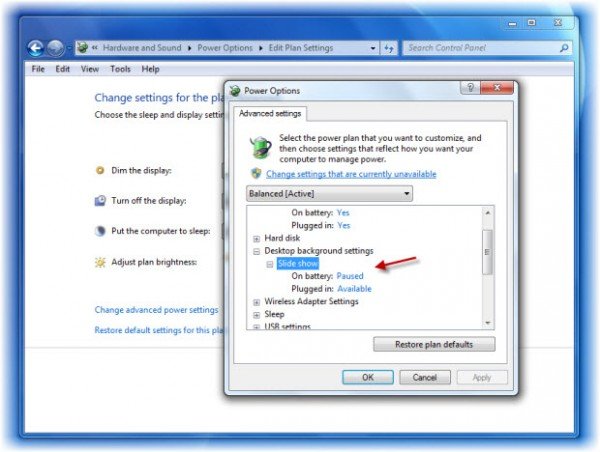
Having done that, click on the Power icon sitting in your notification area and select More Power Options. This will open Control Panel, Power Options applet.
Now from your current/selected Plan, click Change plan settings and then Change advanced power settings.
Next, in the Advanced settings, expand Desktop background settings and then Slide show.
Here from the drop-down menu of each option, ensure that the appropriate options are checked.
Click Apply/OK. Exit.
An error is preventing this slideshow from playing
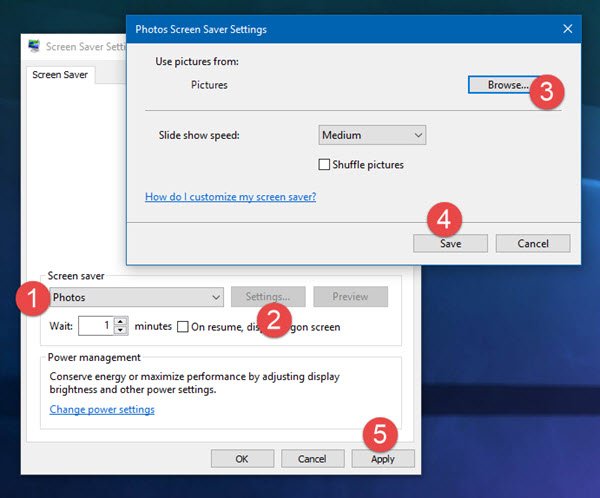
You may want also to check your Slideshow settings.
Open Screen saver settings, select Photos, click on Settings, browse to the desired pictures folder, and click on Save and then Apply.
See this post if you cannot change the desktop wallpaper or if you cannot set an image as desktop wallpaper.
PS: Windows Starter and Windows Home Basic do not support the changing of the desktop background picture and consequently support the slideshow feature; so you might want to confirm that! But sure there is a way to change your wallpaper in the Windows Starter and Basic Editions too!
This post will help you if the Lock Screen slideshow is not working.


Thank You AnandK, really lame solution, to a really lame problem :-) I cant believe that this fixed it. I dont recall having messed with such power property items. I was looking for all sorts of other things, like what service was required, or was the “slideshow” task Scheduler bs needed. Power? ya ookkkkay MS, that goes with the “making things easier” idea they tossed out 10 years ago.
Fantastic answer!!!!!
i had the same problem but everything was checked on available, i previously installed a program called “dream scene” it is a live wallpaper program, if you have this program remove it the try to make a slideshow wallpaper again (through windows) should work, it did for me :)
in lenovo z580 ideapad dis option is not wrking m still able to use slideshow option
NO ‘CHANGE ADVANCE POWER PLAN’ OPTION
The answer to everyone’s issue!!!!!! You can’t repeat have any program that’s related to desktop modification installed or it will simply cripple your slideshow feature point blank. SO UNINSTALL DREAM SCENE AND REBOOT AND YOUR ARE TOTALLY FINE. IT IS NOT A MICROSOFT ISSUE AT ALL. THE PROGRAM CONFLICTS WITH SLIDESHOW FUNCTION DISABLING IT TOTALLY. IT TOOK ME TWO WEEKS, THEN IT DAWNED ON ME TRIED IT AND VOILA, PERFECTION EVERYTHING IS BACK TO NORMAL. IF YOU WANT DREAM SCENE YOU WILL HAVE TO RE-INSTALL. YOU CAN’T HAVE BOTH AT ONCE SORRY.
Man…this was driving me nuts!
This was actually all elementary, had this and fixed this many times. The problem with Windows 7 Pro SP1, is that it doesn’t KEEP this setting. Like “trivalvid” said 3 years ago, LAME! But the my problem looks at the fact that my settings where already there and Windows just decides to turn the feature off. You can turn it back on, but it turns itself off.
Thank you! This helped alot! :)
Nothing worked for me. A while back I was able to change the color, but when I made a new stab at changing the wallpaper, it went back to black and I no longer get even the color option. I tried all the fixes. I can change themes, but that does not change the screen.