
The Local Group Policy Editor in Windows 11/10 and Windows Server allows you to filter out the policy settings that you do not want to be displayed and display only those that you want to. The Local Group Policy Editor provides the option to filter Administrative Template policy settings based on Managed, Configured, or Commented policy settings, keywords within the title, help text, or comment on policy settings, and even the platform or application requirements of policy settings.
Filter Options in Group Policy Editor
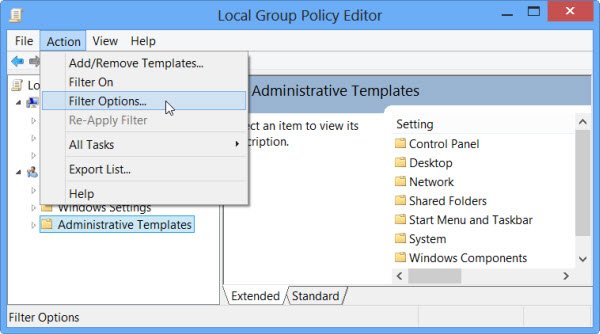
To exercise the filter options, you have to open the Group Policy Editor, by typing gpedit.msc in the search box and hitting Enter.
Next, click on Administrative Templates node and then select the Action Tab. You will now see an entry to Filter Options. Click on it. This will open the Filter Options box.
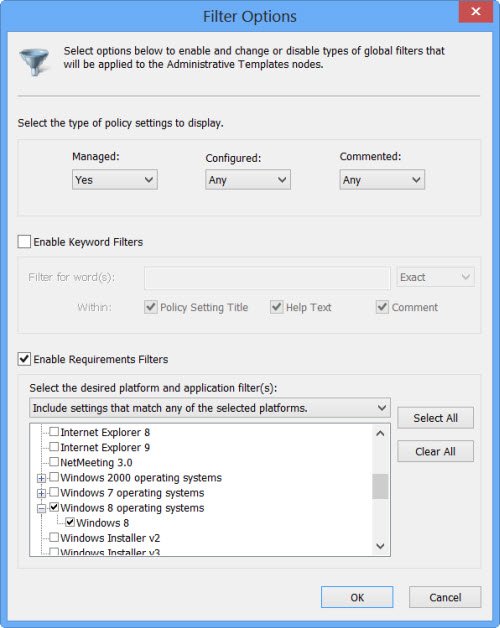
By default, the Local Group Policy Editor lists all the settings for all the versions, making the list very large and difficult to manage. Using The Filter Options, you can limit the number of policy settings displayed in it.
Property Filters, Keyword filters or Platform Requirement filters
You can filter the results using Property Filters, Keyword filters or Platform Requirement filters.
- Property filters include Managed, Configured and Commented.
- You can use Keyword filters to look for exact or non-exact keywords within the policy setting, the title, help file or comment.
- The Requirements filter lets you select the desired platform and the version number.
By default, the editor displays all policy settings. However, you can use requirement filters to change how the Local Group Policy Editor displays Administrative Template policy settings.
Make your Group Policy Editor display settings for Windows only
Let us say you want to display the group policy setting for Windows only, then you can check the Windows 11/10 operating systems and Windows RT boxes only. This can be quite useful if you know that you are going to work with only one or select multiple platforms.
Once done, click OK and ensure that the Filter is set to ‘On’.
This link may also interest you: Tweak Windows through Local Group Policy Editor.
