
You may not have noticed it, but there are two kinds of AutoComplete features in Windows. The first is simply called AutoComplete, which is a kind of automatic suggestion feature. In this case, you get to see a drop-down list when you start typing. The second is Inline AutoComplete. In this case, the line you are typing is automatically completed if you have typed the same letters before.
Most of you must be aware of it and, in fact, must already be using it too – but you not have been aware of the difference.
The AutoComplete feature may be turned on by default, but Inline AutoComplete is not. If you wish, you can enable or disable the autocomplete and the inline autocomplete features in Windows Explorer.
Enable or Disable AutoComplete in Windows Explorer
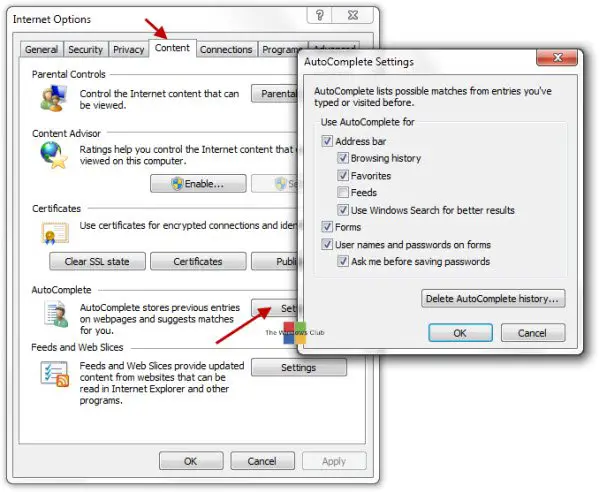
To enable or disable Autocomplete in File Explorer and the Run box on Windows 11/10, do the following:
- Open Internet Options using Search
- Open Content tab.
- Here click on the AutoComplete Settings button.
- Here you can select or deselect the check-boxes for the items for which you wish to enable or disable the autocomplete feature.
- You can use autocomplete for the Address bar, Forms and usernames, and passwords. Y
- You can also, if you wish, delete all autocomplete history here.
Using Registry
You can also use the Registry Editor to disable AutoComplete in Windows File Explorer. Open regedit, and navigate to the following path-
HKEY_CURRENT_USER\SOFTWARE\Microsoft\Windows\CurrentVersion\Explorer\AutoComplete
Here create a new String Value in the left panel and name it AutoSuggest and set its value to ‘yes‘ or ‘no‘ according to your needs.
Read: How to turn on AutoComplete in Command Prompt
Enable or Disable Inline AutoComplete in Explorer and Run
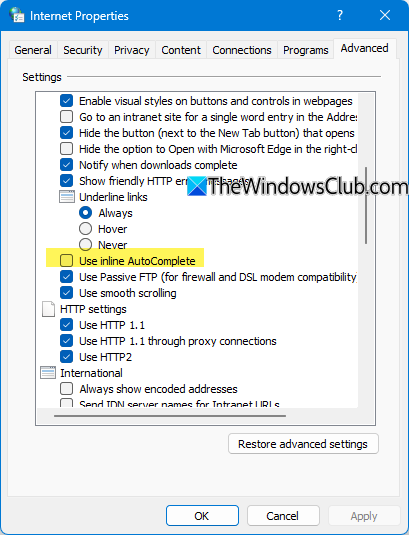
You can also, if you wish, enable the Inline AutoComplete feature in Windows Explorer and Run dialog box too. To do so, open Internet Options > Advanced tab.
Scroll down to the following item and do the needful:
- Use inline AutoComplete
You don’t need to type www or .com in the browser address bar. To save time, enter a word, say, thewindowsclub, and press ‘Cntrl+Enter’ to automatically prefix https:// and suffix .com before and after thewindowsclub.
This will also launch the URL. ‘Shift+Enter’ will append or suffix .net and ‘Shift+Enter’ will append .org. Along with this combo, if you press Alt, the URL will open in a new tab.
That’s it!
