
We had earlier released the Windows Logon Screen Ease Of Access Button Replacement Tool, which let you disable the Ease of Access button on the login screen and replace it with a CMD or Run command or allow you to take a screenshot of the login screen. We have taken it offline and replaced it with the new Ease Of Access Replacer v2, which we are releasing today. This new tool, yet another freeware from TWC, will let you do all this and more in Windows 11, Windows 10, Windows 8, and Windows 7.
Ease Of Access Replacer
The Ease of Access button offers Accessibility tools and options like the Narrator, Magnifier, On-screen keyboard, High Contrast, Sticky Keys, and Filter Keys.
Ease Of Access Replacer v2 (EOAR) is a simple tool that will let you replace your Ease of Access button on the Logon Screen with different sound options. If you do not need the Ease of Access button, which offers, then replacing it with other valuable tools might be an option you may want to consider.
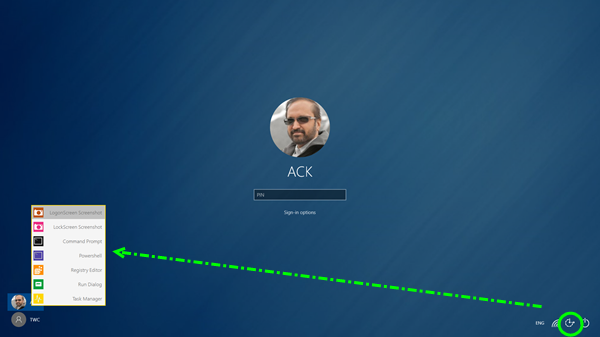
The freeware replaces the button with the following valuable tools:
- Logon Screen Screenshot: Take a screenshot of the Logon Screen. Logon Screenshots are saved to C:\Screenshots.
- Lock Screen Screenshot: Take a screenshot of the Lock Screen. Lock Screen Screenshots are saved to C:\Screenshots.
- CMD Prompt: Opens a Command Prompt.
- Powershell: Opens a Powershell Prompt.
- Registry Editor: Opens the Registry Editor.
- Run Dialog: Opens the Run Dialog.
- Task Manager: Opens the Task Manager.
Please note that if you wish to take a screenshot of the Lock Screen, once you hit the button, you will have to wait for about 1 minute or so for the Lock Screen to activate and be dismissed – so far, this is the only safe method I have come up with that works, says TWC Team Member Lee Whittington.
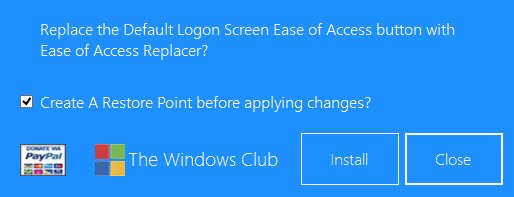
The tool is a stand-alone portable app that does not require an installation. To install the Ease of Access button, run the Ease Of Access Replacer tool and click on Install. Although the tool will, by default, create a system restore point first, you may if you wish to create one manually, too, just to be safe. To uninstall, rerun the tool and click on Uninstall. You may be required to run EOAR as an administrator.
Having tools like CMD, Regedit, Task Manager, and Run would be great if you were to find that you had reached the login screen but found Windows was crashing at the login screen or were unable to log in or access some files for some reason. These tools could help you address such problems. However, having access to the CMD could also allow anyone to reset passwords or delete user accounts once he reaches the login screen. It would, therefore, be a good idea to install it if you are the only user and if your machine is physically secure.

Ease Of Access Replacer v2 has been designed and tested on Windows 8, 32-bit, and 64-bit, but works on Windows 11, Windows 10, and Windows 7 too.
NOTE: Since the tool modifies system files, your antivirus may throw a false positive warning. You may ignore it and add EOAR2 to the Exclusions list.
Donations, if any, go to the developer and do not come to TheWindowsClub.
How to get out of Ease of Access?
The easiest way to turn it off is by using the Windows logo key + ESC key. You can also go back to the login screen and then from there. The Ease of Acess button is there next to the power button.
How to disable the Ease of Access Button from the Logon Screen?
You can use Registry Method, disable Utilman.exe or edit a XAML file to disable the Ease of Access button. All these are unofficial methods, and there is no direct way to disable it, i.e., using Windows Settings of Group Policy. All these will need an administrator account to complete the process.
