
Windows 11/10 already has a built-in default, free and powerful firewall. And while Windows allows you to access advanced settings, including configuring outbound connection filtering, through its Control Panel, Management Console, Netsh utility, or the Group Policy Editor, many would prefer a simple interface where they could manage the firewall. Today, we will look at Windows Firewall Control – it has been bought by Malwarebytes.
Malwarebytes Windows Firewall Control for Windows PC
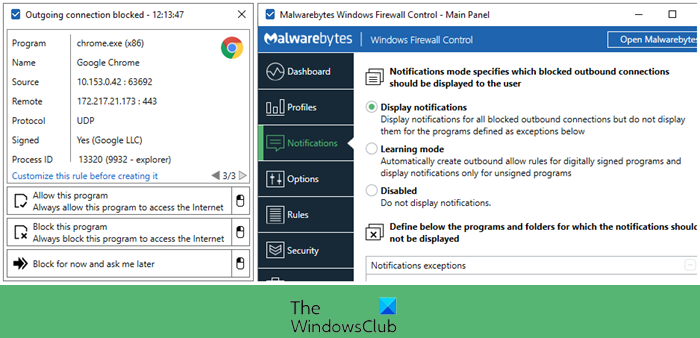
Windows Firewall Control is a small, intuitive, and easy-to-use program that runs in taskbar, next to the system clock, and provides quick access to the most frequent options used from Windows Firewall. This is the best tool for managing the native firewall in Windows.
Windows Firewall Control offers access to four filtering modes, each with its own status icon in the system tray, and different functionality:
- High Filtering. All outgoing connections are blocked. Programs cannot initiate outgoing connections. This setting blocks all attempts to connect to and from your computer. With this setting, you aren’t notified when Windows Firewall blocks programs, and programs in the allowed list are ignored.
- Medium Filtering. Outgoing connections that do not match a rule are blocked. Only programs you allow can initiate outgoing connections. If you want to allow a program to communicate through the firewall, you can add it to the list of allowed programs. For example, you might not be able to send photos in an instant message until you add the instant messaging program to the list of allowed programs.
- Low Filtering. Outgoing connections that do not match a rule are allowed. You can block the programs you do not want to allow to initiate outgoing connections. If you want to block a program to communicate through the firewall, you can add it to the list of blocked programs. For example, you might want to block an instant messaging program so add the program to the list of blocked programs.
- No Filtering. Windows Firewall is turned off. Avoid using this setting unless you have another firewall running on your computer. Turning off Windows Firewall might make your computer (and your network, if you have one) more vulnerable to damage from hackers and malicious software.
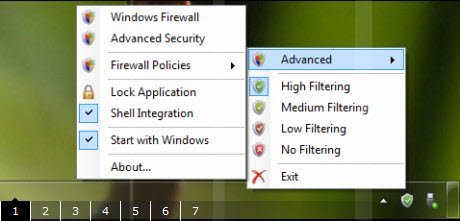
The software lets you manage Firewall settings easily from the System Tray. The Windows Explorer Shell integration into the right-click menu of the executable files is a really handy feature!
Most of us Windows users may not feel the need for such a utility, but if you are one who does, you definitely want to check out Windows Firewall Control. Go get it here. The notifications system is now available for free, and the program no longer requires activation.
Firewall App Blocker is another tool that lets you easily configure and manage Windows Firewall settings. You must also check out this post on how to manage Windows Firewall in Windows 11/10.
