
By default, Windows 11/10 will display your desktop wallpaper as the login screen background. If you wish to display a solid color as a background for your Windows logon screen, you will need to edit the Registry. A Windows 11/10 user can replace the desktop background via Personalization settings. This will change the login screen, too. But if you wish to remove the logon screen background and set a solid color, read on.
Set Solid color as Login screen background in Windows 11/10

Please note, that this involves editing the Windows Registry. Wrongly editing the Registry can cause your computer to stop functioning. If you are uncertain or not completely comfortable editing the Registry, we recommend sticking with the default Windows log-in screen. If not, create a system restore point and move on.
Type regedit in Search and click on the result to open the Registry Editor.
Navigate to the following registry key:
HKEY_LOCAL_MACHINE\Software\Policies\Microsoft\Windows\System
Now on the right side, right-click in the empty space and from the context menu, chose New > DWORD (32-Bit), name it DisableLogonBackgroundImage and give it a value 1.
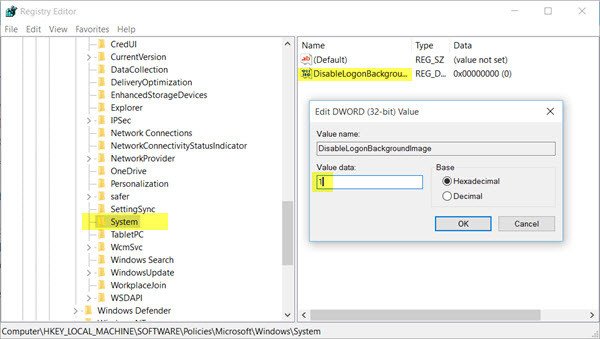
This will remove the default logon screen image and force Windows 11/10 to use a solid color as the accent color for your desktop wallpaper.
If you wish to select your own custom color, open Settings > Personalization > Colors.
In Windows 11, against Accent color, select Manual.
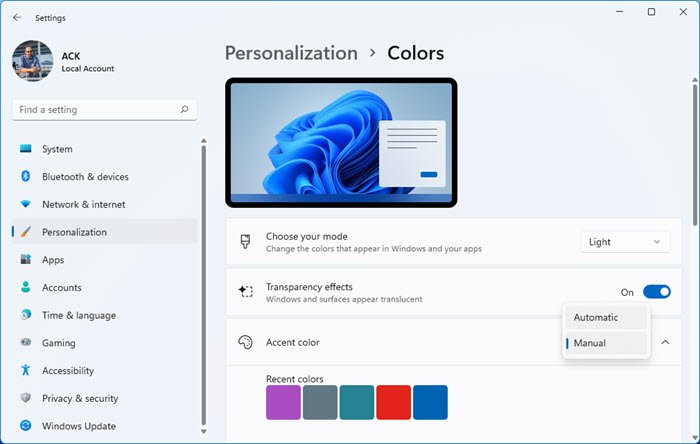
In Windows 10, turn the slider to the Off position for Automatically pick an accent color from my desktop.

Restart your computer and check.
To reverse the changes, you need to simply delete the created DWORD or change its value to 0.
Trust this works for you! It worked for me on my Windows PC.
UPDATE: Many are reporting that this does not now work on Windows 11/10/8.1. Maybe Microsoft changed something along the way.
How to change Windows 8 logon screen background color
Most elements in Windows 8 can be customized to one’s requirements, provided that one is ready to go hunting deep into the Windows Registry. If you want to change the default color of the logon screen look to change it to a color of their choice, this tutorial will show you how to, by modifying the Registry.
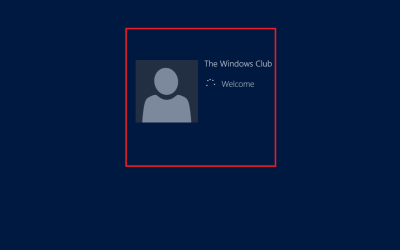
Changing the logon screen background color in Windows 8 is fairly simple if you have worked with the Registry. Sign in as an administrator and follow the instructions below to change the login screen background color in Windows 8.
To change the background color of the Start Screen and Login Screen, go to the Start Screen in Windows 8.1, open Charms, select Settings, and then Personalize.
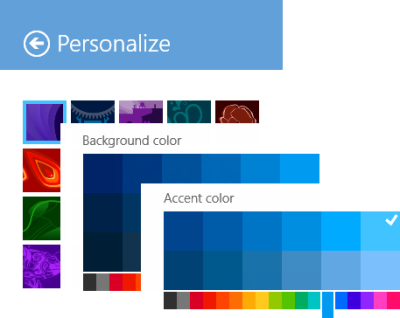
The Logon screen is the one that appears after the Lock Screen.
To change logon screen color in Windows 8, open the Run dialog box. For this, press Win+R in combination. Type ‘regedit’ and hit Enter. If prompted by UAC, click on ‘Yes’.
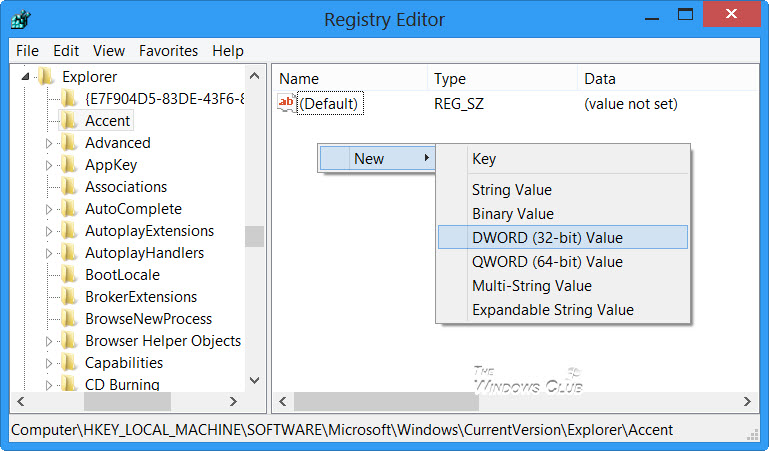
Then, in the registry editor window navigate to the following key
HKEY_LOCAL_MACHINE\SOFTWARE\Microsoft\Windows\CurrentVersion\Explorer\Accent
If you do not see an Accent key in the left pane, right-click on Explorer, click on New and Key, type Accent, and press Enter. Next, in the right pane of the window, right-click in the empty area and create a new 32-bit DWORD value and name it as DefaultColorSet.
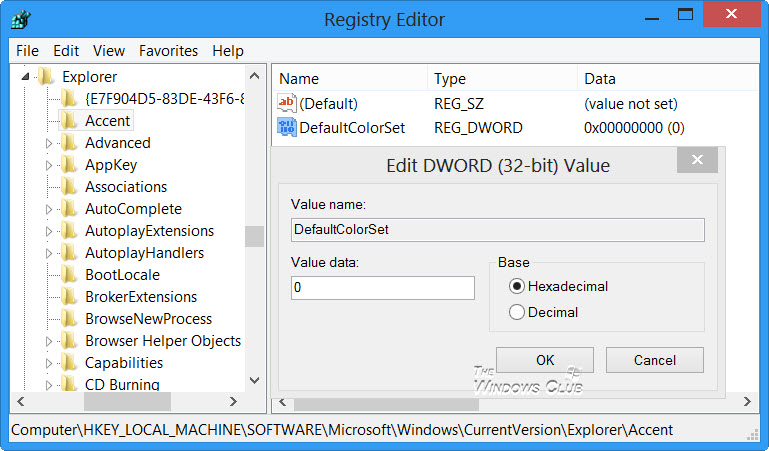
Set its value between 2 to 24 (Decimal). To do this, select the Decimal option and enter a number from 0 to 24.
The following figure sourced from MSDN shows the index of the color scheme as viewed in the System Settings.

Select the color you want the default sign-in screen to be. The different numbers represent different colors. When you’re done, close the registry editor and exit.
This is how you can change the login screen background color in Windows 8.
I hope this helps.
