
When your computer battery dips below a certain threshold, Windows gives you an error warning and then puts your computer in a low-power consuming state depending on what you have set the action to. In this post, we will discuss how to change Critical Level Battery Action & Low Level Battery Action on a Windows computer.
Your battery is running low. You might want to plug in your PC.

We have already seen how to change Battery Level Notifications in Windows and how to configure Windows Power Plans. In this post, we will see how to change WHAT Windows does, after its battery level drops below certain levels.
By default, Windows sets the following levels as defaults during a low battery stage:
- Low battery level: The default value is 10%.
- Reserve power: The default value is 7%. At this point, your laptop may flash a warning, and you will need to save your work, and then find an alternate power source or stop using the computer.
- Critical level: Your laptop may ask to go into hibernation. The default value is 5%.
When your battery reaches a Low level, it will display a notification and execute a pre-set action.
Read: Reserve Battery Level vs. Critical Battery Level.
Change Critical & Low-Level Battery Action
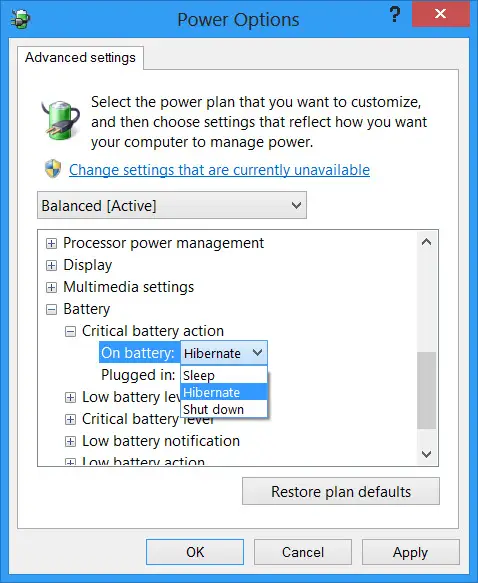
To change the Critical and Low-Level action for the battery for any Power Plan, you must open Power Options in the Control Panel > Change Plan Settings > Change Advanced Power Settings. In the box that opens, navigate down to the last item, i.,e. Battery.
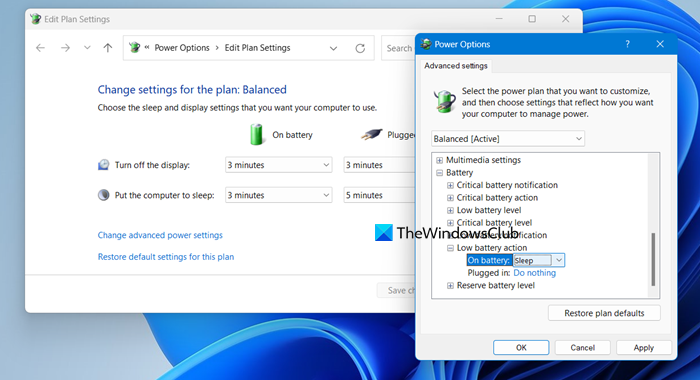
Here for each plan, you can configure and set what your Windows should do after its battery level drops below certain levels. The options for “while On Battery and “while Plugged In” are:
- Low battery action: Do nothing, Sleep, Hibernate, Shutdown
- Critical battery action: Sleep, Hibernate, Shutdown
The default for the first is Do nothing and for the second one is Hibernate. You can change it to suit your requirements.
You can also create a laptop battery full charge notification.
TIP: How to turn off Hard Disk after a particular period of idle time to save power may also interest you.
How to change critical battery level in Windows 11?
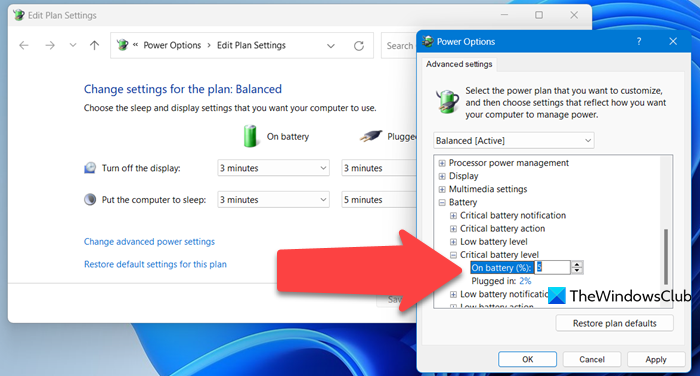
By default, the Critical Battery level in Windows 11 is set to 5, but you can change it any value you want. To do so, open Power Options from the Start Menu and launch it. Then, go to Change advanced power settings. Look for Battery, expand it, then, expand the Critical battery level and then change it depending on the health of your battery.
Read: Laptop Battery Plugged in but Charging slowly or Not charging
How do I change battery settings in Windows 11?
In Windows 11, you can configure the battery settings from Power & battery. So, open Settings by Win + I, go to System, and then open Power & battery.
Also Read: Windows laptop turns off when unplugged even with new Battery.
