Add Copy, Paste and Delete Buttons to Windows 7 Explorer toolbar

Speed Up My PC

Unlike its predecessors, Windows 7 explorer does not display buttons to Copy, Paste or Delete files and folders in the Explorer command bar although you can access these options from the Organize menu. But if you wish, you can add  Copy, Paste and Delete Buttons to Windows 7 explorer folder band with the help of this registry hack.

To do so, first you will have to take full control of this registry key.

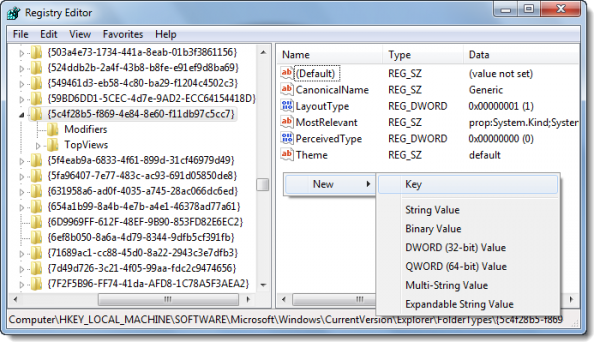
Next, after creating a system restore point, open registry editor as admin, and navigate to the following key:

reg editor 11 600x348 Add Copy, Paste and Delete Buttons to Windows 7 Explorer toolbar

HKEY_LOCAL_MACHINE\SOFTWARE\Microsoft\Windows\CurrentVersion\Explorer\FolderTypes\{5c4f28b5-f869-4e84-8e60-f11db97c5cc7}

In the right side pane, right click > New > Key. Name the subkey as TasksItemsSelected and give it a value:

Windows.Copy; Windows.Paste; Windows.Delete;

These values correspond to the buttons Copy, Paste, and Delete.

Now restart or refresh Windows Explorer and select any file.

win7 explorer copy delete 600x93 Add Copy, Paste and Delete Buttons to Windows 7 Explorer toolbar

You will see these options now!

Thanks | Source In Russian | Bing Translation of Source.

Go here if you are looking for Windows explorer replacement freeware.

Posted by on , in Category Windows with Tags
Anand aka HappyAndyK is an end-user Windows enthusiast, a Microsoft MVP in Windows Desktop Experience since 2007, and the Admin of TheWindowsClub.com, TheGeeksClub.com & WinVistaClub.com. Creating a System Restore Point before trying out a new software or a tweak is always recommended.
  • Deco

    Que coisa comigo não funcionou o que será que estou fazendo de errado pois não muda em nada. Estou esperando por isso já há muito tempo e agora que apareceu que fazê-lo funcionar. Grato espero que me ajudem talvez tenha uma forma de só adicionar esse registro pra não ficar quebrando a cabeça.

  • Steve

    Hmmm…didn’t work for me either.
    Any chance of updated instructions?

  • http://www.thewindowsclub.com/about Windows Club

    Did you take full control of the registry key?
    Did you find the required registry key?
    And were you able to create the registry subkey with the specified value?

    Where did you get stuck. Please let me know.

  • Steve

    Ah…the correct key names is TasksItemsSelected. Note Task(s) is plural.

  • Jon

    Yeah that got me too. The name should be TasksItemsSelected. In the instructions it’s missing the ‘s’ on Tasks. Nice catch Steve! I guess that’s what I get for copy & pasting. LOL

  • http://www.thewindowsclub.com/about Windows Club

    LOL. Thanks for pointing out the typo. While the image has the ‘s’ the text did not. Made the correction.

  • Mike

    I did what you said but it didn’t work. Took full control of key, found key, created subkey with the value you said. Close regedit and opened Windows Explorer. The fields didn’t show up.

  • Jon

    Strange, I did this a couple months ago & got it working pretty easily. I just reformatted my computer last week & now for some reason I can’t seem to get it working now though. :( Followed all directions as I did last time. Although last time I needed to take control of the key & this time it didn’t make me, but changes were applied to registry.

  • Phrozen

    It works on me! Thanks for the tutorial..

  • NYCGRIFF

    I too had been searching for a method/hack to add a “delete” button and similar Windows XP styled icons to Windows 7 x64 Windows Explorer toolbar with no success (save for the aforementioned registry hack). A couple of weeks ago, a friend told me about a wonderful little FREE utility called, “Classic Shell”. Classic Shell is a collection of features that were available in older versions of Windows but as everyone knows were inexplicably removed from Vista and Windows 7. It has a classic start menu for Windows 7, it adds a toolbar for Windows Explorer and supports a variety of smaller features. The latest version is 3.3.0. Simply run a Quick Google search to download a copy. It works absolutely perfectly and you will not be disappointed!

  • http://www.thewindowsclub.com Anand Khanse