
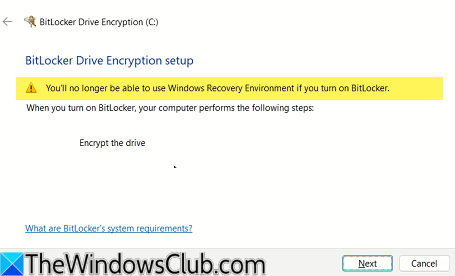
While setting up BitLocker on the C drive, some users saw the message “You’ll no longer be able to use Windows Recovery Environment if you turn on BitLocker.” BitLocker is a hard disk encryption feature in the Windows operating system that enables you to encrypt all your hard drive partitions. In this article, I will show you what you can do in such a situation.

You’ll no longer be able to use Windows Recovery Environment if you turn on BitLocker
According to the message “You’ll no longer be able to use Windows Recovery Environment if you turn on BitLocker,” the user cannot use Windows Recovery Environment after turning on BitLocker on the C drive. This is because BitLocker encrypts the C drive, and the Recovery Environment cannot be used on a BitLocker-encrypted hard drive partition.
Windows Recovery Environment uses the Winre.wim file. If there is no separate Recovery Environment, this file exists on your C drive. But you can only view it after disabling the Windows Recovery Environment. To disable the Windows Recovery Environment, run the following command:
reagentc /disable
After disabling the Windows Recovery Environment, go to the following location in File Explorer:
C:\Windows\System32\Recovery
Now, follow these steps:
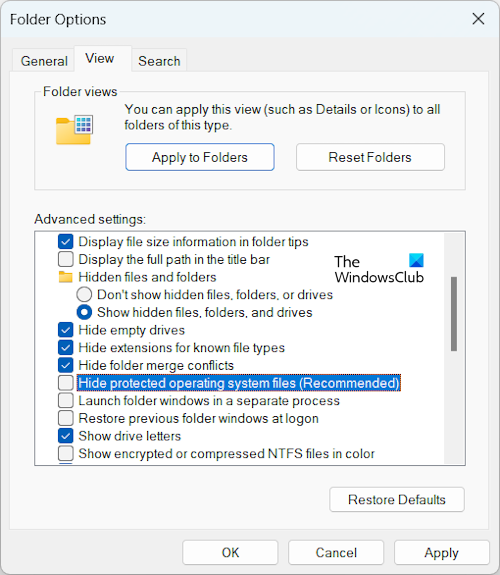
- Click on the three dots in File Explorer on Windows 11 and select Options.
- Select the View tab.
- Select the Show hidden files, folders, and drivers radio button.
- Uncheck the Hide protected Operating System files (Recommended).
- Click Apply and then click OK.
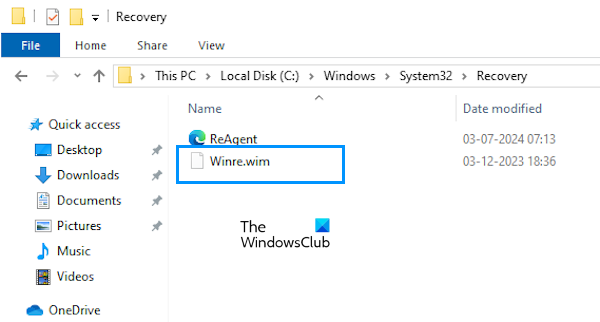
After performing the above steps, you will see the Winre.wim file.
Usually, this message occurs when the Winre.wim file exists on the C drive, and you want to encrypt that drive with BitLocker. To fix this issue, you need to create a separate recovery partition and transfer the Winre.wim file to that partition. I will show you how to do that. Before proceeding, ensure that you have disabled the Recovery Environment, so that Winre.wim file is available on the C drive.
First, open the Disk Management and shrink your C drive to create a new Unallocated space. Create at least 1 GB of unallocated space on your C drive. Now, launch Diskpart and execute the following commands one by one:
list disk

select disk #

list partition

select partition #
Replace # with the correct disk number. You have to select the disk number that shows the Recovery Partition. After selecting the recovery partition, execute the following command:
set id=27
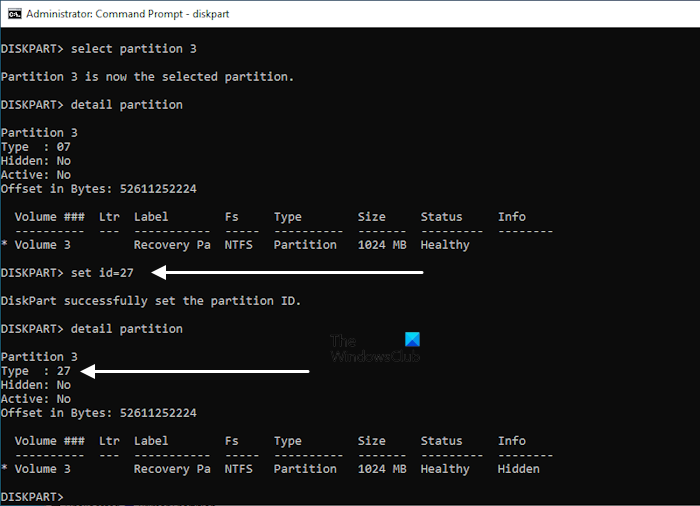
The above command is for the hard disk with an MBR partition scheme. If your hard disk has the GPT partition scheme, execute the following two commands one by one:
set id=de94bba4-06d1-4d40-a16a-bfd50179d6ac

gpt attributes=0X8000000000000001
These commands will move the Winre.wim file from the C drive to the newly created Recovery Partition. Now, you can encrypt the C drive partition using BitLocker and enable the Recovery Environment.
That’s it. I hope this helps.
How to fix BitLocker keeps asking for the Recovery Key?
If BitLocker keeps asking for the recovery key on startup, you need to unlock the boot drive using the BitLocker password. You should have the BitLocker recovery key; otherwise, you cannot unlock your C drive. If your BitLocker recovery key is lost, there are some ways by which you can find it.
How to resolve the BitLocker recovery issue?
The resolution to the BitLocker recovery issue depends on the error you received while using BitLocker. For example, BitLocker is waiting for activation, The drive protected by BitLocker drive encryption is already unlocked, errors, etc.
Read next: How to add a Recovery Partition in Windows.
