
If you are seeing Xbox error code 8015DC01 then this means that your Xbox console and/or Windows PC needs an update and it is not able to do so. In this post, we will examine how to resolve the issue in detail.
Why am I getting Xbox Error Code 8015DC01?
The error code in question basically means that it is time for you to update your console. This issue is pretty common and can be resolved by following the first two solutions mentioned hereinafter. However, some users continue to experience this issue because their console doesn’t get updated. If that is the case, then we need to troubleshoot specific problems and explore workarounds.
Fix Xbox Error Code 8015DC01
To resolve Xbox error code 8015DC01, follow the steps below. Make sure to execute the solutions in the given order as it will save you some time.
- Check if Xbox Server is down
- Restart your devices
- Fix Network issue
- Update your Xbox & PC manually
Let us talk about them in detail.
1] Check if Xbox Server is down
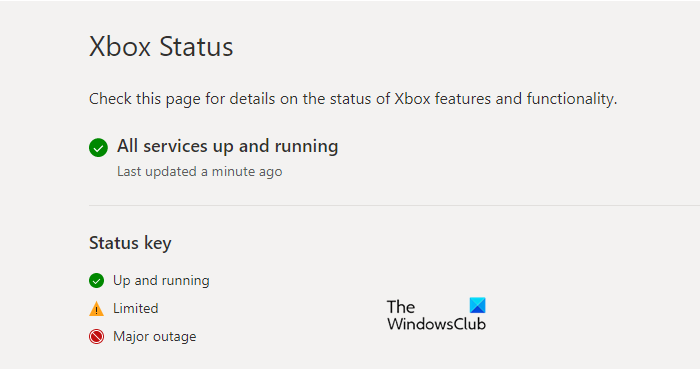
Before moving forward, we have to check if the Xbox server is down. If it’s down, then your console won’t be able to download an update, and you will continue to see the error code in question. Therefore, go to support.xbox.com and see the status. If the server is down, wait for a short time and continue to check your server status in the meantime.
2] Restart your devices
If the server is working properly, you can then restart your console. As a result, your devices will automatically download and install the required updates on your console. Follow the steps below to complete the same task.
- Press the Xbox button.
- Go to Restart Console.
- Click Restart.
In most cases, these two solutions are sufficient to resolve the issue, but if the error code persists, you may need to explore additional solutions and workarounds.
3] Fix Network Issue
Your console may not be able to download the required updates if you are dealing with a network issue. You can restart your router. To do that, follow the given steps.
- Turn of your Router, plug it out, and wait for 1-2 minutes.
- Plugin the router and restart it.
- Connect your console to the WiFi.
Finally, check if the issue persists.
4] Update your Xbox & PC manually
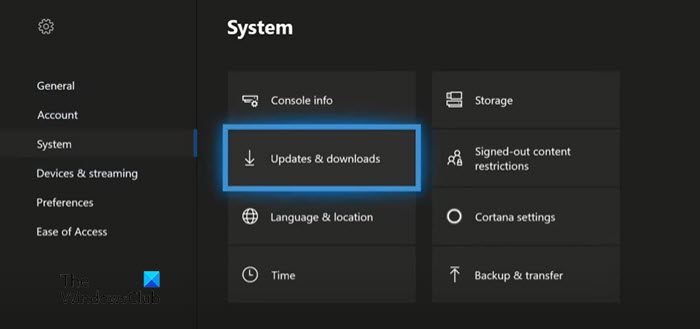
Sometimes, Xbox fails to prompt the user to download an update. In that case, we need to update the console manually. Follow the given steps to do the same.
- Click on the Xbox button from your controller.
- Go to Settings > System.
- Now, click Updates & downloads.
- From there you can download all the available updates.
You should also update your PC, if it’s not updated.
Hopefully, this will help you resolve the issue.
How do I fix corrupted files on Xbox One?
You may see a “Saved game corrupted” error message when trying to play a game. This issue is very annoying and indicates that your game file is corrupted and needs to be removed. Therefore, if you want to repair corrupted files, you will need to remove them from your console.
Follow the steps below to complete the same task.
- Open the menu of your console by clicking on the Xbox button from your controller.
- Now, go to Settings > System > Storage > Games and Apps.
- Select the game that’s showing the error and delete it.
Finally, restart your console and see if the issue persists.
How do I reset my Xbox One without losing data?
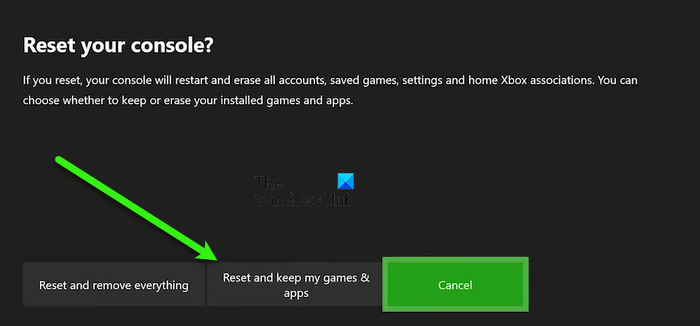
To reset your Xbox One without losing data, follow the given steps.
- Go to the menu after pressing the Xbox button from your controller.
- Navigate to the Settings.
- Then click System > Console info > Reset console.
- Finally, select the reset option you want. If you want to keep all your data then select Reset and keep my games & apps.
What is Xbox code error 8015d021?
Xbox displays error code 8015d021 when you have enabled parental controls and someone is trying to sign into an account that you do not permit. In that case, you need to log in to your parent account and allow the sign-in for the child account. Otherwise, you will continue getting this error on your gaming console.
