
Most of us keep complaining about how sluggish Windows 11/10 is when it comes to starting up but fail to realize that it’s under our control to speed up the process. Often the bootup process is delayed due to a load of applications that run during the startup and no amount of cache or temporary file cleaning will help. Another thing is that most Windows users are not aware of which programs run in the background or at startup.
Control what programs run at Windows boot
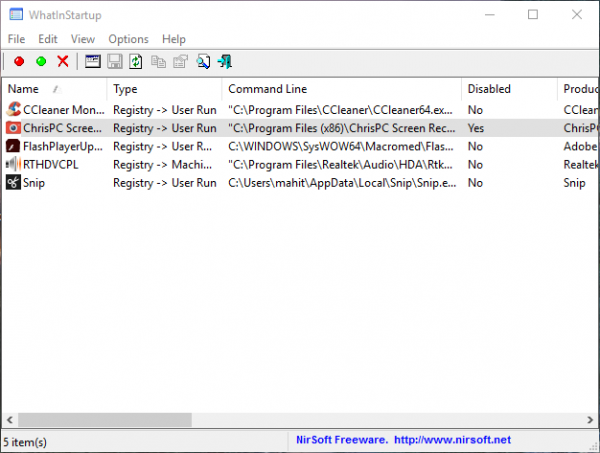
We have seen many utilities that give users an option to disable startup programs that run on Windows startup however WhatIN Startup is one of the few utility that is built solely for this purpose and as a result bakes in quite a lot of features. The program can be run easily and is pretty light on resources.
The utility displays all the applications that are loaded automatically during the boot process, and along with that, it also displays the following information: Startup Type, Command-line String, Product Name, File Version, Company Name, and Location in the registry.
Needless to say, the program will also let you delete and disable unwanted programs in the Windows startup and the best part is that this utility can also be used on an external drive, in case you want to check the startup programs on other PC’s as well.
Best Features
We all know what Startup utility programs do but here are some of the best features of WhastIN Startup that will help you understand the need for this software. The best part is that WhatsINStartup doesn’t need a dedicated installation and you can simply run the executable in order to start the program. Once started, the WhatsInStartup displays the list of programs that are loaded during the startup, and you can also disable them by selecting and pressing F7, and also delete them (Ctrl+Delete).
Permanent Disabling
This is one of the best features I have been longing for, most of the programs find a way to get back into the registry, and despite disabling them for the first time, they keep cropping up on the startup list, and during all this, the program doesn’t ask for the user’s permission. WhatsInStartup continues to monitor the startup lists in the Registry and the file system. In case a disabled program is once again added to the lis,t WhasInStartup will automatically detect the change and disable it again. All of this is carried out without the need for human interference and users can whitelist the programs as and when they require.
WhatsINStatuup External Drive Support
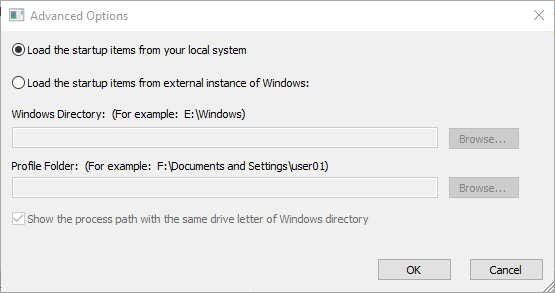
In some cases, the operating system has booting problems, and it is here that external drive support comes into play. To use this feature, one needs to go to Options > Advanced > Load the startup items from an external instance of Windows and mention the Windows directory and folders. If you prefer to connect the external drive from the command line, you can do so using an external command-line option.
Overall, WhatsINStartup is a handy tool for controlling what should and shouldn’t appear on the Windows startup list. Also, permanent disabling is a great feature that prevents disabled programs from creeping back into the registry and adding themselves to the whitelist. Another important observation is that the program is lightweight compared to its competitors and doesn’t burden the CPU by guzzling power.
WhatIN Startup free download
You can download WhatIN Startup from here.
How do I control which programs run at startup?
Although Windows 11 and Windows 10 come with an option to manage the programs that you want to run at startup, you can also use third-party apps. When it comes to third-party apps, you can use WhatsInStartup. It is a portable app that you can use on Windows 11/10 to manage your startup programs.
How do I see what programs run at startup from Command Prompt?
It is possible to see, enable, and disable what programs run at startup from Command Prompt using WMIC. Although there is no direct option, you can use WMIC to get the job done. You can follow this detailed guide to disable the startup program in Windows using Command Prompt.
