
Netflix which is one of the well-known video streaming services allows you to enjoy television shows, videos, and movies from any place in the world. All you need is a good internet connection and a Netflix-compatible device to stream videos online. Watching videos with Full HD resolution is always a feast to eyes. Netflix streaming videos can be watched on a computer or laptop through Mozilla Firefox or Google Chrome. Are you eagerly waiting to watch Netflix at 1080p on Chrome and Firefox browser? Netflix 1080p and Super Netflix extensions give viewers an option to watch top-quality videos from any browser on your personal computer.
Watch Netflix at FHD or 1080p in Chrome & Firefox
By default, users accessing Netflix in Chrome and Firefox can watch videos at 720p, but they can watch any video at 1080p using a special browser extension.
Sometimes viewers’ internet connections may also affect the resolution at which the video is streamed, so we advise Netflix users to make sure their internet speed is fast enough to stream TV shows or other videos at 1080p. Users can download Netflix extensions from their browser’s store.
First-time users can enjoy a free trial of Netflix without paying; it is a good option because you can see how the network works and what it offers for entertainment. You can decide whether to continue using Netflix and subscribing to the premium service, or cancel the membership. Lastly, ensure that you have subscribed to the “HD” Plan offered by Netflix; otherwise, however hard you try, the video will be automatically capped at 720p.

It is going to be very easy to watch 1080p videos using any browser.
Before downloading an extension to watch Netflix videos at 1080p:
- Check whether your device can play videos at this resolution.
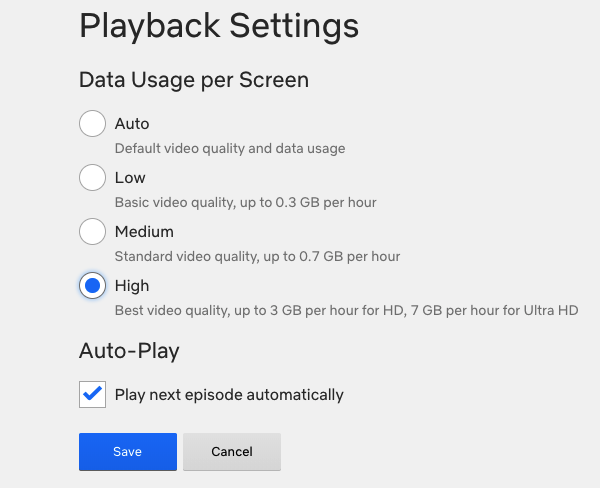
- You are advised to check Netflix playback settings and make sure that the videos are not streamed at 1080p even when all the settings are just fine.
- Make sure that data usage is set at “High” in playback settings.
- For streaming videos in HD or Full HD, your network connection should be able to transfer data at 5 MB/s or more.
A little tip, to check your exact Netflix speed you can point your browser to fast.com and perform the speed test. This website is powered by Netflix.
Things to be done after installing Netflix 1080p extension on Chrome
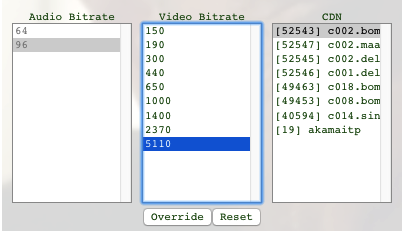
After installing the Netflix 1080p extension on your Chrome browser, play a video that is available in 1080p resolution. When the title starts playing, just press Ctrl + Alt + Shift + S shortcut on your keyboard. After doing so, you will see a menu that displays the bitrate. To watch Netflix videos in 1080p, set the resolution to the required value from the available options. A bitrate of 5000 and above usually sets the streaming quality to FHD, while it may not be very accurate, it is as close as it can get.
You can get the same functionality on Firefox browser by using the Force 1080p for Netflix extension. The extension is still in its beta and has some glitches.
Streaming Netflix at 1080p using Super Netflix Firefox/Chrome Extension
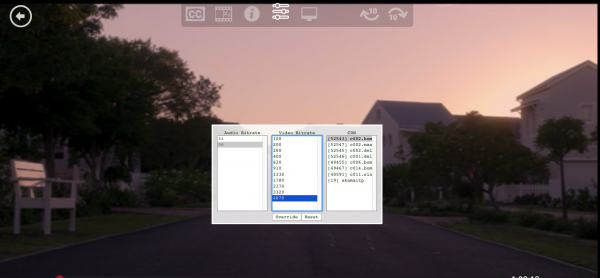
Super Netflix is by far one of my personal favorites when it comes to Netflix tools to enhance the experience. The best part of Super Netflix is that it offers a range of tools to enrich your Netflix experience. The extension offers a custom subtitle tool, better video toggle controls, advanced streaming information and the ability to block the spoilers. If you want to stream Netflix at 1080p on any browser, simply change the bitrate from the menu. Ideally, for the video to stream in FHD resolution, the bit rate should be above 5000. Get it here: Chrome | Firefox.
Your comments and suggestions are most welcome.
