
Many of us have a habit of streaming a lot of video content online. We browse for documentaries, tutorials, fun content, or other walkthroughs. The video industry has always been a powerful medium for spreading information. The world has been witnessing the rise of filming as a major means of influencing people and spreading information.
A team of developers that go by the name CodeBicycle came up with an idea. They built an extension called Video Speed Controller for Google Chrome, Microsoft Edge and Mozilla Firefox. By using this application, the user can now control video playback in supported browsers more precisely. With easy-to-use shortcuts, you can control the video playback speed in the browser.
Video Speed Controller add-on allows you to speed up, slow down, advance, and rewind any HTML5 video with quick shortcuts. It will help you customize your HTML5 Video playback & optimize video viewing by letting you make quick playback speed adjustments, and more! will help users.
This extension is only compatible with HTML5 video. If you don’t see the controls showing up, chances are you are viewing a Flash video.
Video Speed Controller for Chrome & Edge
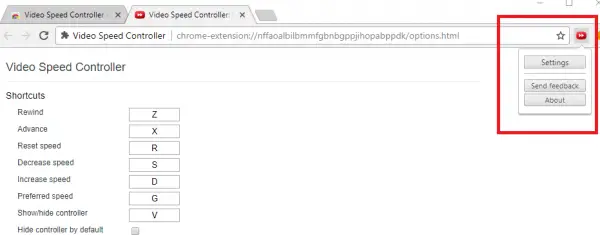
In order to install Video Playback Controller on Google Chrome, first of all, navigate to this link. After that hit on the Add Extension button. This will download a very small extension file to Chrome. And now Chrome will prompt you to install this extension. After you say Yes to that prompt, it will install the extension of your Google Chrome browser.
Now, in order to customize the settings, find the icon of the extension on the top right corner beside the hamburger button. Then click on Settings. This will take you to a new page. This page will be similar to the one we saw with Mozilla Firefox and will provide exactly the same functionalities.
The only permission that this extension need is to Access your playback settings and elements. This means that it will just be able to check if the video that is being played is an HTML5 embedded video or if it uses Adobe Flash. However, it will not work with Flash Plugin for Videos.
Video Speed Controller for Firefox
If you use Mozilla Firefox, just follow this link. The link will take you to the extensions page for Mozilla Firefox directly.
Now, there will be a button highlighted in blue that would say Add to Firefox. Click on it. Upon clicking it, a very small extension will download to your computer, and Mozilla Firefox will display a pop-up. Click on the Add button and this will install the extension of your Mozilla Firefox browser.
After it gets installed, you can now manually assign what key on your keyboard would execute what function.
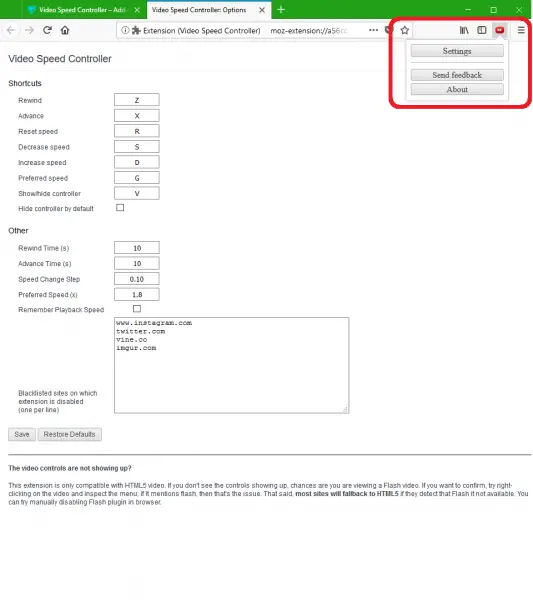
For that, click on the extension icon on the top right portion of the browser. This button is located next to the hamburger button.
When you click on it, you will see a pop-up showing different options. Among the list, click on Settings. This will redirect you to a new page with all available options.
Here, you can assign shortcuts to Rewind, Advance, Reset Speed, Decrease Speed, Increase Speed, Preferred Speed, Show/hide controller or hide the controller by default. You can set different timings for different functions. You can Rewind Time, Advance Time, Speed Change Step, Preferred Speed and you can even get the extension Remember Playback Speed for the next video playback.
Let us know how you like using this browser extension.
How can I control the speed of a video?
You can control the speed of a video in your Chrome, Edge or Firefox browser by making use of the Video Speed Controller extension, which is quite easy to use.
Video Speed Controller not working
If the Video Speed Controller is not working in your browser, we recommend clearing your browser’s cache, uninstalling the extension and then reinstalling it. If that does not help, reset your browser and see.
