
To change settings on the router, you need to access its login page. This path is usually a URL provided by the router manufacturer, and you can access it through any browser while your system is connected to the router. However, if you are unable to access the router login page, please read this article for a fix.
Unable to access Router admin or configuration page
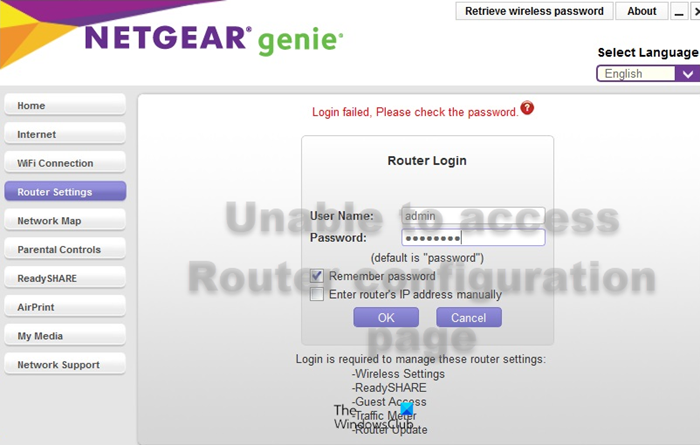
Ideally, the computer doesn’t need to be connected to the internet to access this page. Nor does the router need to be connected to the modem. So, the only thing you need to make sure of is to connect the router to the computer either through an Ethernet cable or wireless connection.
If you cannot open or access your web-based Router configuration or admin page both through the login URL or login IP address, then try the following solutions sequentially to resolve the problem in discussion:
- Restart your system
- Use the IP address associated with the path
- Use the default gateway
- Change the browser
- Hard reset the router
1] Restart your system
Sometimes, a simple fix like restarting your computer can solve a complex problem. So, before proceeding with the more complex solutions, simply reboot the computer. It should be helpful.
2] Use the IP address associated with the path
When you try to access the router login page, you use the URL provided by your router manufacturer. For example, the login URL for Netgear’s router page is routerlogin.net. They give this URL to make the job easier. It is associated with an IP address which for a usual Netgear router is 192.168.1.1. If you use a D-Link router, the IP address is 192.168.0.1. It will vary by brand. You can contact your router manufacturer for the same and try it to access the router page.
The IP address needs to be entered into the browser’s address bar.
3] Use the default gateway
Did you wonder why the IP address differs across different router brands and where it comes from? It is the default gateway of the router and every other device connected to the router will carry an IP address in sequence.
To check the Default Gateway of the system, the procedure is as follows:
- Search for Command Prompt in the Windows Search bar and select the option to open the application.
- In the Command Prompt window, type the command ipconfig and hit Enter. It will display some information.
- In this information, you will find an entry named Default Gateway.
- Copy it and paste it to the address bar of your browser.
- Hit Enter and the router page should open.
4] Change the browser
At times, the issue could be with the browser itself. To isolate this case, try changing browsers.
5] Hard reset the router
Interestingly, to make the router access more secure, the router login URL and IP address can be changed from the router page. This also prevents a software reset of the router since you wouldn’t be able to access the router page in the first place.
In this case, you can consider a hard reset of the router. This is usually done by inserting a pin into the Reset hole for a few seconds. The hard reset will also change the router page URL and IP address to the default.
We hope that this post helps you access and change your Router Settings.
Why is 192.168.1.1 not opening?
192.168.1.1 is the default IP address for Netgear Genie, which is the login page for Netgear routers. However, since Netgear was the market leader in routers and its troubleshooting documents were more popular, most people consider 192.168.1.1 the router login IP address. The fact is that the Default Gateway is the IP address of the router login page.
Why is my router page returning “Not secure” message?
The router login page is usually never secure since it uses HTTP instead of HTTPS. Try accessing the router page through different browsers. Check if the issue persists.
