
Microsoft has changed the way the Start Menu looks in Windows 11. Apart from displaying a Recommended section, it now displays a Category section, which makes the Start Menu look rather big. If you wish to turn off or hide this All Category section in Windows 11 Start Menu, this post will show you how to do it using the Registry, Group Policy Editor or CMD. We have already seen how to hide the Recommended section in the Start menu; now, let us see how to do this.
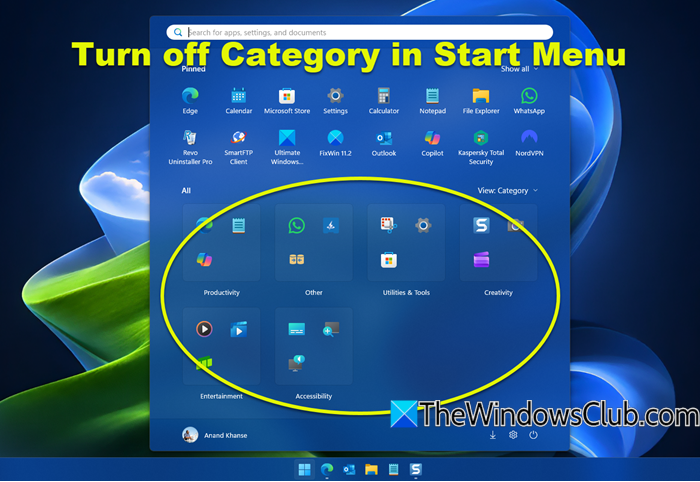
Before we proceed, you should know that there is currently no native method or setting to completely remove this new All – View Category section on the new Windows 11 Start Menu. Methods 1 and 2 will remove the Category view but still show the Grid and List views. Method 3 will remove the section completely, but you will be left with a big blank space in its place.
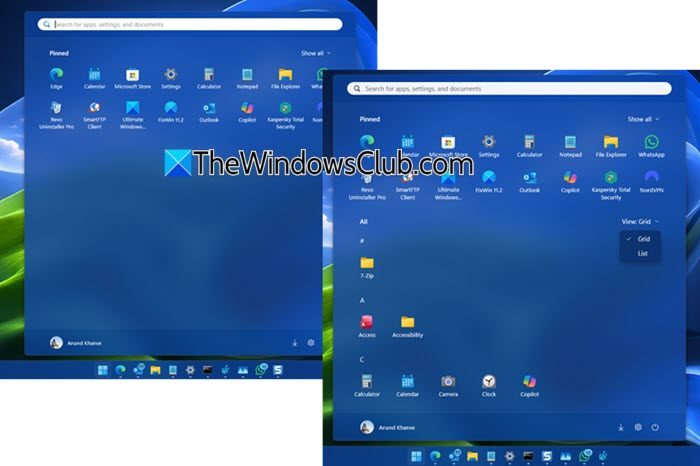
How to turn off Category in Start Menu of Windows 11
To turn off or hide the All Category section in the Start Menu of Windows 11, you can use the Registry or Group Policy Editor.
1] Using Registry Editor
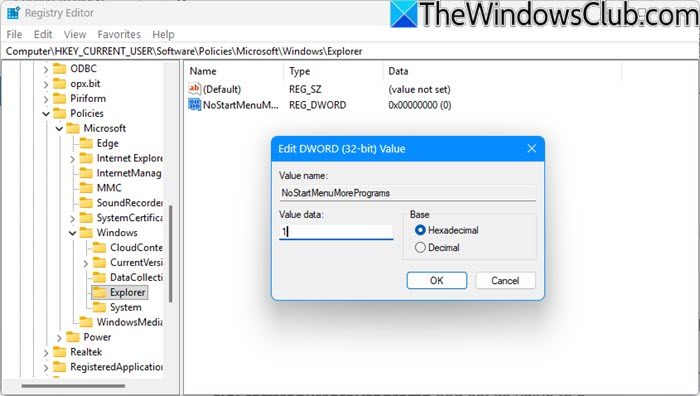
Press Win + R, type regedit, and hit Enter to open the Registry Editor.
Now, navigate to:
HKEY_CURRENT_USER\Software\Policies\Microsoft\Windows\Explorer
In the right panel, right-click and create a new DWORD (32-bit) Value named NoStartMenuMorePrograms and set its value to 1.
2] Using Group Policy Editor
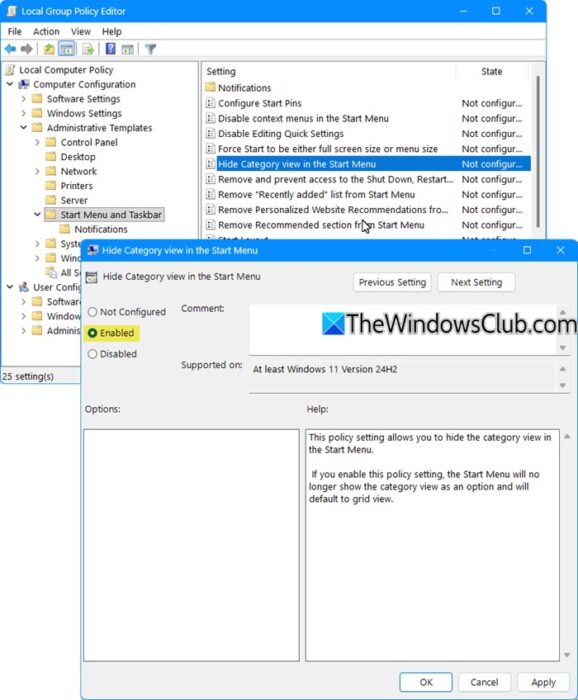
Windows 11 Pro, Enterprise, and Education edition users can also use the Local Group Policy Editor.
Press Win + R, type gpedit, and hit Enter to open the Local Group Policy Editor.
Navigate to:
Computer Configuration > Administrative Templates > Start Menu and Taskbar
Double-click Hide Category view in the Start Menu in the right pane.
Select Enabled to hide the Category view.
This policy setting allows you to hide the category view in the Start Menu. If you enable this policy setting, the Start Menu will no longer show the category view as an option and will default to grid view.
Click OK to save changes.
Restart Explorer to apply.
3] Using Command Prompt
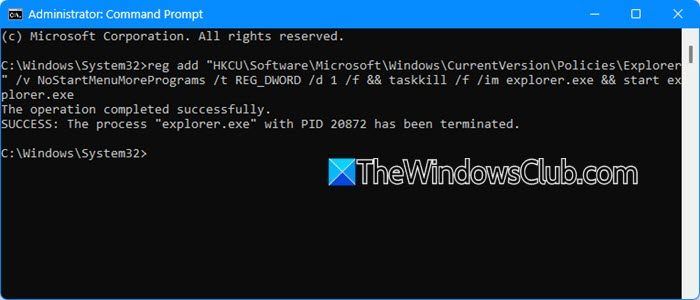
Open Command Prompt as administrator and execute the following command:
reg add "HKCU\Software\Microsoft\Windows\CurrentVersion\Policies\Explorer" /v NoStartMenuMorePrograms /t REG_DWORD /d 1 /f && taskkill /f /im explorer.exe && start explorer.exe
To go back to default, execute:
Reg add "HKCU\Software\Microsoft\Windows\CurrentVersion\Policies\Explorer" /v NoStartMenuMorePrograms /t REG_DWORD /d 0 /f && taskkill /f /im explorer.exe && start explorer.exe
BONUS TIP: If you are a user of ViveTool, you can simply run the following command in CMD (Admin) in the folder containing vivetool.exe:
vivetool disable /id:47205210
Hope this works for you.
How do I turn off Categories in Windows 11 Start menu?
You can’t turn off the Category folders in the Windows 11 Start menu as they are a fixed part of the new layout by Microsoft. However, you can switch the view from Category to List for a different display. Click on “View” in the top-right corner of the Start menu to change the settings. – or follow the instructions laid down above in this post.
How do I change the Start menu to Old in Windows 11?
To revert to an older-style Start menu in Windows 11, right-click the taskbar and choose “Taskbar settings.” Then, expand “Taskbar behaviors” and set “Taskbar alignment” to “Left.” A complete return to the classic Start menu isn’t officially supported, but this adjustment offers a similar layout. You can also open Start Menu Settings to customize its appearance to your liking.
