
Shutting down or putting your computer into hibernation at a specific date and time is now possible in Windows 10. However, if you’re looking for an easier option to get the job done, then we’d like to recommend a tool known as Toff. It’s not a bad program because we’ve been using it for quite some time, and can say for certain that it works quite well. If you’re planning to leave your computer at the office to go out for lunch, simply use this free shutdown scheduler tool to set the system to turn off or hibernate at the right time.

Now, its user interface isn’t the best, but once folks have used it for some time, they should have few issues going forward. In all honesty, it doesn’t need to have the best user interface in the world because the options aren’t vast.
Power Saver & Shutdown Scheduler for Windows PC
Here’s the official description of the Toff:
“This utility will be handy for people who would like to leave their computers unattended for some time before automatically turning them off (logging off users, rebooting, hibernating or putting them into sleep mode). TOff can perform these tasks at a certain day and time (one time or every day), as well as after a certain period of mouse & keyboard, CPU or network inactivity with the seconds precision. TOff is unequivocally your ticket to save energy.”
1] Turn off the computer (Soft and Hard)
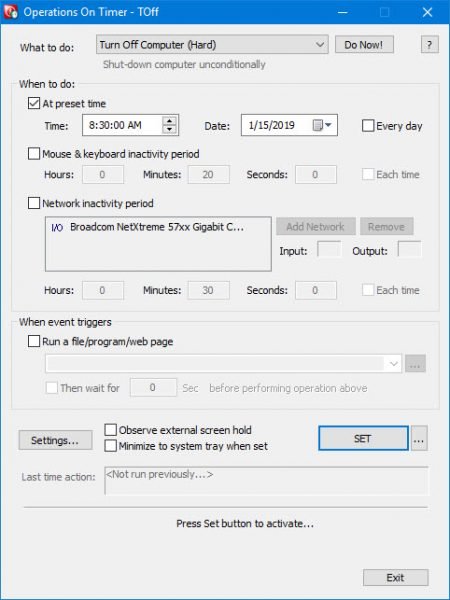
When you’re doing a Soft turn off of the computer, this will only happen if the currently running programs allow it. Simply click the What to do drop-down menu and select Turn Off Computer (Soft), then click Do Now to get the job done.
With a Hard turn off, this means Toff will shut down your computer and kill any running apps in the process.
2] Hibernate computer
To place your computer into hibernation, just simply follow the steps above and select the Hibernation option, then select Do Now.
3] Preset time
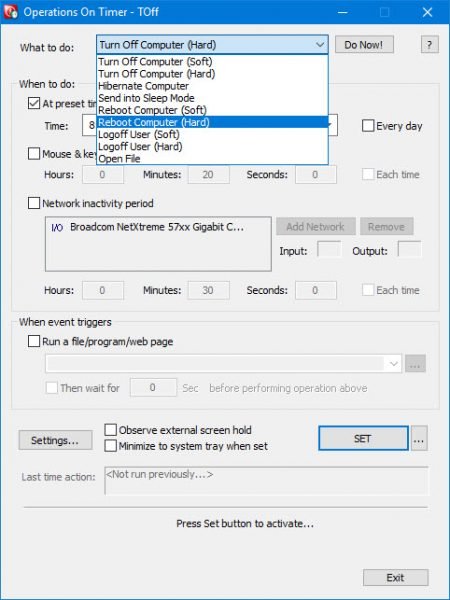
Setting a preset is easy, and we’re going to show you how to do it. Before going down this route, be sure to set your Windows computer to turn off, or whatever else you want to accomplish.
After that, venture down to the section that says When to do. Tick the box labeled “At preset time,” then choose your preferred date and time from the available options. Furthermore, folks can select the mouse and keyboard inactivity time, and the same applies to network inactivity time.
Now, the system should automatically add your network card, but if it isn’t there, you can add it manually.
4] Open File
As the name implies, this feature lets users set a file to open automatically at a particular time. This feature is useful for you if you have to work with a specific file daily. Follow the steps provided below:
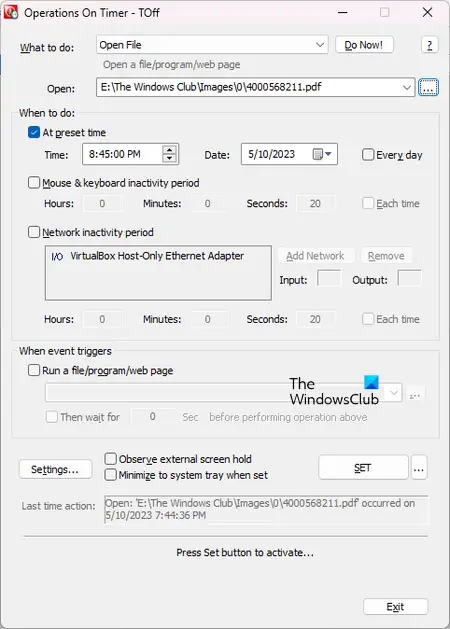
- Select Open File in the What to do drop-down.
- Click on the Browse button and select the file you want to open.
- Now, select any of the three options in the When to do section as per your requirement.
- When you are done, click SET.
5] Automatically launch an app
Here’s something rather interesting that grabbed our attention right from the get-go. You see, users can automatically have Toff run a file, program, or webpage after triggering of an event. Simply click the box that says Run a file/program/webpage, then from the box below, search for the file or program you want to execute.
To launch a webpage, then, just type the URL, and you’re good to go.
After everything is over and done with, press the SET button to activate the tasks, then sit back and watch the magic happen.
6] Settings
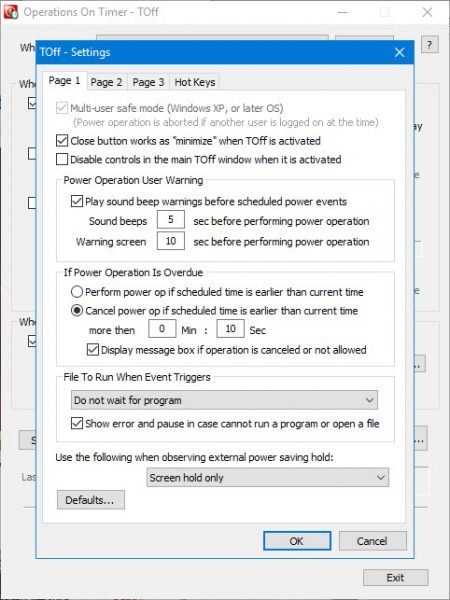
In the Settings area, the user can adjust the user-friendliness of Toff with just a few clicks. For example, you can set the Close button to minimize Toff instead of shutting it down, or play a sound before a scheduled power event.
Changing the hotkeys to fit your needs is also an option here, and that’s great.
TOff free download
You can download Toff via the official website. It requires ACPI (Advanced Configuration and Power Interface) hardware support. Most modern computers will support this feature.
How do I schedule my computer to turn on and off automatically?
You can schedule your computer to turn off automatically by using the built-in software, Task Scheduler. In the Task Scheduler, you have to create a new task for this purpose. Alternatively, you can also use a third-party program to schedule your computer to turn it off automatically. To turn your computer on automatically at a specific time, you need to modify your BIOS settings. This option may or may not be available on your system.
Can I set my PC to turn off at a certain time?
Yes, you can set your PC to turn off at a certain time. There are multiple ways to do this. One way is to use the Task Scheduler. But if you do not know how to use the Task Scheduler, you can install third-party software for the same.
Read next: How to open Files or Folders automatically when Windows starts.
