
Windows Update installs drivers that are the best fit. However, they are not always accurate. An OEM driver or software may be better than what Microsoft offers. If you receive Windows has determined that the best driver for this device is already installed message when you try to update an old driver, here’s how to override or bypass it.
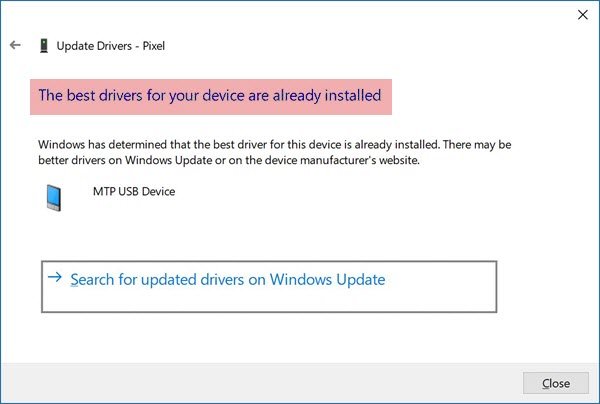
The best drivers for your device are already installed in Windows 11/10
It is possible to bypass this action and install a driver that you believe or an OEM offers as a better solution. But before we go ahead, here is what you should know. There can be multiple reasons why Windows does that. Driver compatibility, generic driver, and many other things.
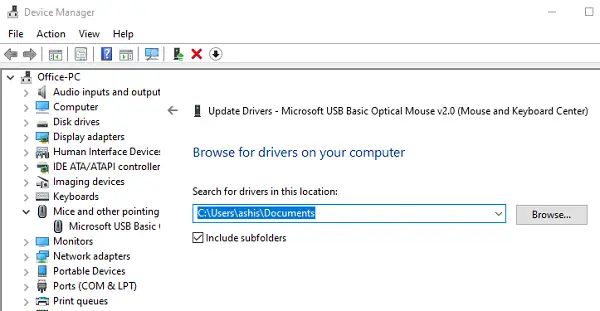
If you receive the ‘Windows has determined that the best driver or software for this device is already installed‘ message when trying to update an old driver, here’s how to override or bypass it. Before you begin, make sure you have the driver available on the computer.
- Open Device Manager using Win + X + M
- Locate the device, right-click on it, and then click on Update Driver
- It will open an update prompt where you have two options
- Search automatically for updated driver software
- Browse my computer for driver software.
- Select the second option, and then you can browse the driver. There is an additional option that allows you to pick up drivers available on the computer, but then do not use it.
- Once you select the driver, click on and confirm with the installation.
Windows will now use the driver, which you chose to select. You may get a warning if there is any compatibility issue which you can override if you wish.
Tip: You can also uninstall the driver, and Scan for hardware changes to start the process.
Make sure to create a restore point. The method allows you to override the ‘Best driver software already installed’ message on Windows 11/10.
The best drivers for your device are already installed Override
To override “The best drivers for your device are already installed” message in Windows 11/10, uninstall the current Driver first and then manually install the Driver.
Install Drivers not signed by Microsoft
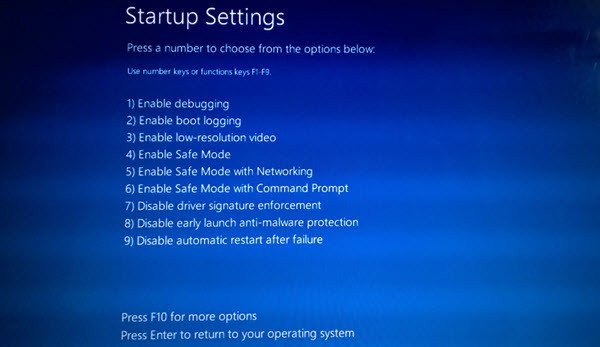
If you have a driver that is not signed by Microsoft, but you know that it will work, then you can install it. However, to install it, you need to disable Driver signature enforcement. There are three ways of doing it:
- Use the Advanced Boot Menu
- Enable Test Signing Mode
- Disable Device Driver Signing.
Follow the post we linked above to install such drivers.
I hope this helps.
How do I find the best drivers for my PC?
To find the best drivers for your PC, visit the manufacturer’s website for the latest versions. Use Windows Update for automatic recommendations by selecting “Search for updated drivers” under settings. Always ensure you have the most compatible and up-to-date drivers to optimize your PC’s performance and stability.
Why does Windows keep trying to install an update that is already installed?
Windows may repeatedly try to install an update if it wasn’t installed properly initially, or if Windows Update settings fail to recognize the update as complete. To resolve this, check for installation errors, ensure your system is up-to-date, and reset Windows Update components if necessary.
