
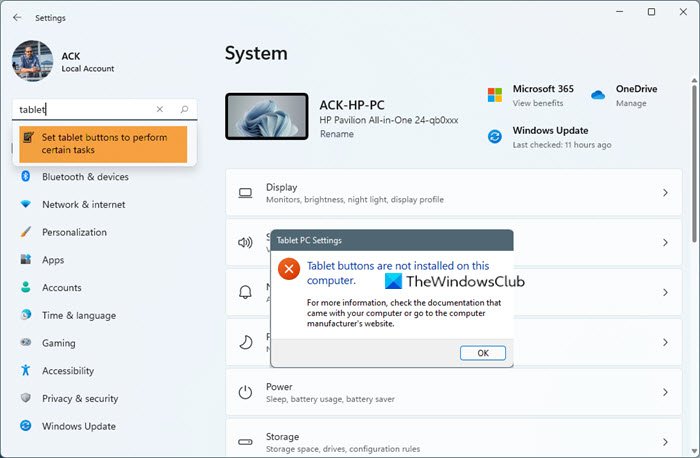
If you attempt to set Tablet buttons to perform specific tasks on your Windows 11/10 computer, and you receive a message stating that Tablet buttons are not installed on this computer, then here’s what you need to do to fix the issue.
What are Tablet Buttons?
Windows on a tablet form factor allow consumers to change the action of three buttons on the tablet (Power button, Volume Up, and Volume down). To enable this feature, navigate to Control Panel > Tablet PC Settings > Set tablet buttons and select the desired tasks.
Tablet buttons are not installed on this computer
Follow these methods to resolve the problem.
- Toggle Tablet Buttons option
- Update Drivers
- Install Tablet PC Components
You will need an admin account for some of these suggestions.
1] Toggle Tablet Buttons option
- Open Windows Settings using keyboard shortcut Win + I
- Go to Bluetooth & devices > Pen and Windows ink
- Look for the Tablet Buttons option, and toggle it. Ensure it is turned on at the end
2] Update Drivers
It’s not very hard to do, and possibly a Windows Upgrade may have broken it. You will need to find an updated driver from the OEM website and install it. If this is an HP tablet or All-in-One PC with a touch, you need to go to the HP support website and download it.
TIP: Read about the Tablet mode in Windows 11.
3] Install Tablet PC Components
In Windows 10, you can install the Tablet PC Components to resolve the problem.
- Use Win + S to open the search box and type Turn Windows features on or off.
- Once it appears in the result, click to open it.
- Locate Tablet PC Components; check the box and click ok to install it.
- Restart the PC, and the issue should be resolved.
I hope these suggestions were helpful. If your device supports it, you can use them to fix the problem.
Does my PC support tablet buttons feature?
PCs and Laptops usually don’t have tablet buttons. It is specifically available for devices up to 10-inch Windows tablets, where you can customize the buttons.
Does Windows 11 have a Tablet Mode?
Windows 11 doesn’t have tablet mode. The UI will automatically adjust and adapt according to the device. However, Windows 10 does come with tablet mode settings one can use to change.
Where can I find the settings in the Control Panel?
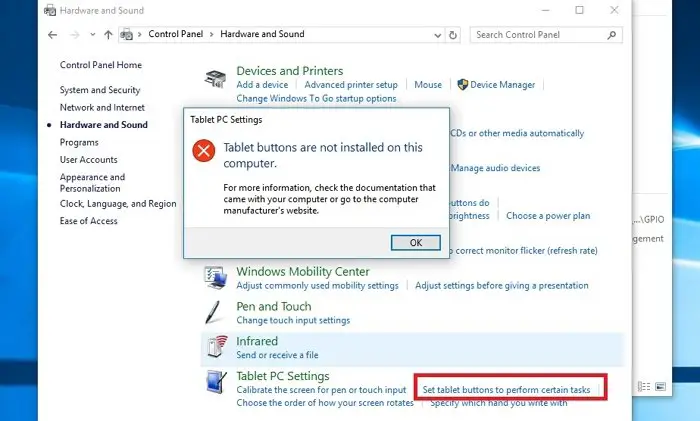
Go to Control Panel > Hardware and Sound > Tablet PC Settings, and click on the Set tablet buttons link. You can then further configure the buttons’ behavior.
