
Several apps and services in Windows 11 and Windows 10 require access to your location in order to impart Location-based services. However, sometimes things can go wrong, and location discovery may fail, causing the apps and services to be unable to fetch your current location. Keeping this in mind, you can set a default location that can be used when apps and services are unable to determine your location accurately.
It can be quite useful when both your current and default locations are set to your home address. You can stop worrying about slow internet speed and location discovery, as your default location will be used if the current one is inaccessible. Let’s see the steps to set or change your default location in Windows 11/10.
How to set Default Location in Windows 11
1. Open Windows Settings app using key combination Windows Key + I. Select Privacy & security from the available options.
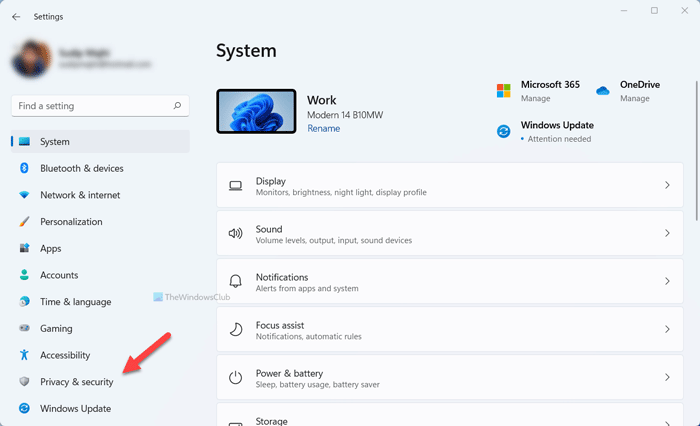
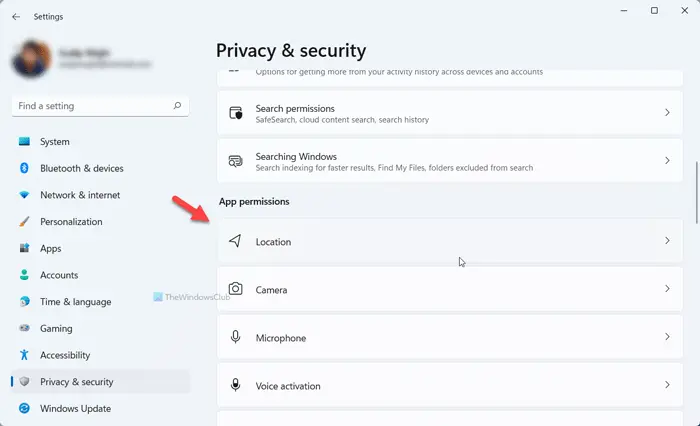
2. In the left pane of Privacy Settings window, move to the Location tab. In Windows 11, you need to find the Location menu on the right side.
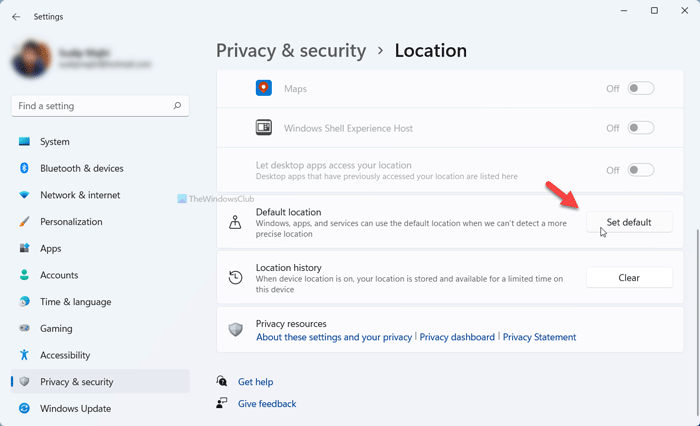
3. Now on the right-side pane, scroll down to the section named Default location. Click on Set default button.
4. In the window that opens, drag the red dot to your location and press Save.
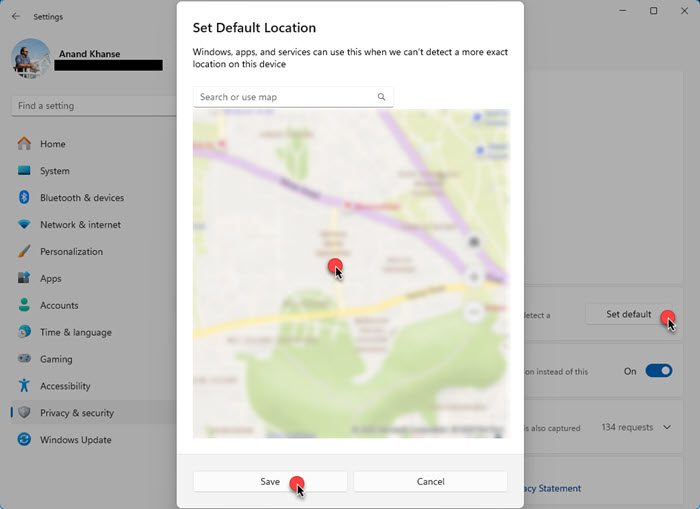
You can also set the location by using your address.
Change Default Location in Windows 11
To change your default location in Windows 11, open Windows Settings > Privacy & security > Location > Default location > Set location. Now, in the window that opens, drag the dot to the desired location and click on Save. You can also change to the new location by searching for the address.
Set Default Location in Windows 10
1. Open Settings app using key combination Windows Key + I. Select Privacy from the available options.
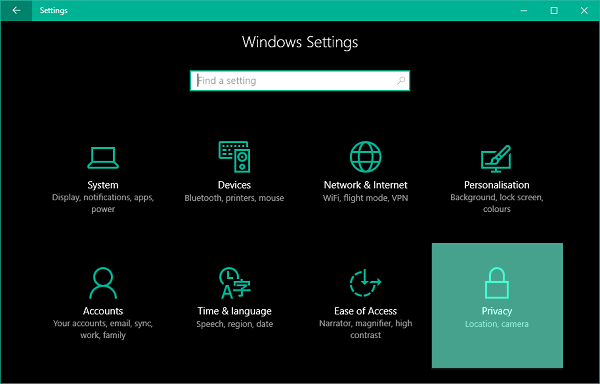
2. In the left pane of Privacy Settings window, move to the Location tab.
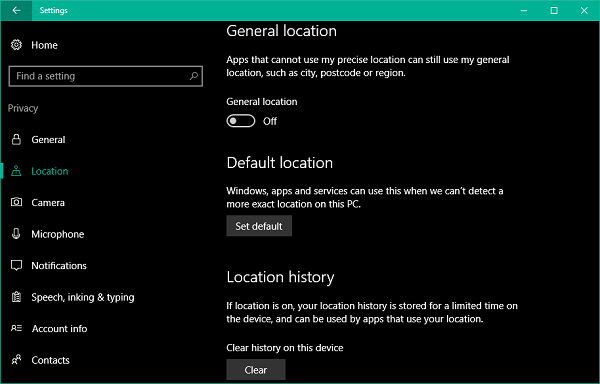
3. Now on the right side pane, scroll down to the section named Default location. Click on Set default button to open Windows Maps app for setting a location as default.
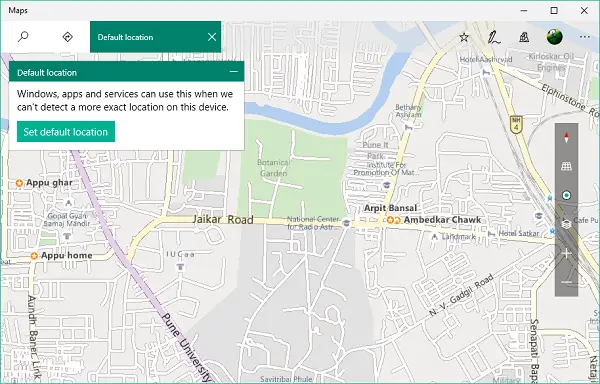
4. Up next in Maps app, click on Set default location button.
5. A text box should come in sight with a drop-down menu consisting of your saved and recent places. You can enter a location manually, or you can select anyone from the drop-down menu. You can also click any location on the map to set it as default.
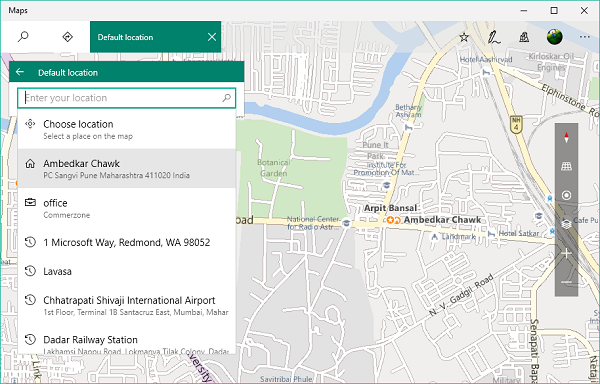
6. That is it. You have saved your default location which will be automatically selected in case an exact location is not discovered by apps.
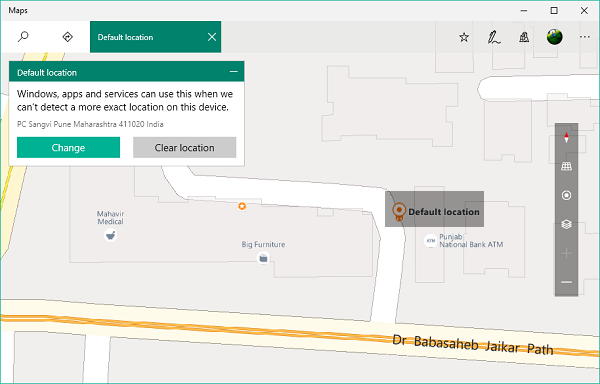
NOTE: Microsoft will shortly deprecate the Maps app, and so Windows 10 users will have to follow a method similar to the one mentioned for Windows 11.
Change Default Location in Windows 10
7. To change your default location in the future, you can also access Maps app settings.
To do so, click on the horizontal ellipsis menu button on the top-right edge of the Maps app and select Settings from the menu. Now, on the Settings slate, click on Change default location button under the section named Default location.
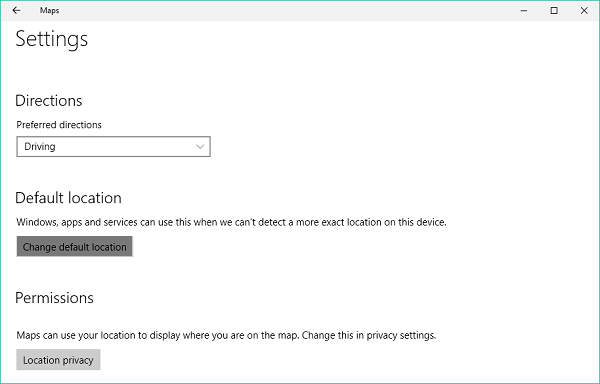
Your default location should now be picked up whenever location discovery services fail to pinpoint your exact location.
Read: Your location is currently in use in Windows 11.
How do I change my location in Windows 11?
To change your location in Windows 11, you need to open Windows Settings and go to Privacy & security > Location. Then, click on the Set default button to open a new window. Following that, drag the red dot to the desired spot and click on the Save button.
