
You can activate the Custom Instant Search Internet Search Provider policy setting in Windows Group Policy. This lets you search Google, Yahoo, etc. from the Start Menu. Here is what you need to do.
Custom Instant Search Internet Search Provider
Search Google from Windows Start Menu Search Box
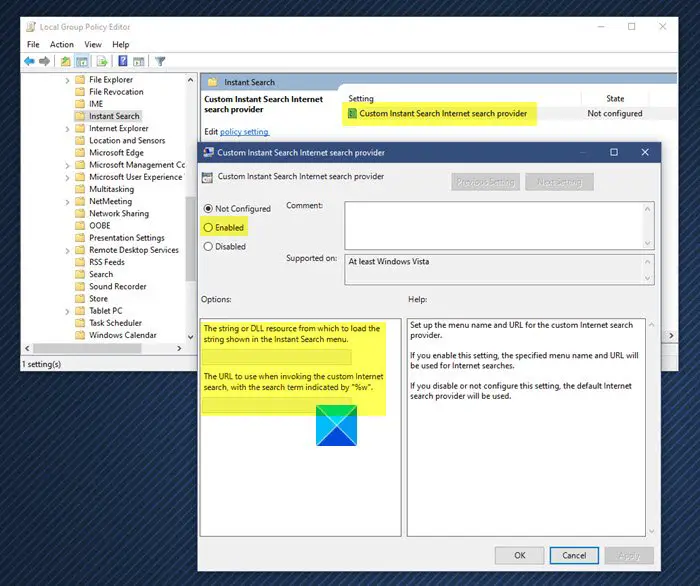
In Windows 11/10, type gpedit.msc in the search bar and hit Enter to open the Local Group Policy Editor.
Navigate to this policy setting:
User Configuration > Administrative Templates > Windows Components > Instant Search > Custom Instant Search Internet Search Provider.
Click on Properties, to open its Properties box.
Enable the policy setting by selecting Enabled. Next in the first ‘string or dll…’ box type Search Google.
To be able to search Google, in the next ‘URL to use’ box, type the following:
http://www.google.com/search?q=%w
Click Apply > OK. Reboot.
If you wish to apply the changed policy setting immediately, open cmd.exe > gpupdate/force and hit Enter.
Now open your Start Menu. You should be able to see the Search Google option. Type a search term and click on Search Google; your browser will open with Wikipedia results.
If you want to add Yahoo instead, copy-paste the following URL instead:
http://search.yahoo.com/search?p=%w
Windows Home users will have to add Group Policy Editor to their OS first.
Now read: How to create a Virtual Hard Disk on Windows.
