
Applications stealing focus on Windows 11/10 is a very annoying issue. It often happens to me that I am typing very fast on Microsoft Word while looking at my keyboard and some application pops up on my screen and steals focus. Without realizing it, I continue typing and later realize that everything has gone to waste. Applications stealing focus can be really annoying at times, and it can also be difficult sometimes to identify the application doing so. In this post, we’ve tried to cover how to prevent applications from stealing focus on Windows 11/10.
How to stop programs from stealing Focus in Windows 11
To prevent applications from stealing focus, you can try the following suggestions:
- Check the Program settings or options, and see if there is any way to disable this behavior
- Update or Reinstall the software that is stealing focus and see if that helps
- Use WindowFocusLogger, FocusLogger, AlwaysOnTop or DeskPins freeware.
We have discussed how you can use FocusLogger or WindowFocusLogger to detect such applications, or you can use a tool like AlwaysOnTop or DeskPins to pin a window on top of others.
Use FocusLogger to find out which process or program is taking the window focus
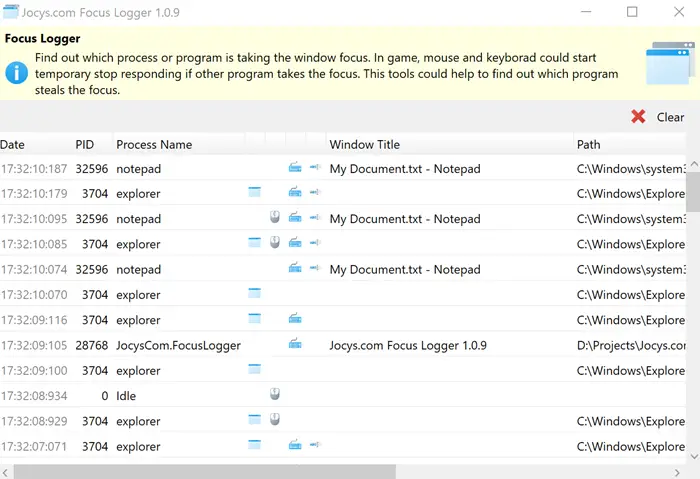
You can find out which process or program is stealing the window focus. While gaming, your mouse and keyboard could stop responding if another program takes the focus. This tool from Github can help to find out which program steals the focus.
Use WindowFocusLogger to detect apps that steal focus
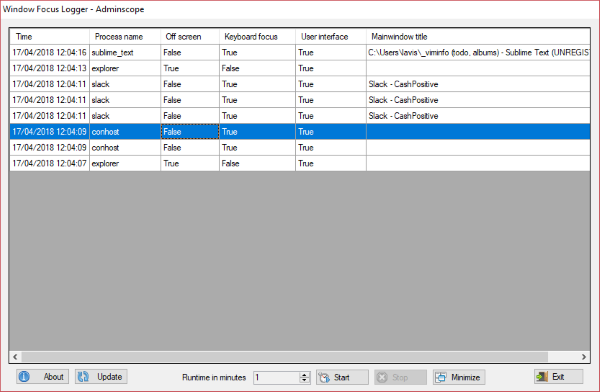
WindowFocusLogger is freeware that can help you detect applications stealing focus from the active window. The program does nothing to stop them from stealing focus but can only detect such applications. The utility does the identifying job, after that you can decide what should be done with the culprits. Ideally, you can uninstall them and look for alternatives or notify the developer about this issue.
Or you can look for a setting in the program that prevents it from stealing focus. WindowFocusLogger is a great tool for detecting such applications. It can be executed from CMD or you can use the GUI available. This review is for the GUI version.
The tool is quite simple to use: just open it, enter the duration you want to run it for, and hit the Start button.
The tool will start recording actions and log all applications that take Window Focus. The log will clearly display the process name, timestamp, and other details such as keyboard focus and user interface. From this log, you can easily identify which application stole the focus without your permission.
The tool can run entirely from the System Tray and requires minimal interaction. Again, the tool does nothing to stop these applications from stealing focus but only identifies them. Read on to find out how to prevent it from happening.
Click here to download WindowFocusLogger.
Use AlwaysOnTop to pin a window on top of others
If you are stuck with an application that you cannot find an alternative to. Or you simply cannot uninstall it due to several reasons then you should follow this. The only method by which you can prevent other applications from stealing focus is by making your desired application steal focus from others. There are many freeware tools that let you select a window that would always stay on top of other windows. One such tool is AlwaysOnTop.
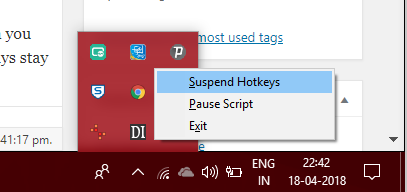
AlwaysOnTop is a free simple portable utility that lets you keep a window on top of others. The tool is very simple to use. Just run the executable and you are done. Now select any window and hit ‘Ctrl + Space’ from your keyboard. This window will now always stay on top of other windows. You can press the same keys to disable this feature.
AlwaysOnTop is quite simple and easy to use. It is compatible with any window or program. Also, it runs entirely from the system tray, and you can also pause its execution from the system tray icon itself. Using this tool, you can set the desired window on top and other windows won’t be able to steal focus at all. There are several other similar tools available that can make a window stay Always on Top.
Use DeskPins to keep your window constantly visible
DeskPins lets you pin any window and keep it on top of all other windows. Such pinned windows display a red pin mark. Get it here.
So this was all about preventing applications from stealing focus on Windows computers. In this post, we also discussed four freeware. The first & second one in identifying the culprit applications and handling them manually. The third or fourth one is using tools to fix an application on top of all other windows.
What is Windows focus stealing?
When a program window is minimized or behind other windows, and it automatically maximizes or pops up in front of your active windows, then it is called Focus stealing.
Why are my windows popping up behind other windows?
If a software requires user input or focus, its window may pop up behind the active window and its icon may flash on the taskbar waiting for user action. This could be considered legitimate behavior.
