
While updating Power Automate on your computer, if you get Power Automate needs an update but we’re unable to apply the update right now error, here is how you can fix the issue. Although it may occur with any other Microsoft Store app, you can frequently encounter this error with Power Automate on Windows 11 or Windows 10.
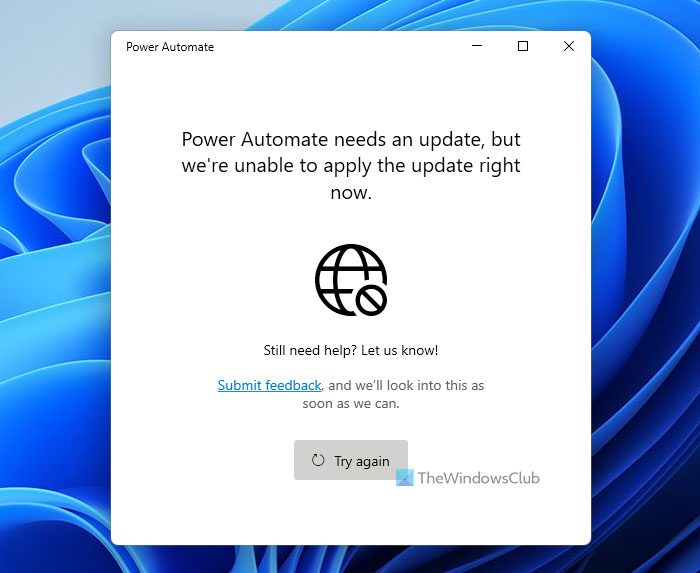
The entire error message says something like this:
Power Automate needs an update but we’re unable to apply the update right now.
Still need help? Let us know!
Submit feedback, and we’ll look into this as soon as we can.
Power Automate needs an update but we’re unable to apply the update right now
To fixthe errormessage Power Automate needs an update but we’re unable to apply the update right now, follow these steps:
- Click the Try again button
- Check your internet connection
- Repair and reset Power Automate app
- Reinstall Power Automate
- Update from Microsoft Store manually
To learn more about these steps, continue reading.1s
1] Click the Try again button
When you get the error message or screen on the Power Automate window, you can find a Try again button. As it denotes, it tries to update the app again. If an internal error is causing this problem for the first time, you may be able to resolve it by clicking the Try again button. Therefore, click on the Try again button visible on the Power Automate window to check if it resolves the issue or not.
2] Check your internet connection
In the Power Automate window, you can find a “No Internet” icon. Therefore, it is advisable to verify that you have a valid internet connection. You cannot update or download an app if you do not have a valid internet connection. Therefore, it is mandatory to check if you can open a website on your browser or not to find if your internet is working.
3] Repair and reset the Power Automate app
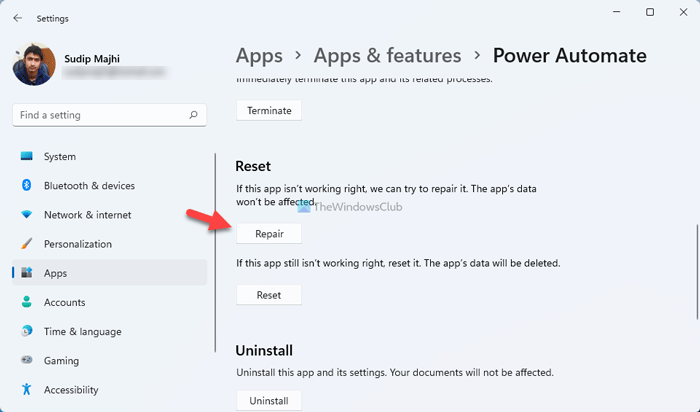
If there is some internet file corruption in the Power Automate app, you won’t be able to open or update the app on your Windows 11/10 PC. Therefore, it is better to repair or reset the app once. To repair and reset Power Automate on Windows 11/10, follow these steps:
- Press Win+I to open Windows Settings.
- Go to the Apps > Apps & features.
- Find out Power Automate from the list.
- Click on the three-dotted icon and select the Advanced options.
- Click on the Terminate button to stop all the background processes.
- Click the Repair button to repair the app.
- Check if it resolves the problem or not.
- Click on the Reset button twice to reset the Power Automate app.
After that, you should be able to open and update the Power Automate app on your computer.
4] Reinstall Power Automate
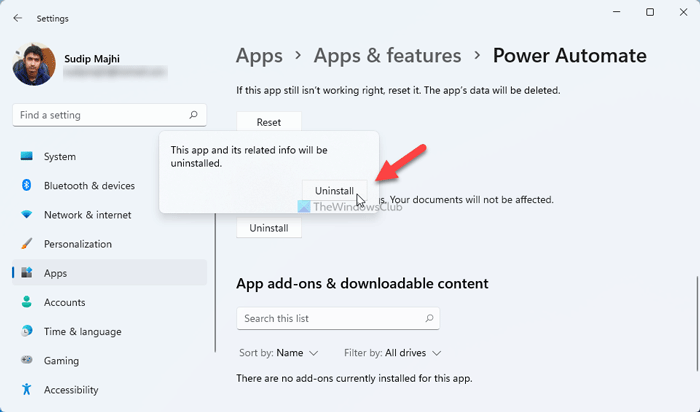
It is one of the last steps you can take to resolve this issue. If nothing is working, you can try uninstalling the app and then reinstalling it on your PC. For that, you need to open the Apps > Apps & features > find out the Power Automate > select the Advanced options > click the Uninstall button twice.
It will uninstall the app from your computer. Then, you can reinstall it from the Microsoft Store.
5] Update from Microsoft Store manually
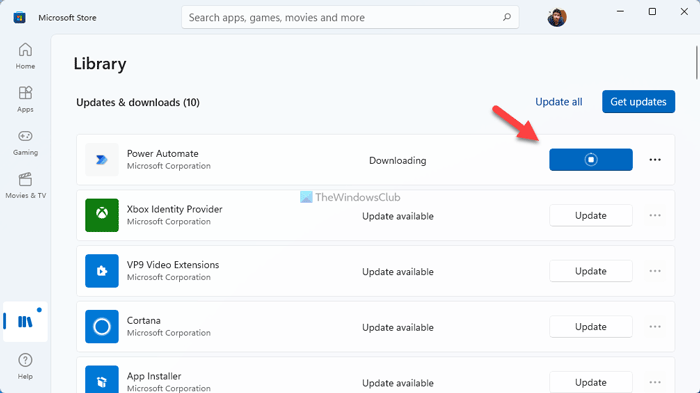
It is the last thing you can find to bypass the error while updating the Power Automate app. To do this, open the Microsoft Store on your computer and navigate to the Library section.
Here you can find the Updates & downloads section. If Power Automate is visible there, click on the corresponding Update button.
Then, it will download the update on your PC.
That’s all! I hope this guide will be helpful.
Why is Power Automate not working?
There could be several reasons why Power Automate is not working on your computer. However, if you are unable to update, please check the solutions above. For example, you can try updating the app again, check your internet connection, repair the Power Automate app, or manually update the app from the Microsoft Store.
Is there a free version of Power Automate?
There are two ways to get Power Automate for free. The first method involves using your work or school email address, which includes Power Automate capabilities in Office 365. You can use Power Automate with the free plan if you don’t have that. Go to the Power Automate website, and click on Start free. You will need to submit your email address to get access.
