
In this article, we will discuss what you can do if the Opera GX installer is not working, downloading or installing on Windows 11/10. The Opera GX installer is reported to have failed for some to update or install the browser. The error commonly occurs when you update or install your Opera GX browser on your computer. If you are also using Opera and having the same issue, this post might help you.
An error occurred while attempting to install Opera GX
Opera GX installer not working on Windows PC
If the Opera GX installer is not working on your Windows PC, you can try the suggestions below to see if they solve the issue. Before that, you should also try running the installer as an admin. Right-click on the installer file and use the Run as administrator option. If that doesn’t help, try these solutions:
- Change the directory of Opera GX
- Create a new user account
- Change your Network profile
- Download the Offline Package.
Let’s see them now in detail:
An error occurred while attempting to install Opera GX
1] Change the directory of Opera GX
- Go to the Opera GX website first.
- Click Download Opera GX on the next page to get the browser.
- Double-click the executable file once it is downloaded.
- Choose the Options button, rather than clicking Accept and Install.
- Click on the Change button next to the Install path.
- Next, choose the location where the file will be installed.
- After that, click Accept and Install to install the file.
In case you need an explanation, let’s now look at the steps in more detail:
To get it started, navigate to the Opera GX website first. This can be done by visiting the link www.opera.com/gx. It will take you directly to the Opera GX web browser download page as shown in the snapshot below.

Once the file has been downloaded, go to the Download folder of your File Explorer window and double-click on the executable file.
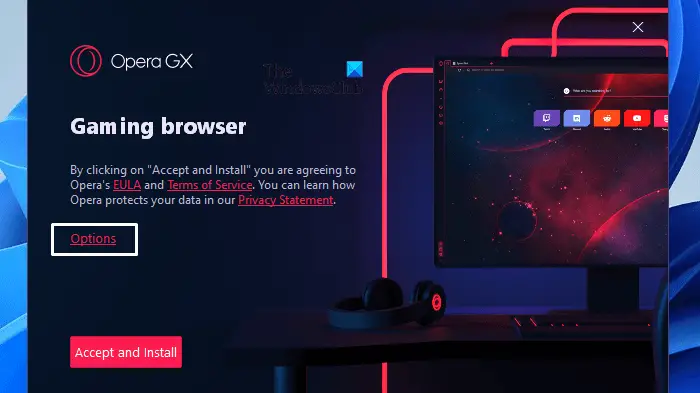
When you launch the executable file, a new page will open that looks similar to the image above. As you proceed to the next page, do not rush to select the Accept and Install button. Before proceeding, click the Options button, which I have marked with a white rectangular line.
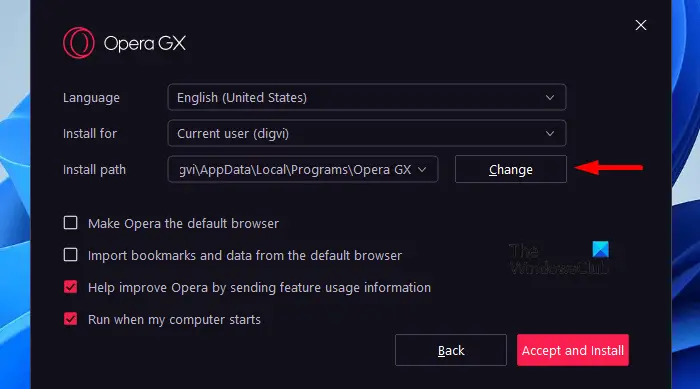
Next to the Install path, click on the Change button. Here, you need to choose the location where you would like the file installed. As part of this step, you will edit the directory where the browser will be saved, then proceed to install it.
After selecting the location, click OK to save it. Once that is done, click Accept and Install to install the file. After changing the installation path, check if the Opera GX installer works.
2] Create a new user account
This solution requires you to create a new user account and check whether the Opera GX installer is working on your computer. In case it does, it means the old user account is corrupted.
Do note that you need to create a local user account and use it to check if you are able to install or update the Opera GX browser. If you use a Microsoft account, then it may not work, and your problem continues. Also, make sure that you are not installing Opera GX on a network drive.
3] Change your Network profile
In case none of the solutions work, you should change your network profile, and this should resolve the issue.
4] Download the Offline Package
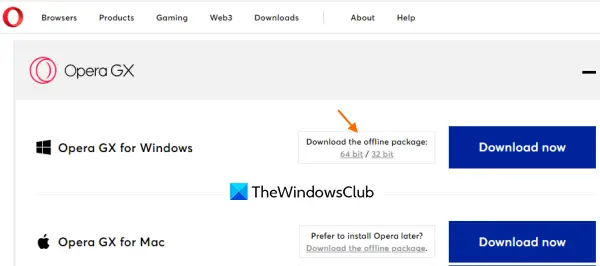
This option has helped many users who are facing the same issue. Sometimes, the web installer or an online installer for an application can’t download the required components. It may happen because there is an issue on the server side or something else. Therefore, it is best to use the offline installer for an application when the web installer is causing problems. You should do the same and download the offline package for the Opera GX browser to resolve this issue.
You can get the offline installer of the Opera GX browser for Windows from opera.com. Grab the 64-bit or 32-bit setup file as per your requirement. Run that file and complete the installation process. This should work.
Why is the Opera installer not working?
If you are trying to install the Opera GX browser and its installer is not working, the most likely reason is either that the web installer is having trouble downloading the required components from the server or that the directory where you want to install the browser is not supported. So, in this case, you can use the offline installer and then install the Opera GX browser or change the installation directory. You can also try to install the Opera GX browser on a local user account.
Why does Opera GX fail to open on Windows 11?
Problems with your Microsoft account may cause this issue; in that case, you should check your account’s family settings. In some cases, this problem can also be caused by a corrupted installation, so reinstalling the browser might be helpful.
Read: Opera GX not opening on Windows
Is Opera GX a gaming browser?
According to the company, Opera GX isn’t designed to be a gaming browser, but it has several options that can be tweaked. These options include setting CPU, RAM, and network limits. The browser has these features, but on its own, they are not enough to make it suitable for gaming. Although Opera GX Browser was not built from scratch, it does have many advantages for gaming.
Why should you use Opera GX?
Opera is the company most likely to have developed a gaming-specific web browser. The company has introduced some unique features that were later adopted as industry best practices to differentiate itself from competitors. It has been designed especially for PC gamers and is equipped with advanced features that enhance their gaming experience without affecting their performance.
Is Opera GX different from Opera? In what ways are they different?
Opera is one of the oldest and most popular browsers used by users for online searches. The program includes features such as an integrated VPN and an ad blocker. There is, however, Opera GX, which is specially designed for gamers. It is a browser intended exclusively for gamers. According to the company, it is a more advanced or special version of the Opera browser. It comes with useful features such as CPU, GPU, and Network limiters, making it a must-have for some users.
Hence, Opera and Opera GX are two different browsers made by the same company, but for different target audiences. Although they are both manufactured by the same company, there are a number of similarities on both ends. Both run on Chromium, have similar privacy policies and use the same VPN.
Related Post: Opera browser not opening or loading pages.
