0:00
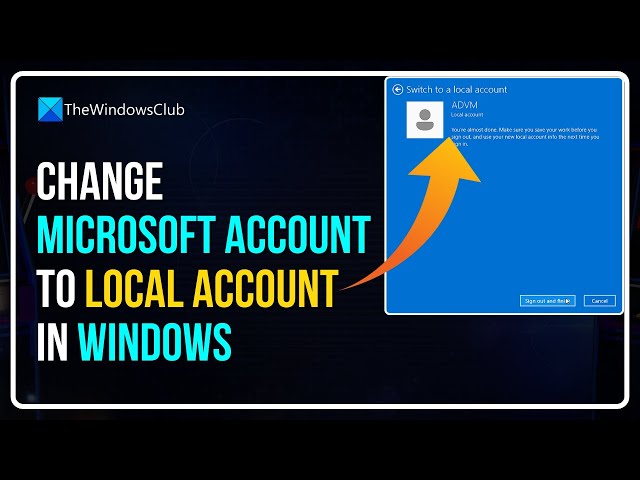
Do you want to change Microsoft Account to Local Account in Windows 11?
0:04
Then you are at the right place as here is how to do so.
0:07
Let’s get started. This is The Windows Club.
0:16
While installing Windows 11/10 or setting up your computer for the first time,
0:21
Windows may have persuaded you to log in using a Microsoft Account. Microsoft Account
0:25
is generally the one you’ve been using to log in to your email on Outlook, Hotmail, or Live.
0:33
There was an option to sign in using a local account too, but it usually goes unnoticed. So,
0:40
now if for some reason you want to switch to a Local Account from a Microsoft Account,
0:44
this video will guide you. You can create a separate local account or
0:48
you can convert your existing account to a local account.
0:54
How to change Microsoft Account to Local Account in Windows 11
0:58
To change the Microsoft Account to a Local Account in Windows 11, press the Windows+I
1:03
keyboard shortcut to open the Settings app. Now click on the Accounts tab in the left pane.
1:09
Switch to Local Account. Then go to the right side of the
1:12
page and click on the Your info option. Sign in with a local account instead.
1:18
Under Account settings, click on the link Sign in with a local account instead.
1:24
You will now be asked to confirm that if you really want to switch to a local account.
1:28
Click on the Next button to continue.
1:33
account that is currently logged in will be asked. You may also enter your PIN or
1:38
another form of sign-in you previously set up. The next step requires you to enter your local
1:44
account details. Here, you should add a password. Once you have created or renewed a local account
1:52
using the username and password, Windows will now ask you to use this account to log in.
1:58
Click Next once you’ve finished entering your information.
2:01
change Microsoft Account to Local Account in Windows
2:05
Now click on the Sign out and finish button. After signing out,
2:10
you’ll be able to log into your local account. it syncs some settings across PCs you use. It also
2:17
syncs settings like browser favorites, history, shortcuts, passwords for the various services
2:23
you use. If you have any issues performing the steps you can follow this detailed guide.
2:31
So, that's it. Subscribe to The Windows Club for all
2:34
your tech solutions related to Windows. Thanks for watching.