
Some users have been complaining that VMWare apps have been showing the following error message when trying to open a Virtual Machine.
Failed to lock the file
Cannot open the disk ‘C:\Users\<username>\Documents Virtual Machines Windows.vmdk’ or one of the snapshot disks it depends on.
Module ‘Disk’ power on failed.
Failed to start the virtual machine.
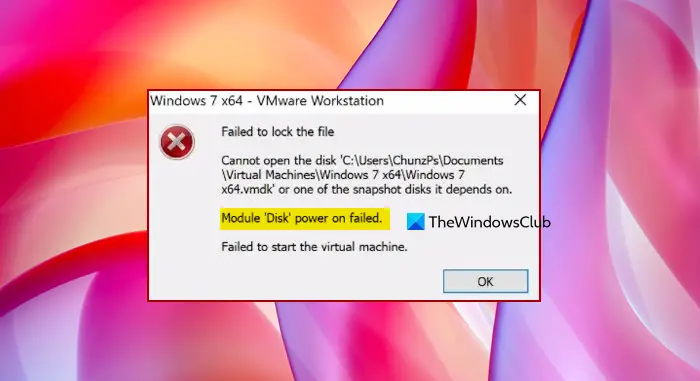
In this article, we are going to dig deep into the topic and see what you need to do if you are seeing Module Disk power on Failed on VMWare.
Before fixing the problem, we need to know what it is and what’s causing it. The problem is, some of the VMware files are blocking your VM. Which is, needless to say, won’t let you play the game. But the question is, why is it blocking the Virtual Machine? To fathom this, we need to understand the mechanism behind VMWare.
When you open a Virtual Machine, some files are there to control the functioning of your machine. The files with the extension .lck are created as soon as the machine is turned on, and they make sure that multiple VMs can’t read or write to the disk.
Lock files are deleted instantly when you close the VM. This is done to ensure that it doesn’t interfere with any other service. However, in the event of an improper shutdown or crash, these files are left undeleted on your system, which can cause the issue in question.
There are other reasons and solutions that we will discuss below. So, without wasting any time, let us go to the troubleshooting guide.
Fix Module Disk power on failed on VMWare
If you are seeing “Module Disk Power on Failed” in VMware, follow the solutions to resolve the issue.
- Delete Lock folders
- Troubleshoot in Clean Boot
- Reinstall VMWare
Let us talk about them in detail.
1] Delete Lock folders
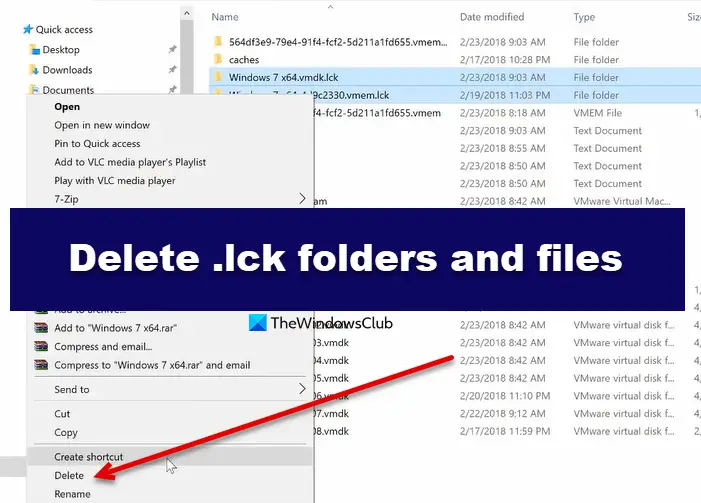
As mentioned earlier, the workstation creates a Lock folder which is meant to be deleted as soon as you turn off your Virtual Machine. However, sometimes, you have to delete it manually. We are going to see how to delete Lock or .ilk folders manually. Follow the given steps to do the same.
- Power off your VM.
- Now, we need to go to your directory. If you know the path, just go there, if you don’t know, right-click on your VM and click Open VM directory. You will be redirected to a location in Windows File Explorer.
- Then delete folders with .lck folders.
Finally, restart your computer and check if the issue persists.
2] Troubleshoot in Clean Boot
There are many apps that can interfere with your Virtual Machine. However, there is no way to just play Inki Pinki Ponki and find the right app. That’s why Windows has a utility called Clean Boot that lets you pick the app causing the problem. You should perform Clean Boot and find out what’s causing the issue and see what’s causing the problem. Then, remove it, and see if the issue persists.
Clean-boot troubleshooting is designed to isolate a performance problem. To perform clean-boot troubleshooting, you must take a series of steps and restart the computer after each one. You may need to disable one item after another to pinpoint the one causing the problem. Once you have identified the offender, you can consider removing or disabling it.
3] Reinstall VMWare
If your VMware app is corrupted, you may also see these sorts of messages, in addition to abrupt crashes. We can easily reinstall the app to resolve the issue. If you are going to uninstall the app, make sure to create a backup; otherwise, your saved data will be wiped out. Uninstall the app, then redownload, reinstall it and check if the issue persists.
Hopefully, these solutions will resolve the issue.
Read: VMware Workstation Pro can’t run on Windows computer.
How do I power a Virtual Machine in VMWare?
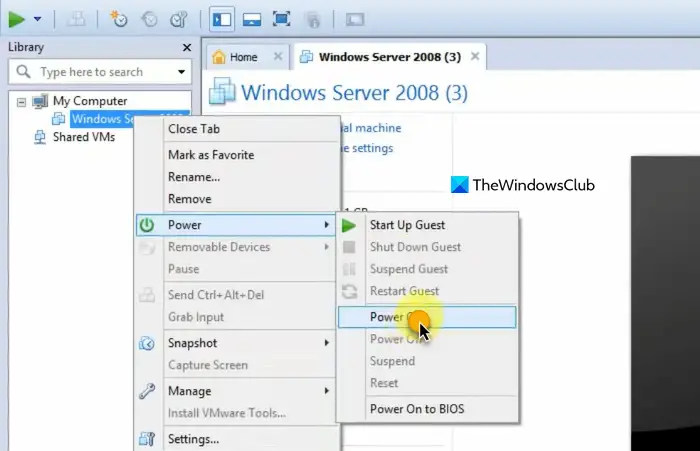
It is quite easy to power on a VM in VMWare. Open the Workstation, then go to the VM you want to open. Finally, click Power on the virtual machine and your VM will be launched. You can also, right-click on your VM and click Power > Power on.
What could cause the VM to fail to power back on?
When you start a Virtual Machine and it fails to power on, there could be multiple reasons for that. Some of these include file corruption, file locks, Guest OS issues, license issues, network issues, user permission issues, etc.
Also check: Fix VMware Workstation Unrecoverable Error (vcpu-0).
