
The OneDrive and Dropbox clients make it easy to transfer, back up, and restore files between your PC and the cloud. They perform their tasks in the background, and since they utilize the internet, they also share in your bandwidth usage.
This shouldn’t be a problem. However, OneDrive and Dropbox can consume a lot of bandwidth. It takes a toll on your internet speed, especially if you use a slow or not-too-fast internet connection. The good news is that you can limit the bandwidth OneDrive and Dropbox use.
If you find out that your OneDrive or Dropbox app uses up your bandwidth, follow the guides in this section to learn how to limit usage. The processes to limit the bandwidth usage of these apps are similar.
Limit Upload or Download Bandwidth usage by OneDrive
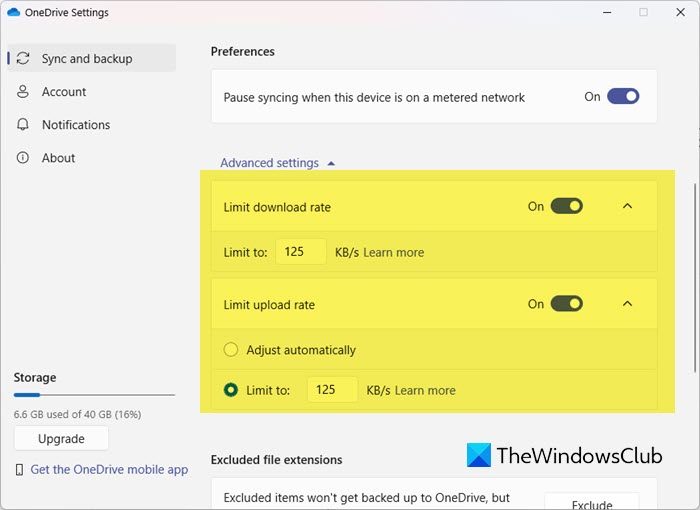
Open OneDrive and go to Settings. You can also right-click on the OneDrive icon on your taskbar and click on the Settings option.
Make sure you are on the Sync and Backup section. Click on Advanced settings in the right side to open additional settings.
By default, the upload and download rates are set to Don’t limit. Turn on the switches and you will see options to limit download and upload rates. You can set the limits or opt to adjust automatically.
Thus you can change OneDrive Sync Upload and Download Rate.
Limit Dropbox bandwidth usage
Dropbox also allows you to limit its bandwidth usage. To limit the Dropbox client’s bandwidth, click on the Dropbox icon on your taskbar to open the little window.
Click on the gear-shaped icon and select Preferences from the dropdown menu.
Go to Bandwidth in the Dropbox Preferences window. Here, you’ll find the same settings we saw in the OneDrive solution above.
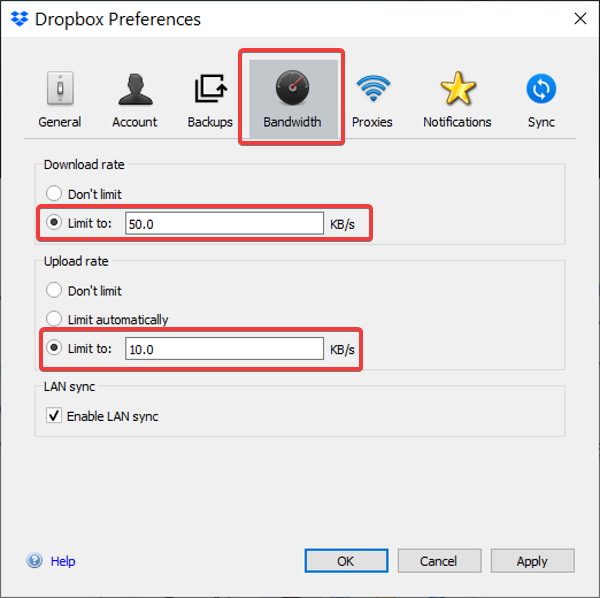
Set the Limit to option on Download rate and Upload rate. Enter values for the bandwidth in KB/s and click the OK button.
Configuring the bandwidth that the Dropbox and OneDrive clients use it straightforward. These background apps would no longer consume the bulk of your bandwidth in the background, and you’ll notice a difference in your bandwidth usage after applying these settings.
That’s all! Hope this guide helped you.
How do I limit OneDrive Download and Upload rates?
- Open OneDrive and access Settings via the app or by right-clicking its taskbar icon.
- Navigate to the Sync and Backup section.
- Click “Advanced settings” on the right to reveal additional options.
- Toggle the switches to enable upload and download rate controls.
- Choose to set custom limits or let OneDrive adjust them automatically.
What is bandwidth limit on Dropbox?
By default, Dropbox uses your entire internet bandwidth to upload/download/synchronize files on your computer. However, if you use more other apps or have a limited internet bandwidth, you can set the limit. When you set the limit, Dropbox won’t use more than the predefined data speed to synchronize files.
Read also: How to limit the bandwidth of foreground apps.
