
Many apps on Windows 11/10 need to control the Radio to function properly. Therefore, Microsoft has given you, the user, control over this feature. You can choose which apps you want to allow to control the radio. In this post, we are going to see how to allow apps to control device radios in Windows 11/10.
Let Windows apps control Radios in Windows 11
We’ll cover four methods to let Windows apps control Radios in Windows 11/10. They are.
- Via Settings
- By Group Policy Editor
- By Registry Editor
- Using Windows Terminal.
Let us talk about them in detail.
1] Allow apps to control device radios via the Settings app
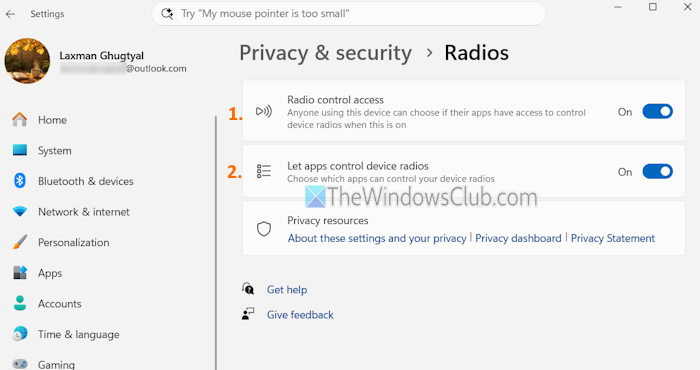
The steps to allow apps to control device radios using the Settings app in Windows 11/10 are as follows:
- Use the Win+I hotkey to open the Windows 11 Settings app
- Click on the Privacy & security category
- Scroll down to access the System section
- Click on the Radios option
- Press the toggle to turn on the Radio control access option
- Use the toggle to turn on the Let apps control device radios option.
Windows 10
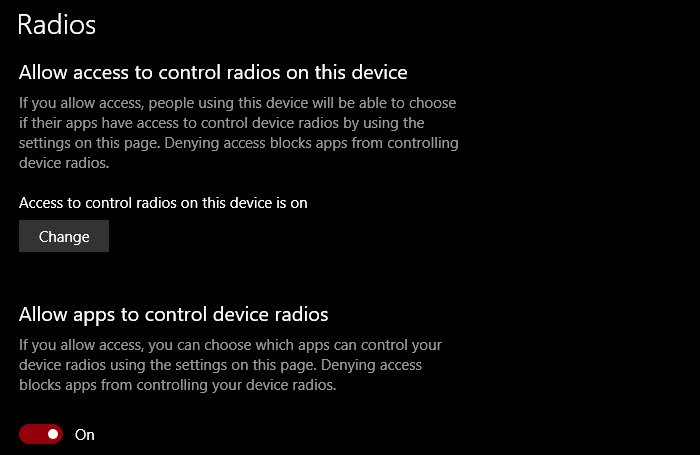
To control your computer’s Radios settings, follow the given steps.
- Launch Settings by pressing Win + I.
- Click Privacy > Radios
- To enable Radio completely, click Change and turn the toggle on.
- To allow all apps to access radios, turn on the toggle for Allow apps to control device radios.
- To manage access to radios for individual apps, select the app from Choose which app can control your device radio.
This lets you manage radio settings in the Settings app.
2] By Group Policy Editor
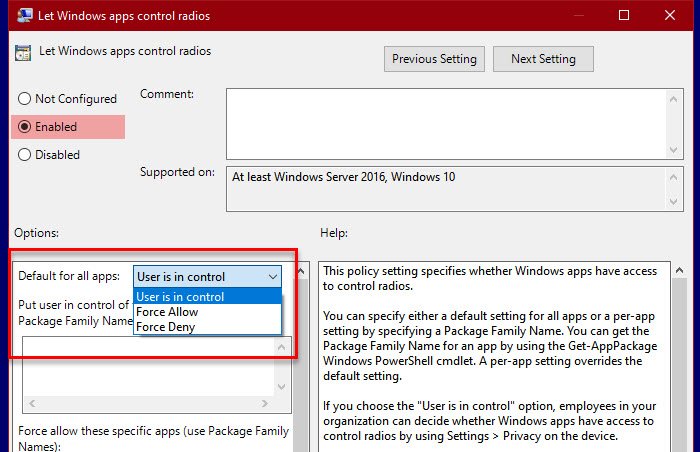
There is a policy, Let Windows apps control radios, that allows you to control how the radios will function. So, launch Group Policy Editorfrom the Start Menu and navigate to the following location.
Computer Configuration > Administrative Templates > Windows Components > App Privacy
Now, double-click on Let Windows apps control radios, select Enabled, and then change Default for all apps to any of the following options.
- User is in control: All the users who are part of your organization can decide if they want to give Windows apps permission to access radios.
- Force Allow: All the Windows apps of all computers attached to your domain will have permission to access radios.
- Force Deny: None of the Windows apps of any computers attached to your domain will have permission to access radios.
After configuring the policy, you need to restart your computer once to see the effect.
3] By Registry Editor
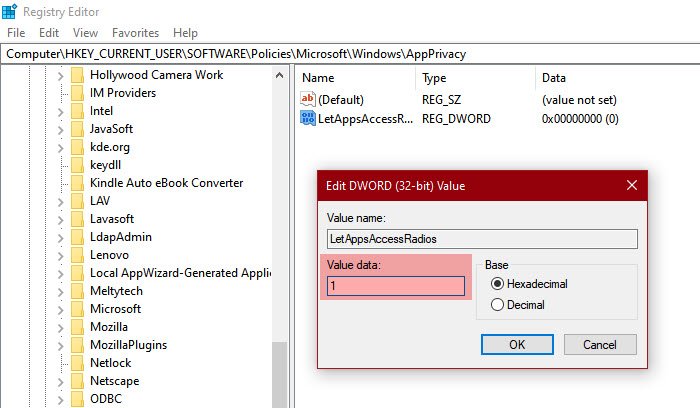
If you don’t have Windows Pro, you won’t have Group Policy Editor. So, in that case, we can use Registry Editor for the same effect. So, launch Registry Editor from the Start Menu and navigate to the following location.
Computer\HKEY_CURRENT_USER\SOFTWARE\Policies\Microsoft\Windows
Right-click on Windows, select New > Key, and name it AppPrivacy.
Now, right-click on AppPrivacy, select New > DWORD (32-bit) Value, and name it LetAppsAccessRadios.
Double-click on LetAppsAccessRadios and set the Value data to.
- 0 for the User is in Control option
- 1 for Force Allow option
- 2 for Force Deny option
This is how you can configure the Radio settings on Windows with the help of the Registry Editor.
4] Turn off or on the Radio control access for apps using Windows Terminal
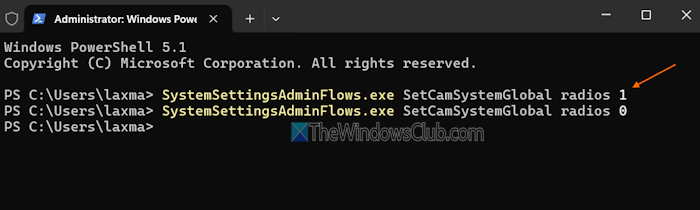
Here are the steps to turn on or off Radio control access for apps using Windows Terminal on a Windows PC:
- Right-click on the Start button
- Select the Terminal (Admin) option. This will open Windows Terminal as an administrator on your Windows 11/10 PC
- Open a Windows PowerShell profile or Command Prompt profile
- Execute the following command to enable Radio control access on your Windows 11/10 PC:
SystemSettingsAdminFlows.exe SetCamSystemGlobal radios 1
- To disable Radio control access for apps on your Windows PC, use the following command:
SystemSettingsAdminFlows.exe SetCamSystemGlobal radios 0
- This will turn off the Radio control access option in the Settings app and Let apps control device radios
That’s all. Hopefully, now you know how to control your computer’s Radio Settings.
How to control audio for different apps on Windows?
To control or adjust volume for individual apps or programs in Windows 11/10, open the Settings app. Select System, then go to the Sound page. Scroll down to the Advanced section and click Volume mixer. In the Apps section, you can use the volume slider to adjust the volume.
Should I turn on or off “Allow applications to take exclusive control” on my audio device?
It depends on your choice or preferences. If you give applications exclusive control of a device, it bypasses Windows audio processing. This will prevent other apps from using that audio device at the same time. To manage this setting for an audio device, open the Windows 11 Settings app first. Navigate to System > Sound > All sound devices. Select a device (speaker or headphone) from the Output devices section. Turn on/off Exclusive mode option under Advanced settings.
Read Next: How to change Location settings in Windows.
