
Password Managers have become very important over the years, and it’s easy to understand why. The web is populated with millions of websites, and many of them require a login to get the most out of what they offer. Because of this, many of us are forced to use multiple passwords or a unique one for each website. This is done for security reasons, so what’s the best way to keep these passwords at our fingertips while keeping them safe? Well, a password manager, of course.
A password manager makes it super easy for folks to access their passwords when logging into any online account. Now, there are quite a few password managers out there; some are paid, while others are free to use.
Today, we will focus on one of the free Password Manager software known as KeeWeb – which is compatible with KeePass. We like what it offers, and as such, we’ll be discussing many of its features among things that don’t work so well.
KeeWeb Password Manager
1] Create a new file
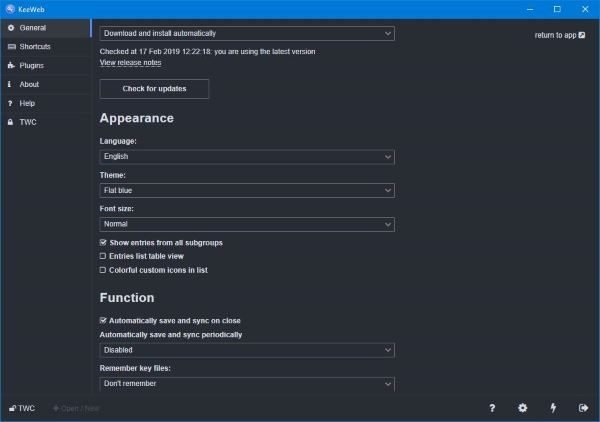
The first thing users will need to do is create new files to get things started. Chances are, this is your first time using KeeWeb, and as such, you do not have passwords saved in the system just yet. Therefore, when KeeWeb launches for the first time, simply click the New button.
From there, the user will see several options along with the folder they’ve just created. It’ll be titled New, so select it, then click the small plus button labeled Add New to add your first item.
This is where folks must add a password, the website URL it’s linked to, the username, and more if needed. Additionally, if a person has no idea what password they’d like to add, we suggest clicking the lightning icon at the bottom to generate a unique, strong password.
2] Rename a folder
OK, so when every folder is created, KeeWeb automatically names it “New”. For some reason, it’s not possible to set a folder name before creating it, which is a bit annoying. For those who want to change the name, just click the folder name in the bottom-left corner and change it to the desired name.
This section also allows setting a master password, but that’s not all; folks can back up their saved passwords just in case something goes wrong in the near or distant future.
3] Save to the cloud
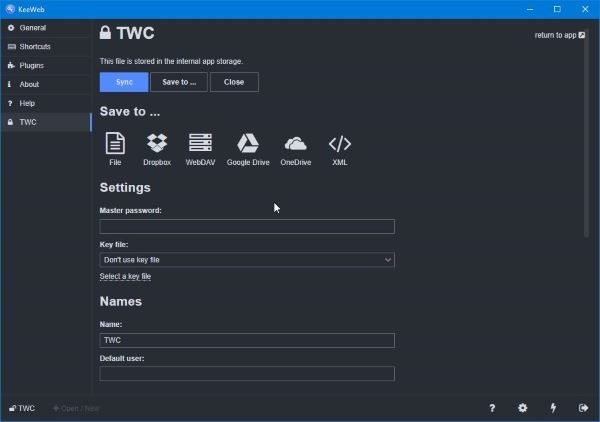
The cloud, we’re sure everyone has heard of this term at some point in their lives while scouring the web or even on the news. As it stands, if you have a Dropbox, Google Drive, or OneDrive account, then you can save your password data on either one.
To save data to the cloud, select the name of your preferred folder at the bottom, then click on Save to. From here, the user should see the available cloud storage options, so choose the best one and follow the instructions.
4] Plugins
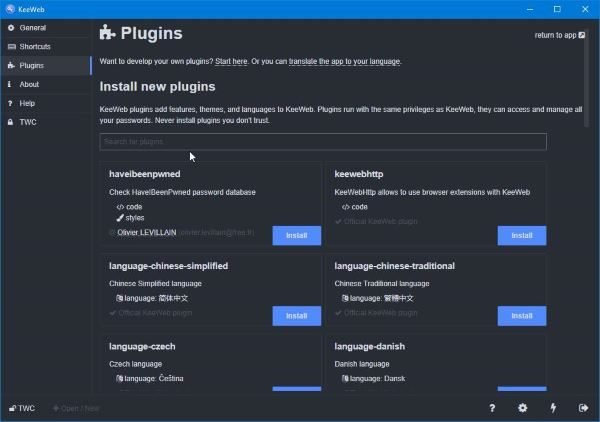
Like everything else, plugins will improve KeeWeb, but don’t expect a massive improvement over what the base product offers. We say this because most plugins are merely language packs and themes. The only useful plugin is the one that adds a KeeWeb extension to the web browser, and that’s it.
To gain access to the plugin database, click on the name of the folder at the bottom, then look back to the left pane and choose Plugins. From there, browse the list and install the one(s) you want to make using KeeWeb easier and more productive.
Overall, we like KeeWeb because it’s easy to use and easy on the eyes, so if you’ve yet to commit to a password manager app, how about giving this tool a test drive to see if it works for you? Download KeeWeb right now from the official website.
