
Msg.exe is a command-line message utility in Windows computers that administrators can use to send messages to other users on remote computers on the same network. In this article, I will show you how to use MSG.exe to send a message to a network computer.
How to use MSG.exe to send a message to a network computer
To use MSG.exe to send a message to a network computer, you need the name or IP address of the target computer. Also, the destination computers should be connected to the same local network.
- Add credentials of the destination computer
- Run the MSG.exe command
Let’s start.
1] Add credentials of the destination computer
Launch the Command Prompt on the destination computer and use the following command to know the IP address of the destination computer:
ipconfig
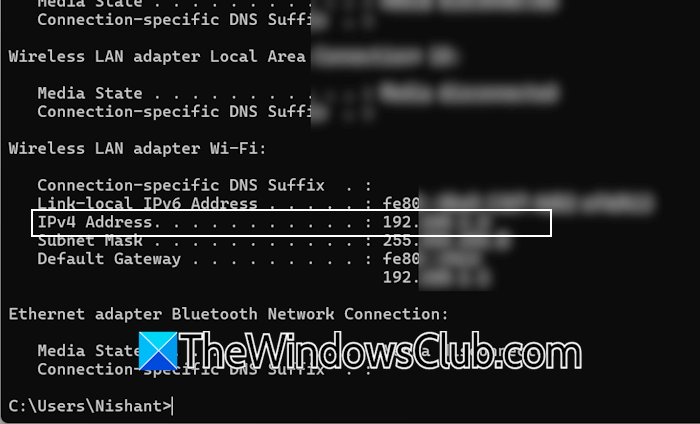
The IPv4 address displays the IP address of the destination computer. Note down the IP address of the destination computer.
Now, launch Command Prompt on the source computer. First, you have to add the destination computer to the source computer through its IP address. To do so, copy the following command, paste it into the Command Prompt on the source computer, and hit Enter.
cmdkey /add:<IP address of the destination computer> /user:<username of the destination computer> /password:<password of the destination computer>
For example, if the IP address is 192.168.1.1, the user name is hp, and the password is 1234, then the command will be:
cmdkey /add:192.168.1.1 /user:hp /password:1234
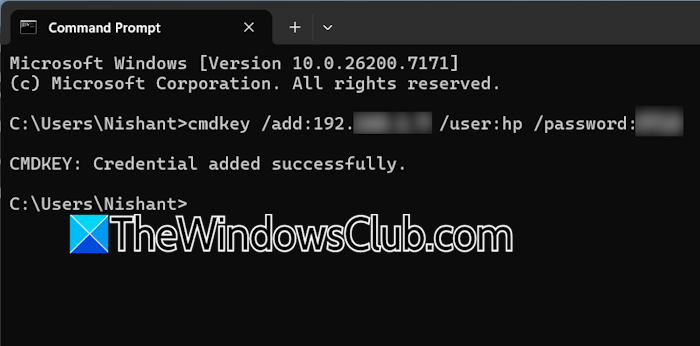
When you hit the Enter key, you will see the following message in the Command Prompt:
Credential added successfully.
Viewing the credentials in the Control Panel
You can view the added credentials in the Control Panel on your system. Follow these steps:
- Open the Control Panel.
- Select User Accounts > Credentials Manager.
- Select Windows Credentials.
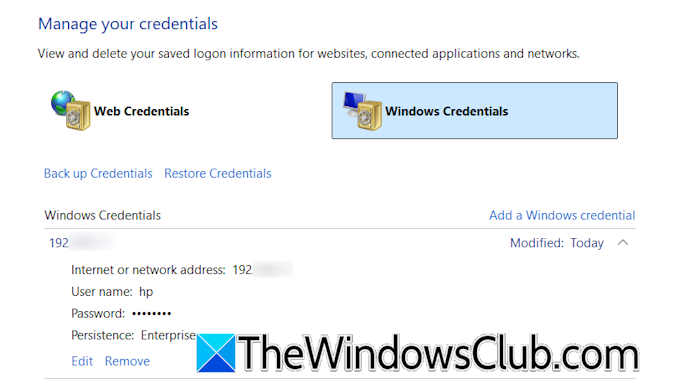
You will see the credentials of the destination computer there. Expand the tab to view more details. If you want to remove that credential, click Remove.
2] Run the MSG.exe command
When sending a message to the destination computer using the MSG.exe command, you should use the following syntax:
msg {<username> | <sessionname> | <sessionID>| @<filename> | *} [/server:<servername>] [/time:<seconds>] [/v] [/w] [<message>]
In the above command, you can use either the server name or the server IP address. You can use either the username, the session name, or the session ID of the destination computer.
Parameters in the MSG.exe command
The above command also has some parameters. You need to understand these parameters before you start sending messages. I have explained all these parameters with examples below:
<username>
The syntax for the parameter <username> is as follows:
msg <username> /server:<server name or address> "Your message here"
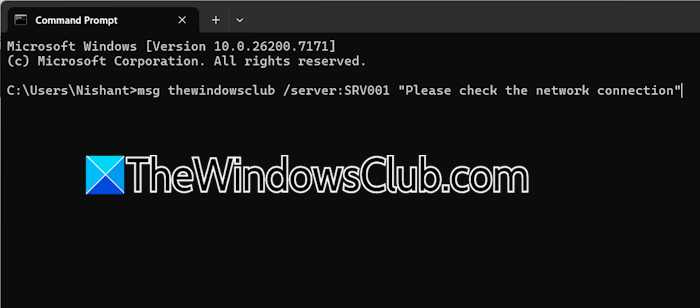
For example, if the username of the destination computer is thewindowsclub and the server name is SRV001, the command will be:
msg thewindowsclub /server:SRV001 "Please check the network connection"
<session name>
Use the session name if you want to send the message to the RDP computer. The syntax is as follows:
msg <session name> /server:<server name or address> "Your message here"
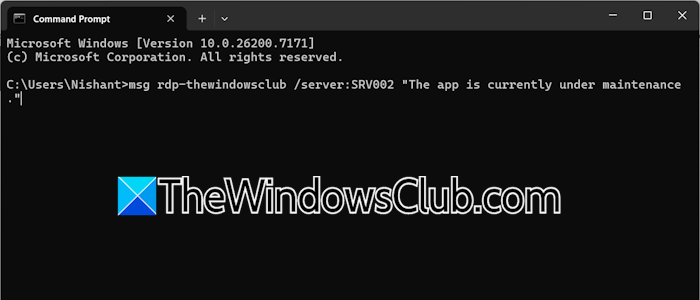
If the session name is rdp-thewindowsclub and the server name is SRV002, the command will be:
msg rdp-thewindowsclub /server:SRV002 "The app is currently under maintenance."
You can also use the session ID in place of the session name in the above command.
@<filename>
This parameter instructs the command to read the list of multiple targets (destination computers) from a local text file and send the message to all of them. The advantage of using this parameter is that you can send the same message to multiple remote computers instead of sending the message separately.
Use the following syntax:
msg @<filename> "Your message here"
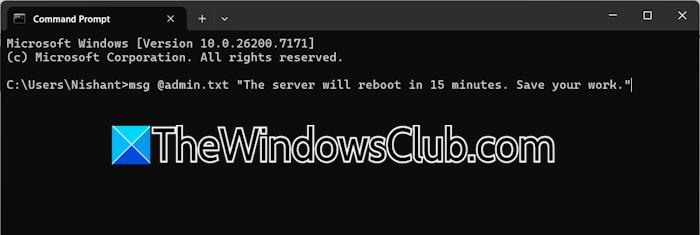
First, create a text file and write the names or addresses of all destination servers. The names or addresses should be one per line. Save the file locally on your system. Let’s say you save the file with the name admin.txt, the command will be:
msg @admin.txt "The server will reboot in 15 minutes. Save your work."
If you get an error while executing the above command, include the complete path of the saved text file along with its name.
*(Asterisk)
This parameter sends a message to all active sessions and users currently logged into a specific remote server. The syntax is as follows:
msg * /server:<server name or address> "Your message here"
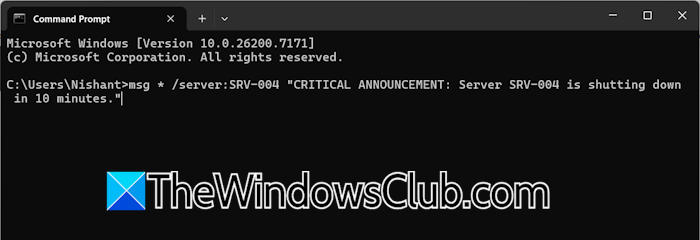
For example, if you want to send a message that the server is shutting down in 10 minutes to all users on a particular server, say server SRV004, the command will be::
msg * /server:SRV-004 "CRITICAL ANNOUNCEMENT: Server SRV-004 is shutting down in 10 minutes."
/time:<seconds>
If you want to display the sent message on the user’s computer screen for a particular time, you can use this parameter. You just have to specify the required time in seconds in the command.
The following command displays the message for 2 minutes to all the users on the server SRV-004.
msg * /server:SRV-004 /time:120 "Please log off immediately. Unplanned shutdown."
MSG is not recognized
You may encounter the following error in the Command Prompt while executing the MSG command:
MSG is not recognized as an internal or external command,
operable program or batch file.
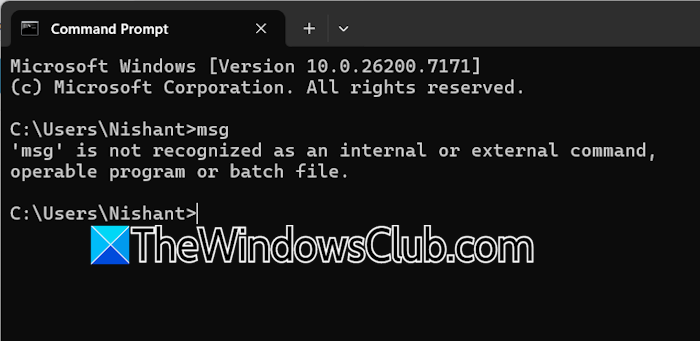
If so, the MSG.exe file may not be available on your system. To confirm this, open File Explorer and go to the following path:
C:\Windows\System32
Now, search for the MSG executable file. If the file is missing, your Windows version does not include it. But if the file is present there and you are still getting the MSG is not recognized error, you need to modify the Environment Variable on your system.
That’s it. I hope this helps.
MSG.exe is missing in Windows 11
The default location of MSG.exe is the System32 folder in the C drive. Most command-line executables are located in the System32 folder, and when you run them through CMD, Windows automatically fetches and executes those tools from the System32 directory. However, if a tool is missing in the System32 directory or not included in the system path, Windows displays the “not recognized as an internal or external command” error.
Windows displays the same error when you execute the MSG.exe through the Command Prompt in Windows 11 Home. This is because MSG.exe is not included in Windows 11 Home. If you go to the System32 folder and search for it, you will find it missing.
In the official documentation, Microsoft disclosed that the MSG tool is used to send a message to a user on a Remote Desktop Session Host Server. Since Remote Desktop is not available in Windows 11 Home edition, the MSG tool is also excluded in Windows 11 Home editions.
How to send SMS using CMD?
To send an SMS using CMD, you can use MSG.exe. It is a command-line utility in Windows Pro and Enterprise editions that sends a message to users on remote desktops on the same network. This tool is not supported on Windows Home editions.
Read next: Complete list of Command Prompt commands.
