
In this post, we will show you how to speed up calculating threads in Excel on a Windows 11/10 PC. Microsoft Excel is designed to handle large datasets and complex formulas. However, sometimes calculations can become slow, especially in workbooks with thousands of formulas, pivot tables, or linked sheets.
When this happens, Excel may lag, freeze temporarily, or take longer than expected to update results. To fix this, you can optimize how Excel uses calculation threads.
What is a calculation thread?
Before we dive into the methods, let’s understand the basics first. A thread is the smallest unit of work that a CPU can process. In simple terms, it is a small task that your computer works on at any given moment.
Modern processors have multiple cores, and each core can handle one or more threads at the same time. When you use formulas in Excel, it breaks large calculations into smaller tasks (threads) and distributes them across the processor. This allows Excel to work on several parts of a workbook simultaneously instead of calculating everything one step at a time.
If Excel is not using these threads efficiently, calculations may take longer than expected to complete.
How to speed up calculating threads in Excel
To speed up calculating threads in Excel on Windows 11/10, follow these methods:
- Ensure multi-threaded calculation is enabled
- Switch to Manual calculation mode
- Simplify and optimize formulas
- Optimize large workbooks
- Disable unnecessary add-ins
Let’s go through them one by one.
1] Ensure multi-threaded calculation is enabled
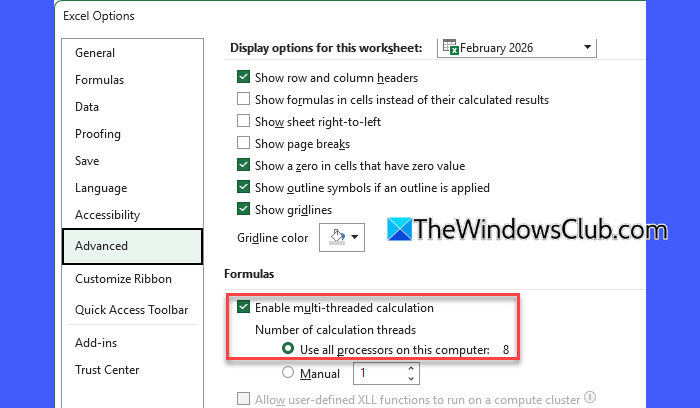
Multi-threaded calculation is a feature in Excel that allows it to divide formula calculations into multiple threads and process them at the same time using different CPU cores.
This feature is enabled by default in modern versions of Excel. However, it is possible that this setting was disabled manually at some point. In that case, Excel will process formulas one at a time, which can significantly slow down performance in large workbooks.
To prevent this, ensure multi-threaded calculation is enabled. Go to File > Options > Advanced. Scroll down to the Formulas section.
Check Enable multi-threaded calculation and select Use all processors on this computer, then click OK.
Note: If you are multitasking or running other resource-intensive applications, you may choose Manual and limit the thread count. This prevents Excel from consuming all CPU resources and helps maintain overall system responsiveness.
2] Switch to Manual calculation mode
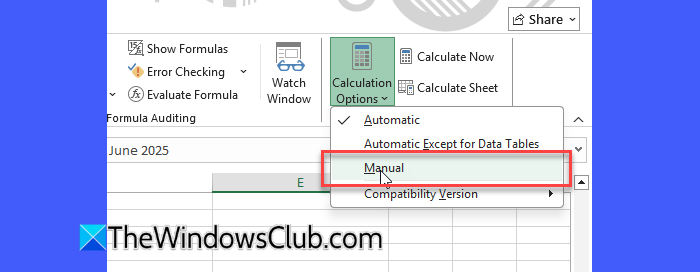
By default, Excel is set to Automatic calculation mode, which means it recalculates formulas every time you make a change in the worksheet.
While this is convenient, it can significantly slow down performance in large workbooks with thousands of formulas. Switching to Manual mode forces Excel to wait for your command to recalculate, preventing hundreds of unnecessary recalculations.
Open Excel. Go to the Formulas tab. Click Calculation Options in the Calculation group, then select Manual.
Once enabled, Excel will calculate formulas only when you press F9 (or choose Calculate Now from the Formulas tab). Remember to recalculate your workbook before saving or reviewing final results to ensure all formulas are up to date.
3] Simplify and optimize formulas
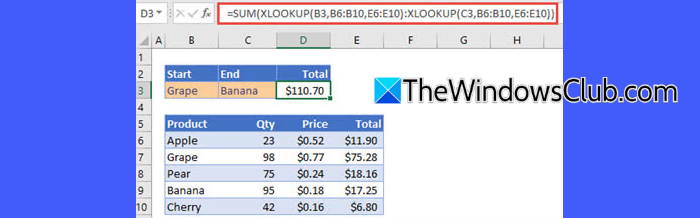
Complex or poorly structured formulas can slow down Excel’s calculation performance, especially in large workbooks. Simplifying formulas helps Excel calculate more efficiently and improves overall responsiveness.
Here’s how to optimize your formulas:
- Reduce volatile functions: Functions such as NOW(), TODAY(), RAND(), OFFSET(), and INDIRECT() recalculate whenever any change is made in the workbook. Limit their usage where possible, especially in large datasets.
- Break complex formulas into helper columns: Instead of using long nested formulas with multiple conditions, split calculations into smaller steps across helper columns.
- Choose efficient lookup functions: Older lookup functions like VLOOKUP() can be less efficient, especially when used repeatedly in large datasets. Where possible, use XLOOKUP() or the INDEX() and MATCH() combination for reduced calculation overhead and improved performance.
- Prefer SUMIFS, COUNTIFS, and AVERAGEIFS over array formulas: Modern functions like SUMIFS(), COUNTIFS(), and AVERAGEIFS() are significantly faster than complex array formulas. If a task can be completed using SUMIFS() instead of a nested SUM(IF()) array formula, choose the former.
4] Optimize large workbooks
Optimizing your workbook structure can significantly reduce calculation time and improve responsiveness.
- Avoid full-column references: Instead of using formulas like A:A or B:B, limit the range to only the cells you need (for example, A1:A1000). Full-column references force Excel to evaluate over a million rows.
- Remove unnecessary conditional formatting: Excessive conditional formatting rules can increase recalculation time. Delete unused rules and limit formatting to required ranges only.
- Convert unused formulas to values: If certain calculations no longer need to update dynamically, copy them and use Paste Special > Values to reduce calculation load.
- Use Excel tables: Format your data as an Excel Table by selecting the range and pressing Ctrl + T (or go to Insert > Table). Tables automatically expand when new data is added and allow you to use structured references (referencing a table column by its name instead of referencing a normal worksheet column by its letter). Structured references are more precise and help Excel calculate only the necessary data range.
5] Disable unnecessary add-ins
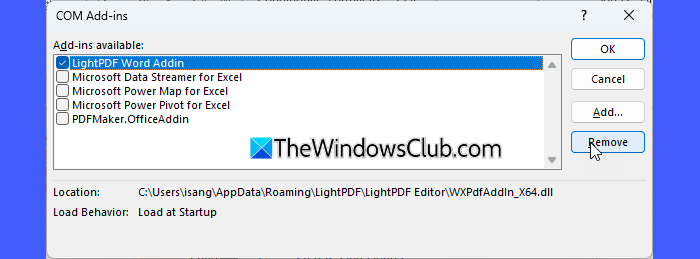
Excel add-ins can consume system resources and may slow down calculation performance, especially if multiple add-ins load at startup. If you are not actively using certain add-ins, consider disabling them to reduce background processing and improve responsiveness.
Go to File > Options > Add-ins, select COM Add-ins from the dropdown, click Go, and uncheck any add-ins you do not need. Restart Excel to apply the changes.
I hope you find this useful.
Read: Excel ran out of resources while attempting to calculate one or more formulas.
How do I get Excel to stop calculating 8 threads?
If Excel is using 8 threads and you want to limit it, go to File > Options > Advanced, scroll to the Formulas section, and select Manual under Number of calculation threads. Then enter a lower number such as, 4. This limits CPU usage and can help maintain system responsiveness while multitasking.
How to speed up Excel formula calculation?
To speed up Excel formula calculation, enable multi-threaded calculation and ensure it is set to use all available processors. You can also switch to Manual calculation mode, simplify complex formulas, and avoid full-column references. Optimizing large workbooks and disabling unnecessary add-ins can further improve performance.
Read Next: Excel Power Query keeps crashing with Error 0xC000026F.
